> ## Documentation Index
> Fetch the complete documentation index at: https://docs.aipower.org/llms.txt
> Use this file to discover all available pages before exploring further.
# AI Puffer Cloud
> Connect without an API key, verify your account email, choose models, and manage Cloud credits.
AI Puffer Cloud provides hosted AI models through one connection in WordPress. You do not need an OpenAI, Google, or other provider API key to use a Cloud model.
Cloud is optional and available with both Free and Pro. Eligible verified accounts receive **25 free credits each month**. Additional credits are optional one-time purchases.
## Connect
1. Open onboarding, or go to **AI Puffer > Settings > AI**.
2. Click **Connect** on the **AI Puffer Cloud** card. You can also open **Connect a provider** from a module and choose Cloud.
3. Check the email address. Use **Edit** to change it before connecting if needed.
4. Accept the connection terms. The product-news checkbox, where shown, is optional.
5. Click **Connect** and wait for the result.
6. If email verification is requested, confirm the address using the Freemius email. Return to WordPress and click **I’ve verified my email** in onboarding or the provider dialog, or **Check again** in Settings, to check the connection.
7. Choose a Cloud model in the module you want to use.
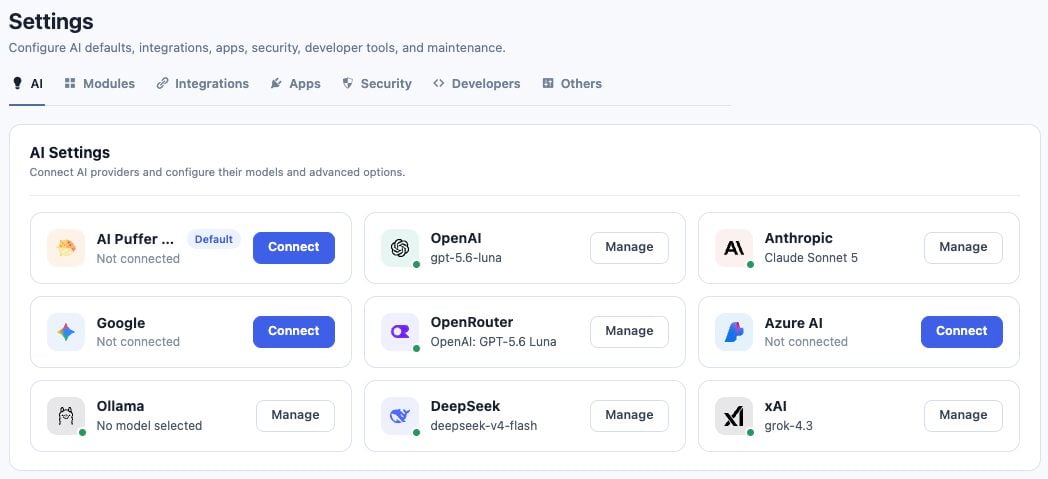 An already verified Freemius account normally needs only **Connect**. Subscribing to product emails or activating a Pro license does not automatically connect Cloud.
The provider dialog manages the connection and credentials. Model selection stays in the module’s model picker. After connecting from a module, that module switches to the connected provider; check its selected model before running a request.
## Models and supported features
The model picker shows the model names and groups Cloud text models by their underlying provider. Available models come from Cloud’s published catalog.
| Feature | Cloud support |
| - | - |
| Text generation | Chatbots, Content Writer, AI Forms, supported automations, and editor/content tools. |
| Image analysis | Supported text models with image-input capability, where the module supports uploads. |
| Image generation | Supported image models in Images, Chatbots, Content Writer, and automations. |
| Text to speech | Supported Cloud speech models and their available voices. |
| Speech to text | Supported Cloud transcription models. |
| Embeddings | Supported embedding models for Local, Pinecone, Qdrant, and Chroma. |
| Image editing, video generation | Not currently available through Cloud. Use a supported direct provider. |
| Realtime voice | Uses a separate direct OpenAI connection, not Cloud credits. |
| Provider-native web/file search | Not currently available through Cloud. Local or external vector retrieval can supply knowledge context. |
Pro-only features still require Pro. Connecting Cloud does not unlock them.
To load newly published models, open the Cloud controls in **Settings > AI** and click **Sync models**. Then reopen the module’s picker. In **Images > Settings > Frontend Models**, review any allowed-model restriction: a restricted list does not automatically allow every new model.
Text, image, speech, transcription, and embedding models are separate choices. A text model does not automatically support every operation. Reasoning controls appear only when the selected model supports them; unavailable reasoning options are not sent with the request.
## Credits
Open **AI Puffer > Usage > Overview** to see available, free, and purchased credits. **Requests** shows Cloud request history and credits used.
An already verified Freemius account normally needs only **Connect**. Subscribing to product emails or activating a Pro license does not automatically connect Cloud.
The provider dialog manages the connection and credentials. Model selection stays in the module’s model picker. After connecting from a module, that module switches to the connected provider; check its selected model before running a request.
## Models and supported features
The model picker shows the model names and groups Cloud text models by their underlying provider. Available models come from Cloud’s published catalog.
| Feature | Cloud support |
| - | - |
| Text generation | Chatbots, Content Writer, AI Forms, supported automations, and editor/content tools. |
| Image analysis | Supported text models with image-input capability, where the module supports uploads. |
| Image generation | Supported image models in Images, Chatbots, Content Writer, and automations. |
| Text to speech | Supported Cloud speech models and their available voices. |
| Speech to text | Supported Cloud transcription models. |
| Embeddings | Supported embedding models for Local, Pinecone, Qdrant, and Chroma. |
| Image editing, video generation | Not currently available through Cloud. Use a supported direct provider. |
| Realtime voice | Uses a separate direct OpenAI connection, not Cloud credits. |
| Provider-native web/file search | Not currently available through Cloud. Local or external vector retrieval can supply knowledge context. |
Pro-only features still require Pro. Connecting Cloud does not unlock them.
To load newly published models, open the Cloud controls in **Settings > AI** and click **Sync models**. Then reopen the module’s picker. In **Images > Settings > Frontend Models**, review any allowed-model restriction: a restricted list does not automatically allow every new model.
Text, image, speech, transcription, and embedding models are separate choices. A text model does not automatically support every operation. Reasoning controls appear only when the selected model supports them; unavailable reasoning options are not sent with the request.
## Credits
Open **AI Puffer > Usage > Overview** to see available, free, and purchased credits. **Requests** shows Cloud request history and credits used.
 The screenshot is an example account balance, not the included allowance.
| Balance | How it works |
| - | - |
| Free | Eligible verified accounts receive 25 credits per monthly period. Unused free credits expire; they do not roll over. The next renewal appears in Usage. |
| Purchased | Optional top-ups. Purchased credits do not expire and are shared across sites linked to the same Cloud account. |
| Available | Credits currently available for requests, after any open request reservations. |
Opening Usage refreshes the balance without blocking the page. Use **Refresh** to check again after a purchase or account change. Whole-number balance displays are rounded for readability; request records can show decimals.
### What a request costs
Cloud credits are not a promise of one message per credit. Text uses token-based pricing with a model-specific minimum charge. Longer responses, conversation history, instructions, and retrieved knowledge can increase usage. Image, audio, and embedding requests use the selected model’s operation-specific rates.
A model-picker estimate is an example cost, not the fixed cost of every request. One article can require several calls for writing, SEO fields, rewrites, or images. Each Cloud call uses credits.
Before sending a request, Cloud reserves enough credits for its allowed size. A request can be rejected even when a small positive balance is displayed. Reduce the output token limit, choose a lower-cost model, or add credits. The final charge is calculated after the response is processed.
### Buy credits
1. Open **AI Puffer > Usage > Overview**.
2. Click **Buy credits**.
3. Choose a pack in Freemius checkout.
4. Check the buyer email matches the Cloud account you want to fund, then complete the purchase.
5. Return to WordPress and refresh the page or balance.
See [Cloud top-up invoices](/user-portal#cloud-top-up-invoices) for payment records. A Cloud top-up does not purchase a Pro license.
## Knowledge with Cloud embeddings
**Local** stores source chunks and embedding vectors in your WordPress database. Cloud creates the embeddings; it does not host your Local knowledge store.
You can also use Cloud embeddings with Pinecone, Qdrant, or Chroma. The embedding provider and the storage provider are separate choices. Use the **same embedding model and output dimension** for indexing and searching a store.
See [Knowledge Base](/knowledge-base#local).
## Account email and verification
Use **Edit** beside the account email in onboarding, Cloud settings, a provider dialog, or Usage. This changes the AI Puffer/Freemius account identity; changing a WordPress profile email by itself does not change the connected Cloud account.
If the new address belongs to another account, the editor asks which addresses you own and whether to move only this site or merge account data. Read these choices carefully: an account merge affects more than the current site.
A new address or ownership change may need confirmation before the connection is ready. Free-credit eligibility can require review after an ownership change. Changing an email or reconnecting does not provide another free allowance. Purchased credits belong to the account identified by the purchase.
If no confirmation email arrives, check spam, confirm the address, and use **Resend email**. The resend status appears on the current screen. After confirming, return and check verification again.
## Disconnect
Click **Disconnect** in the Cloud account controls. Cloud requests from this site stop until it reconnects. Your direct provider keys remain available, and disconnecting does not refund a purchase or issue another monthly allowance.
## Data and billing boundaries
Cloud processes the request input required by the model, such as prompts, retrieved context, images, or audio, using its AI providers. Local knowledge is stored in WordPress, but embedding input and retrieved context still leave the site when sent to a hosted model. See the [privacy policy](https://aipower.org/privacy-policy/).
Cloud credits pay for hosted AI requests on your connected account. Your optional **WordPress visitor balances**, pricing rules, and WooCommerce credit packages are separate: selling credits to visitors does not add credits to Cloud. Direct provider models use that provider’s billing instead of Cloud credits.
## Troubleshooting
| Message or symptom | What to check |
| - | - |
| Email verification required | Confirm the Freemius email, then use **I’ve verified my email**. |
| Free credits need review | Review the account email/ownership change and contact support if needed. Repeated email changes do not reset eligibility. |
| Not enough credits | Check available credits and lower the output limit if the request reservation is too large. |
| New model missing | Refresh Cloud models and check module allowed-model restrictions. |
| Image request still processing or needs review | Check the existing request status before starting another generation. A pending request is not a confirmed failure. |
| Provider API-key error | Confirm the selected model is a Cloud model. A direct provider model uses its own credentials. |
The screenshot is an example account balance, not the included allowance.
| Balance | How it works |
| - | - |
| Free | Eligible verified accounts receive 25 credits per monthly period. Unused free credits expire; they do not roll over. The next renewal appears in Usage. |
| Purchased | Optional top-ups. Purchased credits do not expire and are shared across sites linked to the same Cloud account. |
| Available | Credits currently available for requests, after any open request reservations. |
Opening Usage refreshes the balance without blocking the page. Use **Refresh** to check again after a purchase or account change. Whole-number balance displays are rounded for readability; request records can show decimals.
### What a request costs
Cloud credits are not a promise of one message per credit. Text uses token-based pricing with a model-specific minimum charge. Longer responses, conversation history, instructions, and retrieved knowledge can increase usage. Image, audio, and embedding requests use the selected model’s operation-specific rates.
A model-picker estimate is an example cost, not the fixed cost of every request. One article can require several calls for writing, SEO fields, rewrites, or images. Each Cloud call uses credits.
Before sending a request, Cloud reserves enough credits for its allowed size. A request can be rejected even when a small positive balance is displayed. Reduce the output token limit, choose a lower-cost model, or add credits. The final charge is calculated after the response is processed.
### Buy credits
1. Open **AI Puffer > Usage > Overview**.
2. Click **Buy credits**.
3. Choose a pack in Freemius checkout.
4. Check the buyer email matches the Cloud account you want to fund, then complete the purchase.
5. Return to WordPress and refresh the page or balance.
See [Cloud top-up invoices](/user-portal#cloud-top-up-invoices) for payment records. A Cloud top-up does not purchase a Pro license.
## Knowledge with Cloud embeddings
**Local** stores source chunks and embedding vectors in your WordPress database. Cloud creates the embeddings; it does not host your Local knowledge store.
You can also use Cloud embeddings with Pinecone, Qdrant, or Chroma. The embedding provider and the storage provider are separate choices. Use the **same embedding model and output dimension** for indexing and searching a store.
See [Knowledge Base](/knowledge-base#local).
## Account email and verification
Use **Edit** beside the account email in onboarding, Cloud settings, a provider dialog, or Usage. This changes the AI Puffer/Freemius account identity; changing a WordPress profile email by itself does not change the connected Cloud account.
If the new address belongs to another account, the editor asks which addresses you own and whether to move only this site or merge account data. Read these choices carefully: an account merge affects more than the current site.
A new address or ownership change may need confirmation before the connection is ready. Free-credit eligibility can require review after an ownership change. Changing an email or reconnecting does not provide another free allowance. Purchased credits belong to the account identified by the purchase.
If no confirmation email arrives, check spam, confirm the address, and use **Resend email**. The resend status appears on the current screen. After confirming, return and check verification again.
## Disconnect
Click **Disconnect** in the Cloud account controls. Cloud requests from this site stop until it reconnects. Your direct provider keys remain available, and disconnecting does not refund a purchase or issue another monthly allowance.
## Data and billing boundaries
Cloud processes the request input required by the model, such as prompts, retrieved context, images, or audio, using its AI providers. Local knowledge is stored in WordPress, but embedding input and retrieved context still leave the site when sent to a hosted model. See the [privacy policy](https://aipower.org/privacy-policy/).
Cloud credits pay for hosted AI requests on your connected account. Your optional **WordPress visitor balances**, pricing rules, and WooCommerce credit packages are separate: selling credits to visitors does not add credits to Cloud. Direct provider models use that provider’s billing instead of Cloud credits.
## Troubleshooting
| Message or symptom | What to check |
| - | - |
| Email verification required | Confirm the Freemius email, then use **I’ve verified my email**. |
| Free credits need review | Review the account email/ownership change and contact support if needed. Repeated email changes do not reset eligibility. |
| Not enough credits | Check available credits and lower the output limit if the request reservation is too large. |
| New model missing | Refresh Cloud models and check module allowed-model restrictions. |
| Image request still processing or needs review | Check the existing request status before starting another generation. A pending request is not a confirmed failure. |
| Provider API-key error | Confirm the selected model is a Cloud model. A direct provider model uses its own credentials. |