> ## Documentation Index
> Fetch the complete documentation index at: https://docs.aipower.org/llms.txt
> Use this file to discover all available pages before exploring further.
# Images
> Add image and video generation tools to WordPress.
## Overview
Images adds a frontend generator to a WordPress page. Visitors enter a prompt, choose a provider and model if those controls are visible, and receive the generated media on the page.
Use it for image generation, image editing, Google video generation, logged-in user history, usage limits, logs, and connected app recipes.
In WordPress admin, go to **AI Puffer > Images**. Use the **Image Generator** tab to preview and publish the generator shortcode. Use the **Settings** tab for limits, UI text, custom CSS, and frontend model access.
Open the frontend image generator example.
See which providers support images, edits, and videos.
Let visitors create images from prompts.
Let visitors upload an image and describe changes.
Use Google video models from the frontend generator.
Embed the generator with a shortcode or block.
Configure the Limits, UI Text, Custom CSS, and Frontend Models tabs.
Send generated media events to external apps.
Review image, edit, and video activity.
## Providers
| Provider | Generate images | Edit images | Generate videos | Required setup |
| -------------- | --------------- | --------------------------------------------------- | --------------- | ------------------------------------------------------------------------------- |
| **OpenAI** | Yes | Yes | No | Add an OpenAI API key in **Settings > AI**, then sync models. |
| **Google** | Yes | Yes | Yes | Add a Google API key in **Settings > AI**, then sync image and video models. |
| **OpenRouter** | Yes | Yes, when the model supports image input and output | No | Add an OpenRouter API key in **Settings > AI**, then sync models. |
| **Azure** | Yes | No | No | Add the Azure API key and endpoint in **Settings > AI**, then sync deployments. |
| **xAI** | Yes | Yes | No | Add an xAI API key in **Settings > AI**, then sync image models. |
| **Replicate** | Yes | No | No | Add a Replicate API key in **Settings > Integrations**, then sync models. |
Set up at least one image provider before publishing the generator. If the model list is empty, configure the provider in [AI Providers](/ai-providers), sync models, then return to Images.
xAI image generation and image editing use xAI image models such as `grok-imagine-image`. Generated xAI URLs are temporary, so AI Puffer stores generated images in the WordPress Media Library when possible.
Image editing only works with OpenAI, Google, OpenRouter, and xAI models that support image editing. xAI edit mode accepts JPG/JPEG and PNG source images.
## Generate Images
To generate an image:
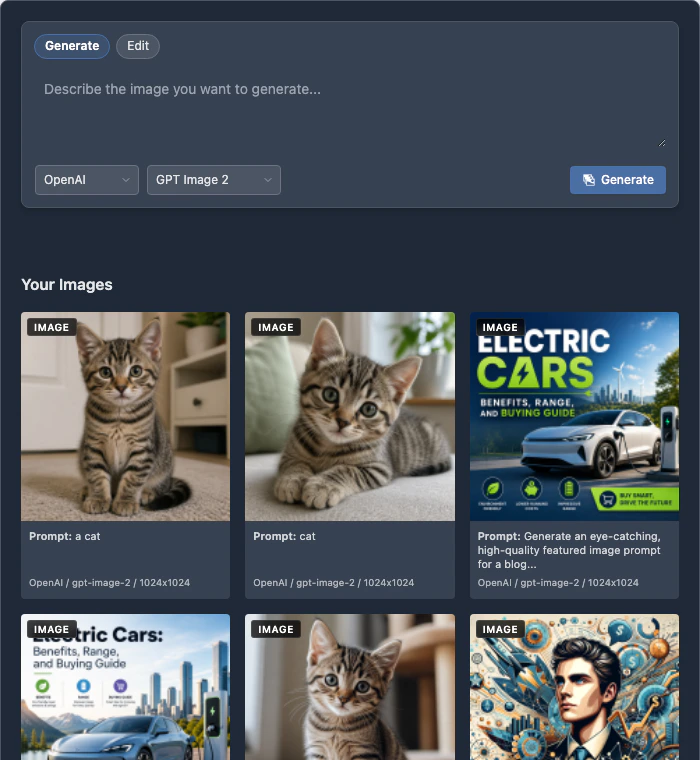
1. Open a page that contains the image generator.
2. Select the provider and model if those selectors are visible.
3. Enter the prompt.
4. Click **Generate**.
AI Puffer sends the prompt to the selected provider and displays the returned image in the results area. For logged-in users, generated images are saved to the WordPress Media Library.
 ## Edit Images
Use edit mode when visitors should upload an image and describe the change they want.
To enable edit mode from the Images screen:
1. Go to **AI Puffer > Images > Image Generator**.
2. Click the settings icon next to the shortcode.
3. Set **UI Mode** to **Edit only** or **Generate + Edit**.
4. If you choose **Generate + Edit**, choose the **Default Mode** and whether to show the mode switch.
5. Click the shortcode snippet to copy the updated shortcode.
6. Add it to a page.
To edit an image on the frontend:
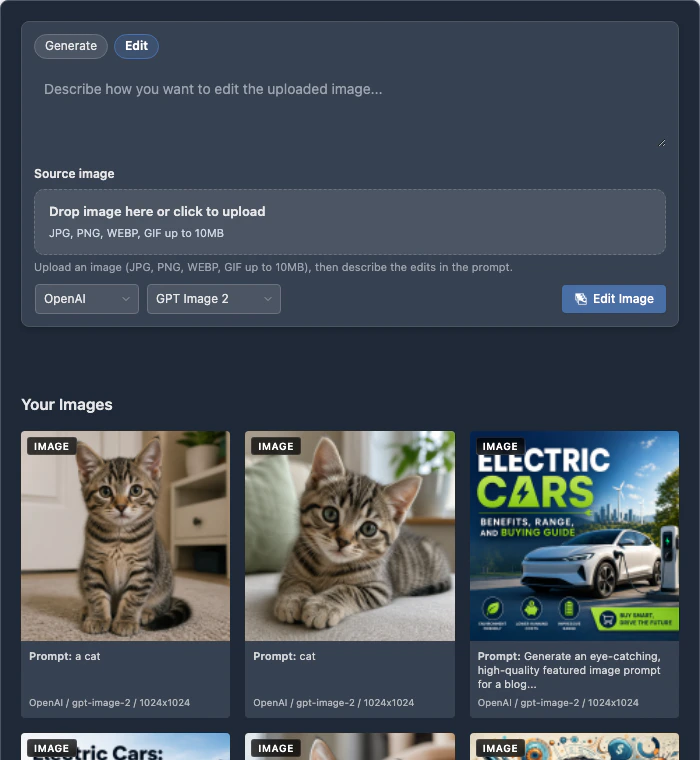
1. Select **Edit** if the mode switch is visible.
2. Select OpenAI, Google, OpenRouter, or xAI.
3. Select a model that supports editing.
4. Upload one source image.
5. Enter the edit prompt.
6. Click **Edit Image**.
| Upload rule | Value |
| ------------ | ------------------- |
| Files | One source image |
| Types | JPG, PNG, WEBP, GIF |
| xAI types | JPG, PNG |
| Maximum size | 10 MB |
## Edit Images
Use edit mode when visitors should upload an image and describe the change they want.
To enable edit mode from the Images screen:
1. Go to **AI Puffer > Images > Image Generator**.
2. Click the settings icon next to the shortcode.
3. Set **UI Mode** to **Edit only** or **Generate + Edit**.
4. If you choose **Generate + Edit**, choose the **Default Mode** and whether to show the mode switch.
5. Click the shortcode snippet to copy the updated shortcode.
6. Add it to a page.
To edit an image on the frontend:
1. Select **Edit** if the mode switch is visible.
2. Select OpenAI, Google, OpenRouter, or xAI.
3. Select a model that supports editing.
4. Upload one source image.
5. Enter the edit prompt.
6. Click **Edit Image**.
| Upload rule | Value |
| ------------ | ------------------- |
| Files | One source image |
| Types | JPG, PNG, WEBP, GIF |
| xAI types | JPG, PNG |
| Maximum size | 10 MB |
 ## Generate Videos
Video generation uses Google video models.
To use it:
1. Go to **AI Puffer > Settings > AI**.
2. Add the Google API key.
3. Sync Google models.
4. Return to **AI Puffer > Images**.
5. Publish the generator shortcode or block.
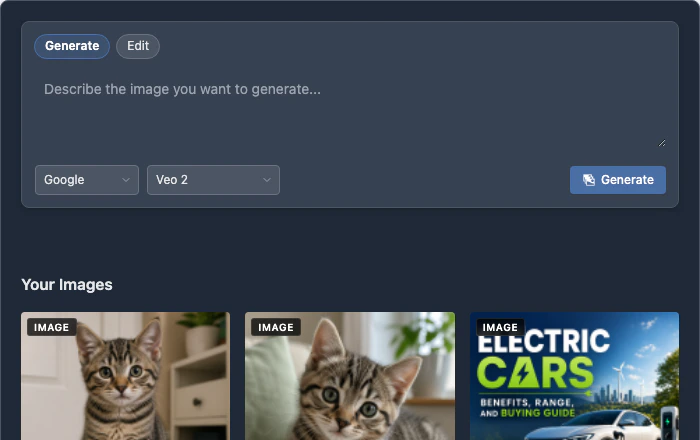
6. On the frontend, select **Google** and a video model.
7. Enter a prompt and click **Generate**.
Video generation is an async operation. Keep the page open while AI Puffer checks the status. Completed videos are saved as MP4 files in WordPress uploads.
## Generate Videos
Video generation uses Google video models.
To use it:
1. Go to **AI Puffer > Settings > AI**.
2. Add the Google API key.
3. Sync Google models.
4. Return to **AI Puffer > Images**.
5. Publish the generator shortcode or block.
6. On the frontend, select **Google** and a video model.
7. Enter a prompt and click **Generate**.
Video generation is an async operation. Keep the page open while AI Puffer checks the status. Completed videos are saved as MP4 files in WordPress uploads.
 ## Publish
### Shortcode
Add the basic shortcode to any page, post, or shortcode area:
```text theme={null}
[aipkit_image_generator]
```
Common examples:
```text theme={null}
[aipkit_image_generator mode="both" default_mode="generate"]
[aipkit_image_generator mode="edit"]
[aipkit_image_generator history="true"]
[aipkit_image_generator show_provider="false" show_model="false" provider="openai" model="gpt-image-2"]
[aipkit_image_generator show_provider="false" show_model="false" provider="xai" model="grok-imagine-image"]
[aipkit_image_generator theme="custom"]
```
Use the shortcode settings panel when you want to build the shortcode from the UI.
1. Go to **AI Puffer > Images > Image Generator**.
2. Click the settings icon beside the shortcode.
3. Choose the options you want.
4. Click the shortcode snippet to copy the updated shortcode.
5. Add it to a page or post.
## Publish
### Shortcode
Add the basic shortcode to any page, post, or shortcode area:
```text theme={null}
[aipkit_image_generator]
```
Common examples:
```text theme={null}
[aipkit_image_generator mode="both" default_mode="generate"]
[aipkit_image_generator mode="edit"]
[aipkit_image_generator history="true"]
[aipkit_image_generator show_provider="false" show_model="false" provider="openai" model="gpt-image-2"]
[aipkit_image_generator show_provider="false" show_model="false" provider="xai" model="grok-imagine-image"]
[aipkit_image_generator theme="custom"]
```
Use the shortcode settings panel when you want to build the shortcode from the UI.
1. Go to **AI Puffer > Images > Image Generator**.
2. Click the settings icon beside the shortcode.
3. Choose the options you want.
4. Click the shortcode snippet to copy the updated shortcode.
5. Add it to a page or post.
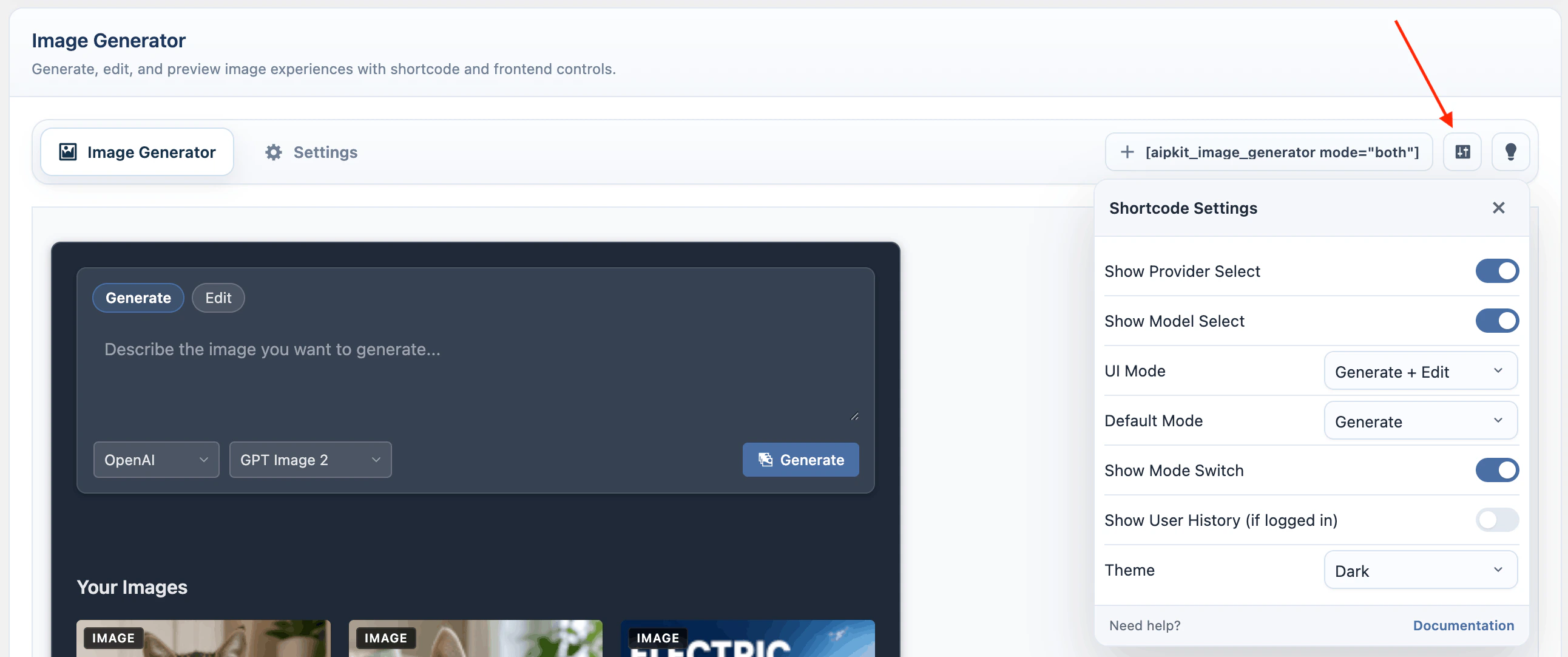 | Option | What it controls |
| ------------------------ | ---------------------------------------------------------------- |
| **Show Provider Select** | Shows or hides the provider dropdown. |
| **Show Model Select** | Shows or hides the model dropdown. |
| **UI Mode** | Generate only, Edit only, or Generate + Edit. |
| **Default Mode** | The first selected mode when both Generate and Edit are enabled. |
| **Show Mode Switch** | Lets visitors switch between Generate and Edit. |
| **Show User History** | Shows previous generated media for logged-in users. |
| **Theme** | Light, Dark, or Custom CSS. |
| Attribute | Values | Default |
| ------------------ | ------------------------------------------------------------- | --------------------------- |
| `show_provider` | `true`, `false` | `true` |
| `show_model` | `true`, `false` | `true` |
| `provider` | `openai`, `google`, `openrouter`, `azure`, `xai`, `replicate` | `openai` |
| `model` | Provider model ID | `gpt-image-2` |
| `mode` | `generate`, `edit`, `both` | `generate` |
| `default_mode` | `generate`, `edit` | `generate` |
| `show_mode_switch` | `true`, `false` | `true` when `mode="both"` |
| `history` | `true`, `false` | `false` |
| `theme` | `dark`, `light`, `custom` | `dark` |
| `allowed_models` | Comma-separated model IDs | Uses global Images settings |
When provider or model selectors are hidden, the shortcode uses the `provider` and `model` attributes as fixed values.
### Block
Use the block when you prefer the block editor.
1. Edit a page or post.
2. Add the **AI Puffer Image Generator** block.
3. Choose whether to show provider and model selectors.
4. Choose the UI mode.
5. Enable history if needed.
6. Choose the theme.
7. Save the page.
| Option | What it controls |
| ------------------------ | ---------------------------------------------------------------- |
| **Show Provider Select** | Shows or hides the provider dropdown. |
| **Show Model Select** | Shows or hides the model dropdown. |
| **UI Mode** | Generate only, Edit only, or Generate + Edit. |
| **Default Mode** | The first selected mode when both Generate and Edit are enabled. |
| **Show Mode Switch** | Lets visitors switch between Generate and Edit. |
| **Show User History** | Shows previous generated media for logged-in users. |
| **Theme** | Light, Dark, or Custom CSS. |
| Attribute | Values | Default |
| ------------------ | ------------------------------------------------------------- | --------------------------- |
| `show_provider` | `true`, `false` | `true` |
| `show_model` | `true`, `false` | `true` |
| `provider` | `openai`, `google`, `openrouter`, `azure`, `xai`, `replicate` | `openai` |
| `model` | Provider model ID | `gpt-image-2` |
| `mode` | `generate`, `edit`, `both` | `generate` |
| `default_mode` | `generate`, `edit` | `generate` |
| `show_mode_switch` | `true`, `false` | `true` when `mode="both"` |
| `history` | `true`, `false` | `false` |
| `theme` | `dark`, `light`, `custom` | `dark` |
| `allowed_models` | Comma-separated model IDs | Uses global Images settings |
When provider or model selectors are hidden, the shortcode uses the `provider` and `model` attributes as fixed values.
### Block
Use the block when you prefer the block editor.
1. Edit a page or post.
2. Add the **AI Puffer Image Generator** block.
3. Choose whether to show provider and model selectors.
4. Choose the UI mode.
5. Enable history if needed.
6. Choose the theme.
7. Save the page.
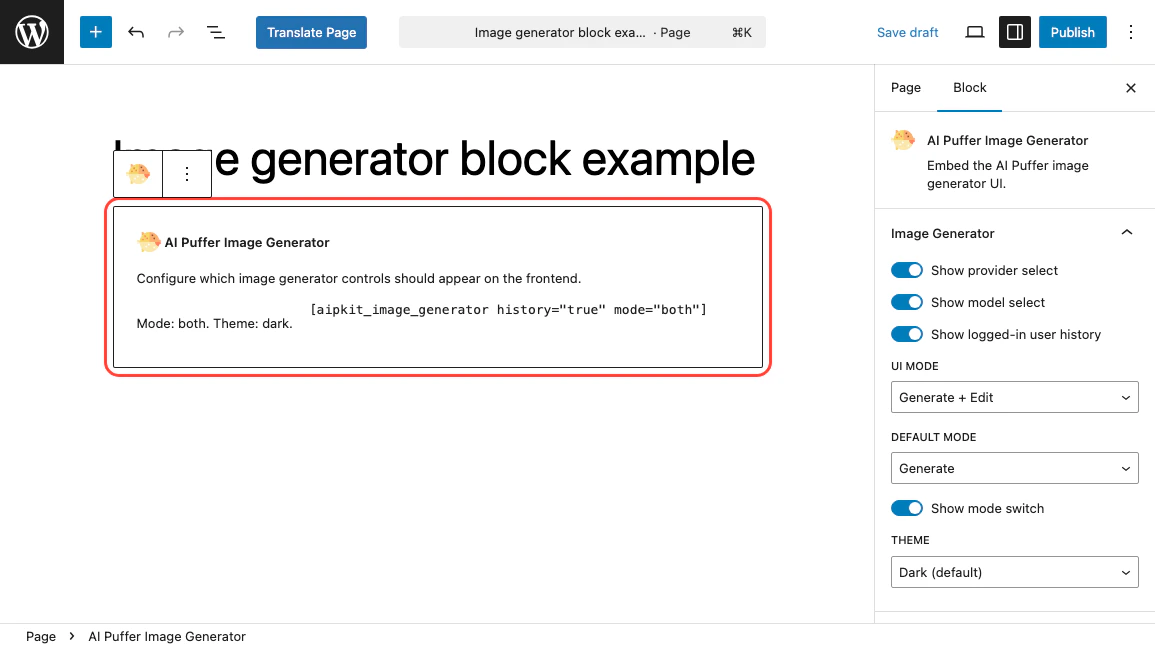 The block renders the same generator as the shortcode.
### User History
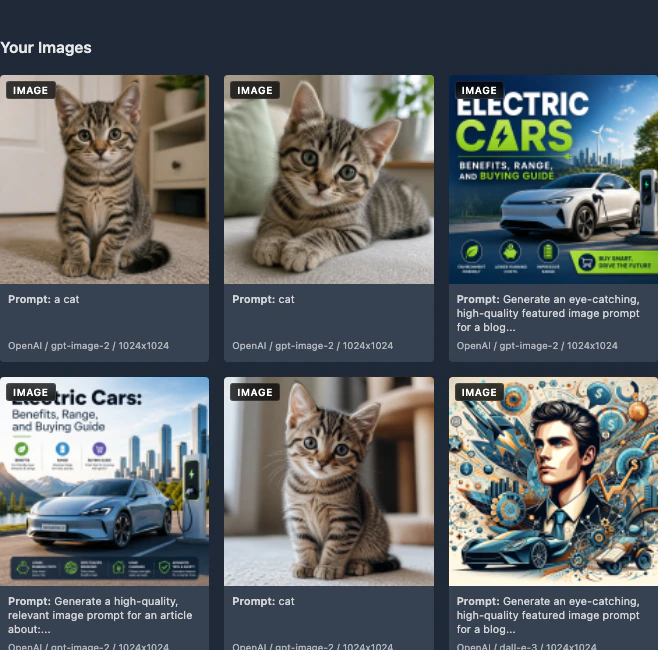
History shows previously generated images and videos for logged-in users.
To enable it, turn on **Show User History** in the shortcode settings panel, enable history in the block, or add `history="true"` to the shortcode.
| Action | Availability |
| ----------------- | -------------------------------------- |
| Open media | Images and videos |
| Delete media | Media owner or admin |
| Edit from history | Images only, when edit mode is enabled |
Guest generations are not shown in user history.
The block renders the same generator as the shortcode.
### User History
History shows previously generated images and videos for logged-in users.
To enable it, turn on **Show User History** in the shortcode settings panel, enable history in the block, or add `history="true"` to the shortcode.
| Action | Availability |
| ----------------- | -------------------------------------- |
| Open media | Images and videos |
| Delete media | Media owner or admin |
| Edit from history | Images only, when edit mode is enabled |
Guest generations are not shown in user history.
 ## Settings
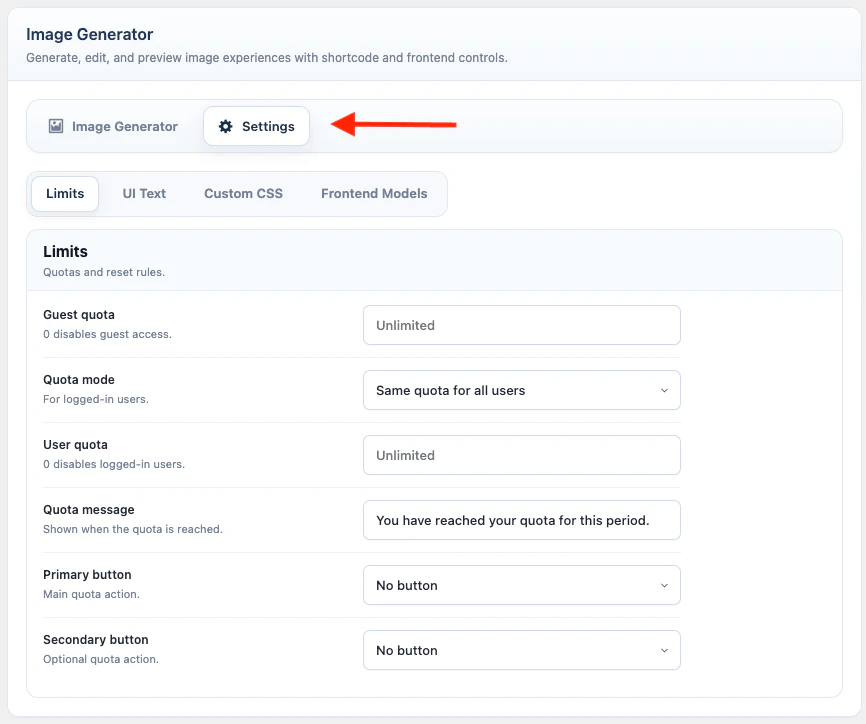
Open **AI Puffer > Images > Settings**.
The Settings screen is split into tabs.
| Tab | What it contains |
| ------------------- | ----------------------------------------------------------- |
| **Limits** | Guest, user, role, reset, and quota message settings. |
| **UI Text** | Frontend labels, placeholders, hints, and empty-state text. |
| **Custom CSS** | CSS for generators using the custom theme. |
| **Frontend Models** | Models visitors can select on the frontend. |
## Settings
Open **AI Puffer > Images > Settings**.
The Settings screen is split into tabs.
| Tab | What it contains |
| ------------------- | ----------------------------------------------------------- |
| **Limits** | Guest, user, role, reset, and quota message settings. |
| **UI Text** | Frontend labels, placeholders, hints, and empty-state text. |
| **Custom CSS** | CSS for generators using the custom theme. |
| **Frontend Models** | Models visitors can select on the frontend. |
 ### Limits
Limits control how much image generator usage is allowed for guests and logged-in users.
Open **Limits**.
1. Set **Guest quota**.
2. Choose **Quota mode** for logged-in users.
3. Set **User quota** or **Role-based quotas**.
4. Choose **Reset period**.
5. Edit **Quota reached message**.
6. Configure optional primary and secondary buttons.
| Value | Meaning |
| --------------- | ------------------------------------------ |
| Empty | Unlimited |
| `0` | Disabled |
| Positive number | Maximum allowed usage for the reset period |
Reset periods are **Never**, **Daily**, **Weekly**, and **Monthly**.
For credit-based image access, define pricing rules in [Usage](/usage#pricing-rules). To sell prepaid credits, create WooCommerce credit packages in [Usage](/usage#woocommerce-credit-packages).
### UI Text
UI Text changes the frontend labels without editing code.
Open **UI Text**.
| Field | Default |
| ------------------------------- | ------------------------------------------------------- |
| **Generate button label** | Generate |
| **Edit button label** | Edit Image |
| **Mode tab label (Generate)** | Generate |
| **Mode tab label (Edit)** | Edit |
| **Generate prompt placeholder** | Describe the image you want to generate... |
| **Edit prompt placeholder** | Describe how you want to edit the uploaded image... |
| **Source image label** | Source image |
| **Upload dropzone title** | Drop image here or click to upload |
| **Upload dropzone meta** | JPG, PNG, WEBP, GIF up to 10MB |
| **Upload hint** | Upload an image, then describe the edits in the prompt. |
| **History title** | Your Images |
| **Results empty text** | Generated images will appear here. |
### Custom CSS
Custom CSS applies to generators using the custom theme.
Open **Custom CSS**.
Use the custom theme in the shortcode:
```text theme={null}
[aipkit_image_generator theme="custom"]
```
Then target the custom wrapper:
```css theme={null}
.aipkit_image_generator_public_wrapper.aipkit-theme-custom {
/* custom styles */
}
```
### Frontend Models
Frontend Models controls which models visitors can select when the frontend provider or model selectors are visible.
Open **Frontend Models**.
1. Select the models visitors can use.
2. Leave all models unselected if you want to allow every configured image and video model.
3. Save the settings.
AI Puffer builds the frontend provider list from the selected allowed models. For example, if you only select OpenAI models, the frontend provider selector only shows OpenAI.
You can override the global setting for one page with the `allowed_models` shortcode attribute.
## Connected Apps
Connected Apps can run a recipe after a successful image or video generation.
1. Go to **AI Puffer > Settings > Apps**.
2. Connect the app or webhook destination.
3. Create a recipe that uses the **Image Generated** event.
4. Publish the image generator on a page.
5. Generate an image or video to test the recipe.
AI Puffer emits `image.generated` after the output is complete. For payload fields, see [Event Webhooks](/event-webhooks).
## Logs
Image and video requests are logged with the module set to `image_generator`.
Logs can include the prompt, provider, model, mode, usage, WordPress user, guest session, and edit source image metadata. Source image binary data is not stored in the log.
Usage operations:
| Operation | Used for |
| ---------------- | ----------------------- |
| `generate` | Image generation |
| `edit` | Image editing |
| `video_generate` | Google video generation |
## Troubleshooting
Check that Images is enabled in **AI Puffer > Dashboard** and that the shortcode is on a published page. Admin users may see a module-disabled message; visitors see empty output.
Configure the provider in **AI Puffer > Settings > AI** or **Settings > Integrations**, sync models, then reload the Images screen. If Frontend Models is restricted, confirm that the selected models still exist.
Use OpenAI, Google, or OpenRouter. The selected model must support image editing, and the visitor must upload one JPG, PNG, WEBP, or GIF image under 10 MB.
Google video generation can take time. Keep the page open while AI Puffer checks the operation status. If it times out, try a shorter prompt and review the related log entry.
History only appears for logged-in users. Enable **Show User History** in the shortcode settings panel, enable history in the block, or add `history="true"` to the shortcode.
Open **AI Puffer > Images > Settings > Limits** and review the guest, user, or role-based quota. If you sell credits, also check the user's balance and the pricing rules in [Usage](/usage).
### Limits
Limits control how much image generator usage is allowed for guests and logged-in users.
Open **Limits**.
1. Set **Guest quota**.
2. Choose **Quota mode** for logged-in users.
3. Set **User quota** or **Role-based quotas**.
4. Choose **Reset period**.
5. Edit **Quota reached message**.
6. Configure optional primary and secondary buttons.
| Value | Meaning |
| --------------- | ------------------------------------------ |
| Empty | Unlimited |
| `0` | Disabled |
| Positive number | Maximum allowed usage for the reset period |
Reset periods are **Never**, **Daily**, **Weekly**, and **Monthly**.
For credit-based image access, define pricing rules in [Usage](/usage#pricing-rules). To sell prepaid credits, create WooCommerce credit packages in [Usage](/usage#woocommerce-credit-packages).
### UI Text
UI Text changes the frontend labels without editing code.
Open **UI Text**.
| Field | Default |
| ------------------------------- | ------------------------------------------------------- |
| **Generate button label** | Generate |
| **Edit button label** | Edit Image |
| **Mode tab label (Generate)** | Generate |
| **Mode tab label (Edit)** | Edit |
| **Generate prompt placeholder** | Describe the image you want to generate... |
| **Edit prompt placeholder** | Describe how you want to edit the uploaded image... |
| **Source image label** | Source image |
| **Upload dropzone title** | Drop image here or click to upload |
| **Upload dropzone meta** | JPG, PNG, WEBP, GIF up to 10MB |
| **Upload hint** | Upload an image, then describe the edits in the prompt. |
| **History title** | Your Images |
| **Results empty text** | Generated images will appear here. |
### Custom CSS
Custom CSS applies to generators using the custom theme.
Open **Custom CSS**.
Use the custom theme in the shortcode:
```text theme={null}
[aipkit_image_generator theme="custom"]
```
Then target the custom wrapper:
```css theme={null}
.aipkit_image_generator_public_wrapper.aipkit-theme-custom {
/* custom styles */
}
```
### Frontend Models
Frontend Models controls which models visitors can select when the frontend provider or model selectors are visible.
Open **Frontend Models**.
1. Select the models visitors can use.
2. Leave all models unselected if you want to allow every configured image and video model.
3. Save the settings.
AI Puffer builds the frontend provider list from the selected allowed models. For example, if you only select OpenAI models, the frontend provider selector only shows OpenAI.
You can override the global setting for one page with the `allowed_models` shortcode attribute.
## Connected Apps
Connected Apps can run a recipe after a successful image or video generation.
1. Go to **AI Puffer > Settings > Apps**.
2. Connect the app or webhook destination.
3. Create a recipe that uses the **Image Generated** event.
4. Publish the image generator on a page.
5. Generate an image or video to test the recipe.
AI Puffer emits `image.generated` after the output is complete. For payload fields, see [Event Webhooks](/event-webhooks).
## Logs
Image and video requests are logged with the module set to `image_generator`.
Logs can include the prompt, provider, model, mode, usage, WordPress user, guest session, and edit source image metadata. Source image binary data is not stored in the log.
Usage operations:
| Operation | Used for |
| ---------------- | ----------------------- |
| `generate` | Image generation |
| `edit` | Image editing |
| `video_generate` | Google video generation |
## Troubleshooting
Check that Images is enabled in **AI Puffer > Dashboard** and that the shortcode is on a published page. Admin users may see a module-disabled message; visitors see empty output.
Configure the provider in **AI Puffer > Settings > AI** or **Settings > Integrations**, sync models, then reload the Images screen. If Frontend Models is restricted, confirm that the selected models still exist.
Use OpenAI, Google, or OpenRouter. The selected model must support image editing, and the visitor must upload one JPG, PNG, WEBP, or GIF image under 10 MB.
Google video generation can take time. Keep the page open while AI Puffer checks the operation status. If it times out, try a shorter prompt and review the related log entry.
History only appears for logged-in users. Enable **Show User History** in the shortcode settings panel, enable history in the block, or add `history="true"` to the shortcode.
Open **AI Puffer > Images > Settings > Limits** and review the guest, user, or role-based quota. If you sell credits, also check the user's balance and the pricing rules in [Usage](/usage).