> ## Documentation Index
> Fetch the complete documentation index at: https://docs.aipower.org/llms.txt
> Use this file to discover all available pages before exploring further.
# Installation
> Install the free plugin or upload the Pro plugin ZIP file.
AI Puffer can be installed from the WordPress plugin directory or uploaded as a ZIP file.
Use the free version first if you want to test the plugin before buying Pro. Use the Pro ZIP file if you already purchased a license.
Install from the WordPress plugin directory.
Upload a plugin ZIP file from WordPress.org, your purchase email, or the User Portal.
## Install the free version
1. Open your WordPress admin dashboard.
2. Go to **Plugins > Add New**.
3. Search for **AI Puffer**.
4. Click **Install Now**.
5. Click **Activate** after the installation finishes.
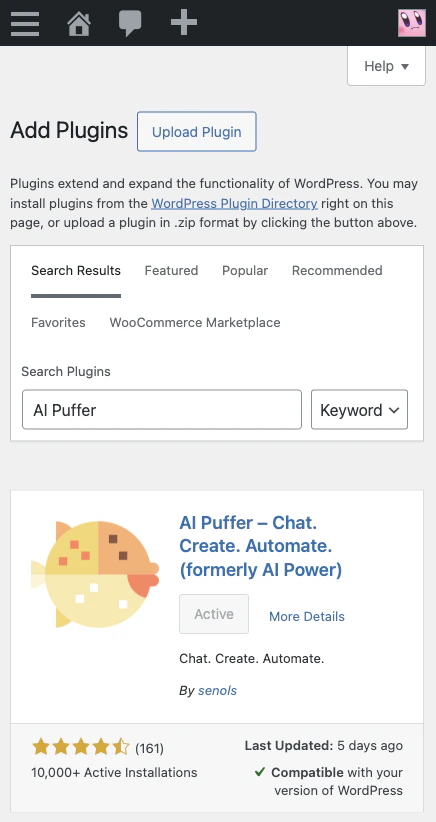 If the button says **Active**, the plugin is already installed and active on that site.
After activation, open **AI Puffer** from the WordPress admin menu.
## Upload a plugin ZIP file
Use this method if you downloaded the plugin ZIP from WordPress.org, your purchase email, or the User Portal.
1. Open your WordPress admin dashboard.
2. Go to **Plugins > Add New**.
3. Click **Upload Plugin**.
4. Choose the plugin ZIP file.
5. Click **Install Now**.
6. Click **Activate Plugin**.
If the button says **Active**, the plugin is already installed and active on that site.
After activation, open **AI Puffer** from the WordPress admin menu.
## Upload a plugin ZIP file
Use this method if you downloaded the plugin ZIP from WordPress.org, your purchase email, or the User Portal.
1. Open your WordPress admin dashboard.
2. Go to **Plugins > Add New**.
3. Click **Upload Plugin**.
4. Choose the plugin ZIP file.
5. Click **Install Now**.
6. Click **Activate Plugin**.
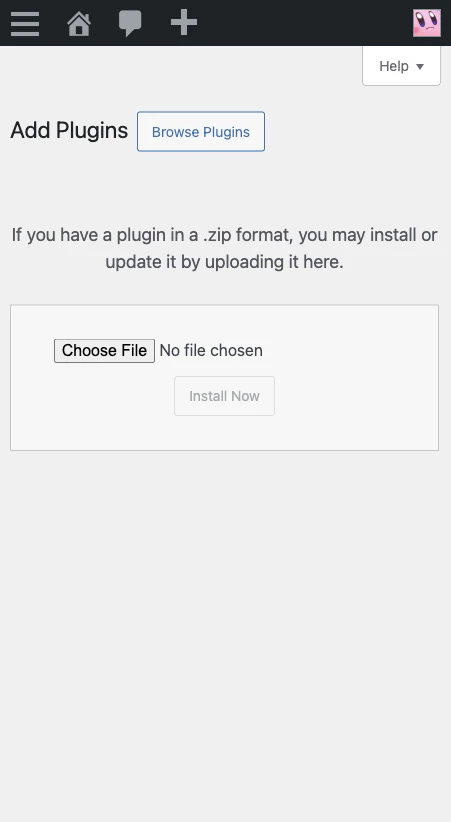 Upload the `.zip` file directly. Do not unzip the plugin before uploading it to WordPress.
## Upgrade from Free to Pro
You can upgrade from inside WordPress or from the AI Puffer website.
### From WordPress
1. Install and activate the free version.
2. Open **AI Puffer** in the WordPress admin menu.
3. Click **Upgrade**.
4. Choose your license.
5. Complete checkout.
Upload the `.zip` file directly. Do not unzip the plugin before uploading it to WordPress.
## Upgrade from Free to Pro
You can upgrade from inside WordPress or from the AI Puffer website.
### From WordPress
1. Install and activate the free version.
2. Open **AI Puffer** in the WordPress admin menu.
3. Click **Upgrade**.
4. Choose your license.
5. Complete checkout.
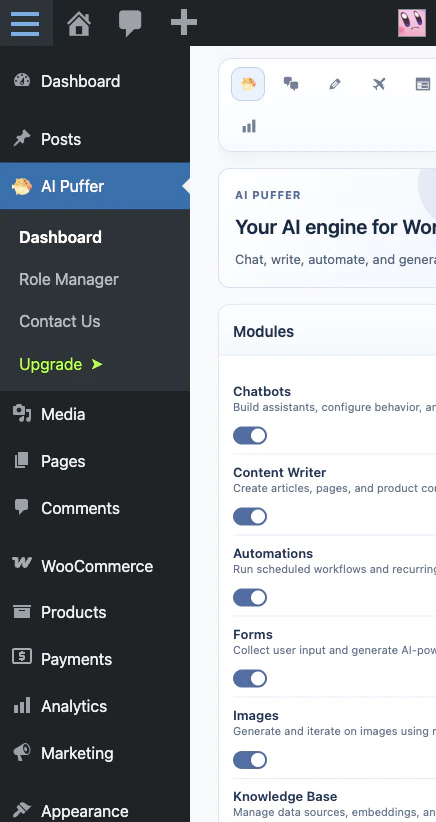 After checkout, you will receive an email with your license key and the Pro plugin download link.
### From the website
1. Open the [AI Puffer pricing page](https://aipower.org/pricing/).
2. Choose a license.
3. Complete checkout.
4. Check your email for the license key and Pro plugin download link.
## Safari ZIP setting
If you use Safari on macOS, make sure Safari does not automatically unzip downloaded files.
1. Open Safari.
2. Go to **Safari > Settings**.
3. Open the **General** tab.
4. Turn off **Open "safe" files after downloading**.
WordPress needs the `.zip` file. If Safari already extracted it, download the file again after changing this setting.
After checkout, you will receive an email with your license key and the Pro plugin download link.
### From the website
1. Open the [AI Puffer pricing page](https://aipower.org/pricing/).
2. Choose a license.
3. Complete checkout.
4. Check your email for the license key and Pro plugin download link.
## Safari ZIP setting
If you use Safari on macOS, make sure Safari does not automatically unzip downloaded files.
1. Open Safari.
2. Go to **Safari > Settings**.
3. Open the **General** tab.
4. Turn off **Open "safe" files after downloading**.
WordPress needs the `.zip` file. If Safari already extracted it, download the file again after changing this setting.