> ## Documentation Index
> Fetch the complete documentation index at: https://docs.aipower.org/llms.txt
> Use this file to discover all available pages before exploring further.
# Usage
> Review logs, manage credits, define pricing rules, and sell credit packages.
## Overview
Usage is where you review saved AI activity and manage AI Puffer credits.
In WordPress admin, go to **AI Puffer > Usage**.
The screen has two tabs: **Logs** and **Billing**. Logs are for reviewing saved requests and conversations. Billing is for pricing rules, ledger activity, user balances, and WooCommerce credit packages.
AI Puffer credits are internal plugin credits. They do not replace OpenAI, Google, Anthropic, xAI, Replicate, or other provider billing. Provider API usage is still billed by the provider account you connect.
Search, inspect, export, delete, and retain saved activity.
Define how model usage is converted into AI Puffer credits.
Review credits added, debited balances, and usage entries.
Edit user balances and reset periodic usage.
Sell credit packages and publish a customer dashboard.
Check common setup and billing issues.
 Key terms:
| Term | Meaning |
| ---------------- | ---------------------------------------------------------------- |
| **Credit** | An internal AI Puffer unit stored on a logged-in user's account. |
| **Balance** | The user's available prepaid credits. |
| **Quota** | A periodic usage limit for guests, users, or roles. |
| **Pricing rule** | A rule that turns model usage into credits. |
| **Ledger** | A record of purchases, admin balance changes, and usage. |
## Logs
Open **AI Puffer > Usage > Logs**.
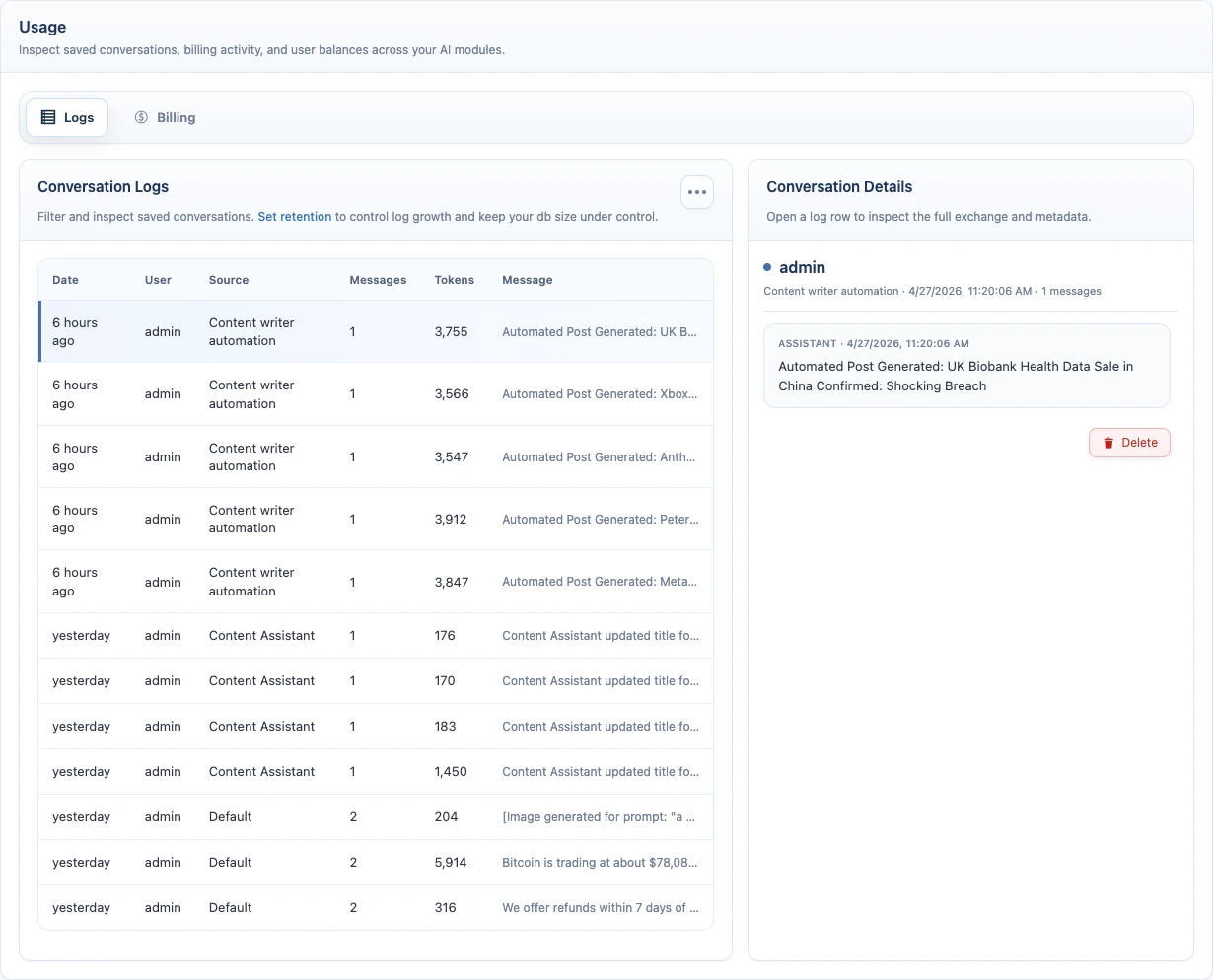
Logs show saved activity from AI Puffer modules. Use them to review conversations, inspect request metadata, check vector search results, export records, and control retention.
### Conversation Logs
Conversation logs store the saved message history for chatbot and other AI requests. Use filters to find the records you need, then open a row to inspect the full exchange.
| Control | Use it for |
| --------------- | -------------------------------------------- |
| **Search logs** | Search saved log content. |
| **Chatbot** | Show all bots, one bot, or logs with no bot. |
| **Module** | Filter by module. |
| **Date range** | Show the last 7, 30, or 90 days. |
| **Export logs** | Download matching logs as a CSV file. |
| **Delete logs** | Delete logs matching the active filters. |
Click a row to open **Conversation Details**. The detail panel shows the full exchange, timestamps, provider and model metadata, usage tokens, request payloads when saved, and a delete button for that single log.
Key terms:
| Term | Meaning |
| ---------------- | ---------------------------------------------------------------- |
| **Credit** | An internal AI Puffer unit stored on a logged-in user's account. |
| **Balance** | The user's available prepaid credits. |
| **Quota** | A periodic usage limit for guests, users, or roles. |
| **Pricing rule** | A rule that turns model usage into credits. |
| **Ledger** | A record of purchases, admin balance changes, and usage. |
## Logs
Open **AI Puffer > Usage > Logs**.
Logs show saved activity from AI Puffer modules. Use them to review conversations, inspect request metadata, check vector search results, export records, and control retention.
### Conversation Logs
Conversation logs store the saved message history for chatbot and other AI requests. Use filters to find the records you need, then open a row to inspect the full exchange.
| Control | Use it for |
| --------------- | -------------------------------------------- |
| **Search logs** | Search saved log content. |
| **Chatbot** | Show all bots, one bot, or logs with no bot. |
| **Module** | Filter by module. |
| **Date range** | Show the last 7, 30, or 90 days. |
| **Export logs** | Download matching logs as a CSV file. |
| **Delete logs** | Delete logs matching the active filters. |
Click a row to open **Conversation Details**. The detail panel shows the full exchange, timestamps, provider and model metadata, usage tokens, request payloads when saved, and a delete button for that single log.
 ### Vector Scores
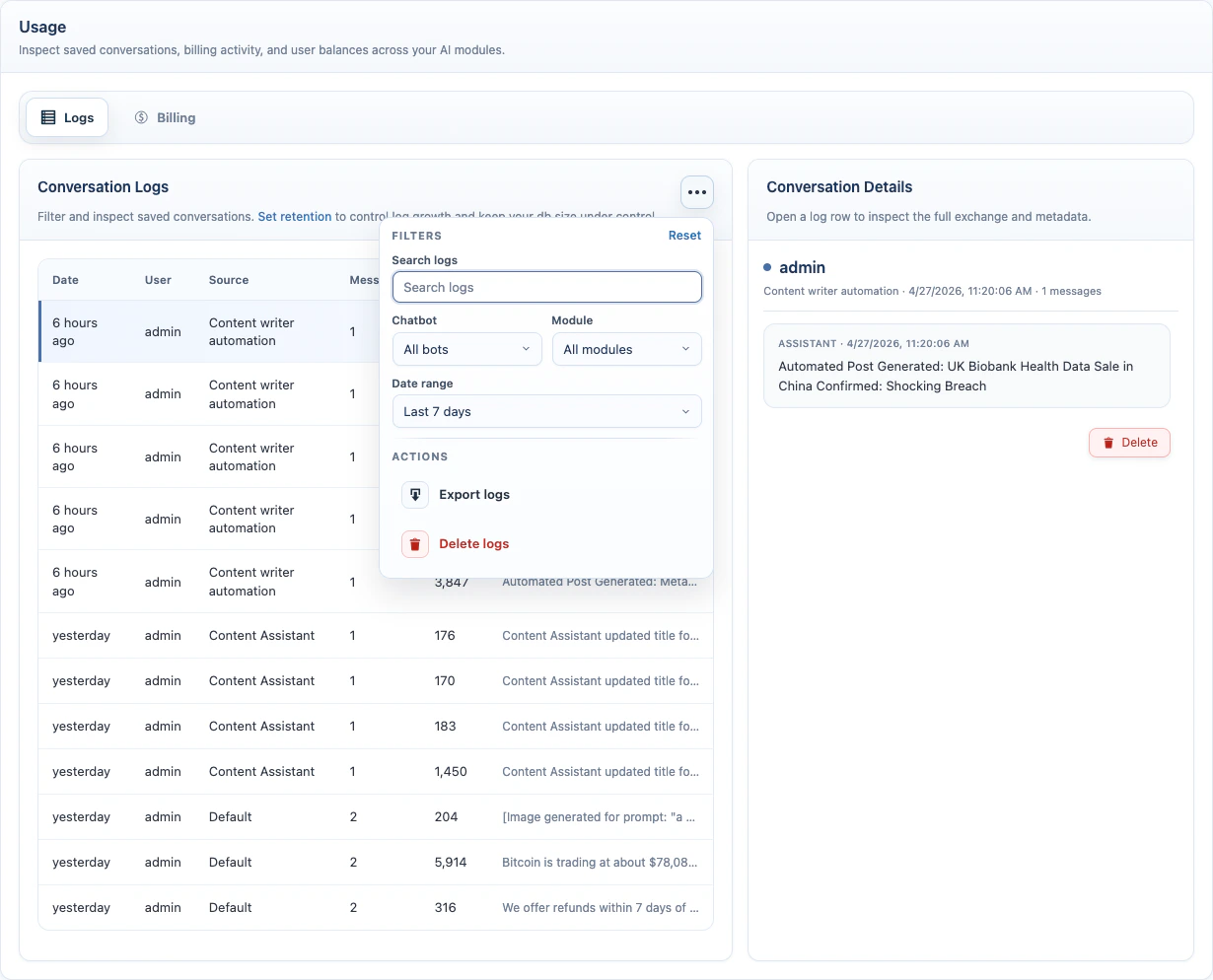
When a chatbot, Content Writer request, or other AI request uses vector context, the assistant message can show a **Score** badge.
The score shows how closely the retrieved content matched the user's request. Click the badge to see the vector provider, source, score, and content preview.
Use scores to tune Knowledge Base retrieval. If useful content is not being used, lower the threshold or increase the result limit. If unrelated content is used, raise the threshold.
| Score | Meaning |
| ------------- | ------------------------------------------------------ |
| **85%+** | Strong match. |
| **70-84%** | Usually useful. |
| **50-69%** | Weak match. Review the source text. |
| **Below 50%** | Poor match. The answer may be using unrelated context. |
Scores explain retrieval quality. They do not grade the final AI answer.
### Vector Scores
When a chatbot, Content Writer request, or other AI request uses vector context, the assistant message can show a **Score** badge.
The score shows how closely the retrieved content matched the user's request. Click the badge to see the vector provider, source, score, and content preview.
Use scores to tune Knowledge Base retrieval. If useful content is not being used, lower the threshold or increase the result limit. If unrelated content is used, raise the threshold.
| Score | Meaning |
| ------------- | ------------------------------------------------------ |
| **85%+** | Strong match. |
| **70-84%** | Usually useful. |
| **50-69%** | Weak match. Review the source text. |
| **Below 50%** | Poor match. The answer may be using unrelated context. |
Scores explain retrieval quality. They do not grade the final AI answer.
 ### Export and Delete
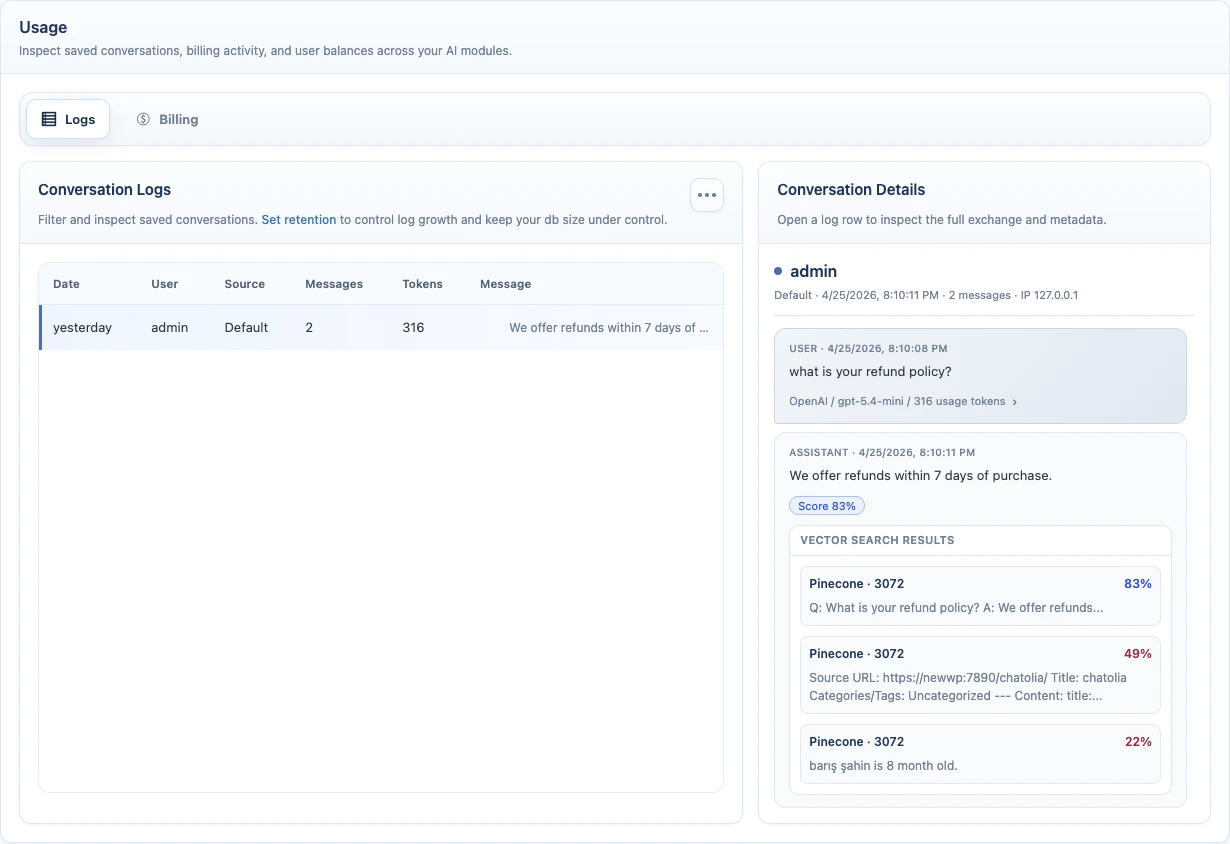
To export logs:
1. Open **AI Puffer > Usage > Logs**.
2. Apply filters if needed.
3. Open the actions menu.
4. Click **Export logs**.
The CSV includes log ID, date, user, source, module, message count, token count, preview, and conversation UUID.
To delete logs:
1. Open **AI Puffer > Usage > Logs**.
2. Apply filters if you only want to delete part of the log history.
3. Open the actions menu.
4. Click **Delete logs**.
5. Confirm the action.
To delete one conversation, open the row and click **Delete** in Conversation Details.
### Log Retention
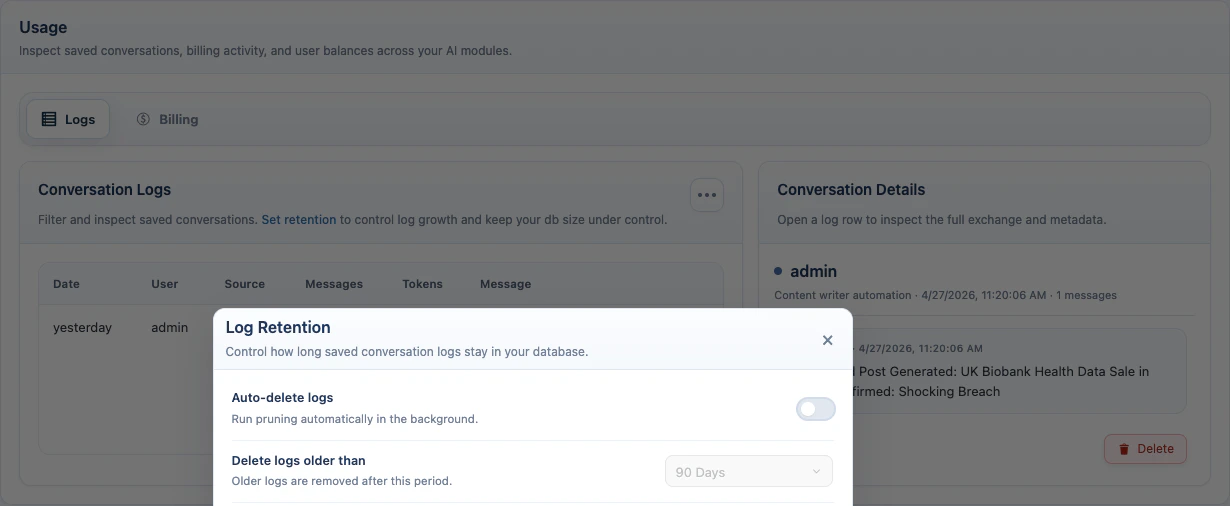
Log retention automatically removes old logs.
To configure it:
1. Open **AI Puffer > Usage > Logs**.
2. Click **Set retention**.
3. Enable **Auto-delete logs**.
4. Choose **Delete logs older than**.
5. Save the setting.
Available retention periods:
```text theme={null}
1 day
3 days
7 days
15 days
30 days
60 days
90 days
6 months
1 year
```
The retention modal also shows the pruning schedule and last run time.
### Export and Delete
To export logs:
1. Open **AI Puffer > Usage > Logs**.
2. Apply filters if needed.
3. Open the actions menu.
4. Click **Export logs**.
The CSV includes log ID, date, user, source, module, message count, token count, preview, and conversation UUID.
To delete logs:
1. Open **AI Puffer > Usage > Logs**.
2. Apply filters if you only want to delete part of the log history.
3. Open the actions menu.
4. Click **Delete logs**.
5. Confirm the action.
To delete one conversation, open the row and click **Delete** in Conversation Details.
### Log Retention
Log retention automatically removes old logs.
To configure it:
1. Open **AI Puffer > Usage > Logs**.
2. Click **Set retention**.
3. Enable **Auto-delete logs**.
4. Choose **Delete logs older than**.
5. Save the setting.
Available retention periods:
```text theme={null}
1 day
3 days
7 days
15 days
30 days
60 days
90 days
6 months
1 year
```
The retention modal also shows the pruning schedule and last run time.
 ## Billing
Open **AI Puffer > Usage > Billing**.
Billing connects three things:
1. **Pricing rules** decide how much a request costs in AI Puffer credits.
2. **Balances** store prepaid credits for logged-in users.
3. **Quotas** limit usage for guests, users, or roles when a balance is not enough.
For logged-in users, AI Puffer deducts from the credit balance first. If the balance does not cover the full request cost, the remaining usage is counted against the user's quota. For guests, there is no persistent balance, so usage is checked against the guest quota.
Quotas are configured inside the module that uses them: Chatbots, AI Forms, or Images. The Usage screen shows and resets recorded usage, but it is not where you configure module limits.
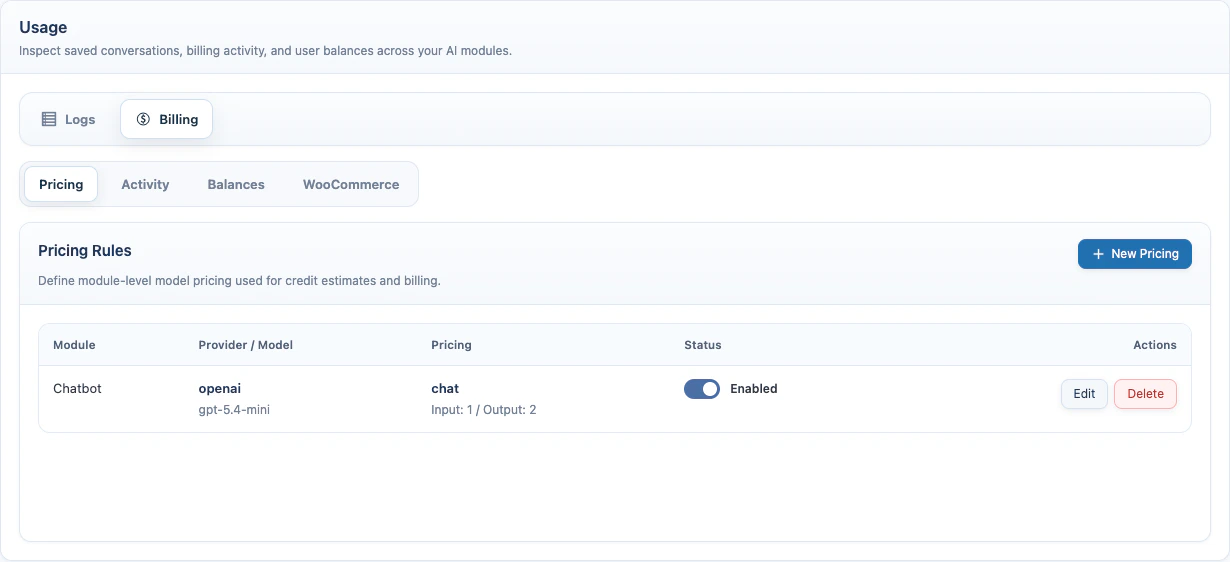
### Pricing
Open **AI Puffer > Usage > Billing > Pricing**.
Pricing rules tell AI Puffer how many credits a model operation should cost.
#### How Pricing Works
Credits are internal AI Puffer units. You decide how many credits each request should cost.
Use **Flat** when every request should cost the same amount. Use **Per 1K Tokens** when longer chat or form requests should cost more. Use **Per Image** or **Per Video** for media tools.
For chat and AI forms, tokens are the pieces of text sent to and returned from the AI provider. **Input tokens** are the user message, instructions, and context sent to the model. **Output tokens** are the AI response.
For xAI text requests, pricing rules use the token usage returned by the xAI response when it is available. For xAI image generation and image editing, AI Puffer records provider usage metadata when xAI returns it, but credit deduction still follows your configured image pricing rule such as **Per Image** or **Flat**.
Example token rule:
| Field | Value |
| ----------- | ------------------------------ |
| Input rate | 1 credit per 1K input tokens |
| Output rate | 2 credits per 1K output tokens |
If a request uses 800 input tokens and 300 output tokens:
| Usage | Calculation | Cost |
| ------ | -------------- | ----------- |
| Input | 800 / 1000 x 1 | 0.8 credits |
| Output | 300 / 1000 x 2 | 0.6 credits |
| Total | 0.8 + 0.6 | 1.4 credits |
AI Puffer rounds the result up, so this request is charged as **2 credits**.
Example flat rule:
| Field | Value |
| -------------- | --------- |
| Billing method | Flat |
| Unit rate | 5 credits |
Every matching request costs **5 credits**, no matter how long the prompt or response is.
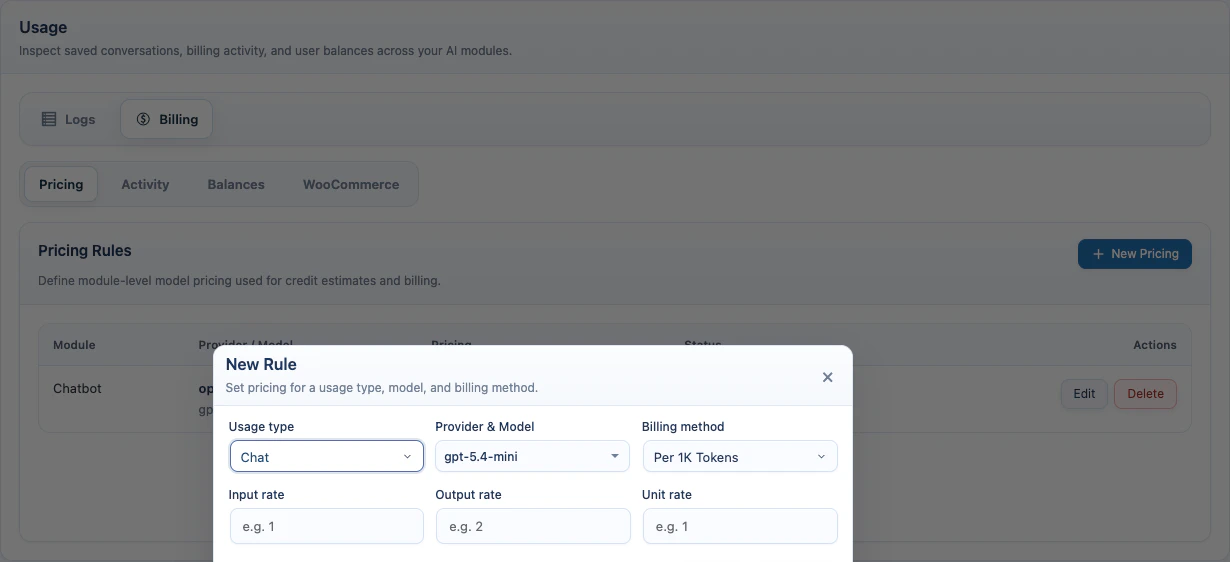
To create a pricing rule:
1. Click **New Pricing**.
2. Select **Usage type**.
3. Select **Provider & Model**.
4. Select **Billing method**.
5. Enter the rate.
6. Click **Save Rule**.
## Billing
Open **AI Puffer > Usage > Billing**.
Billing connects three things:
1. **Pricing rules** decide how much a request costs in AI Puffer credits.
2. **Balances** store prepaid credits for logged-in users.
3. **Quotas** limit usage for guests, users, or roles when a balance is not enough.
For logged-in users, AI Puffer deducts from the credit balance first. If the balance does not cover the full request cost, the remaining usage is counted against the user's quota. For guests, there is no persistent balance, so usage is checked against the guest quota.
Quotas are configured inside the module that uses them: Chatbots, AI Forms, or Images. The Usage screen shows and resets recorded usage, but it is not where you configure module limits.
### Pricing
Open **AI Puffer > Usage > Billing > Pricing**.
Pricing rules tell AI Puffer how many credits a model operation should cost.
#### How Pricing Works
Credits are internal AI Puffer units. You decide how many credits each request should cost.
Use **Flat** when every request should cost the same amount. Use **Per 1K Tokens** when longer chat or form requests should cost more. Use **Per Image** or **Per Video** for media tools.
For chat and AI forms, tokens are the pieces of text sent to and returned from the AI provider. **Input tokens** are the user message, instructions, and context sent to the model. **Output tokens** are the AI response.
For xAI text requests, pricing rules use the token usage returned by the xAI response when it is available. For xAI image generation and image editing, AI Puffer records provider usage metadata when xAI returns it, but credit deduction still follows your configured image pricing rule such as **Per Image** or **Flat**.
Example token rule:
| Field | Value |
| ----------- | ------------------------------ |
| Input rate | 1 credit per 1K input tokens |
| Output rate | 2 credits per 1K output tokens |
If a request uses 800 input tokens and 300 output tokens:
| Usage | Calculation | Cost |
| ------ | -------------- | ----------- |
| Input | 800 / 1000 x 1 | 0.8 credits |
| Output | 300 / 1000 x 2 | 0.6 credits |
| Total | 0.8 + 0.6 | 1.4 credits |
AI Puffer rounds the result up, so this request is charged as **2 credits**.
Example flat rule:
| Field | Value |
| -------------- | --------- |
| Billing method | Flat |
| Unit rate | 5 credits |
Every matching request costs **5 credits**, no matter how long the prompt or response is.
To create a pricing rule:
1. Click **New Pricing**.
2. Select **Usage type**.
3. Select **Provider & Model**.
4. Select **Billing method**.
5. Enter the rate.
6. Click **Save Rule**.
 Supported usage types:
| Module | Usage type |
| ------------------- | --------------------- |
| **Chatbot** | Chat |
| **AI Forms** | Form Submit |
| **Image Generator** | Generate, Edit, Video |
Supported billing methods:
| Billing method | Applies to | Rate field |
| ----------------- | ---------------------------------- | -------------------------------- |
| **Per 1K Tokens** | Chat and AI Forms | Input rate and output rate. |
| **Per Image** | Image generation and image editing | Unit rate per image. |
| **Per Video** | Video generation | Unit rate per video. |
| **Flat** | Any supported usage type | One fixed unit rate per request. |
Pricing rules can be enabled, disabled, edited, or deleted from the Pricing table.
If a matching pricing rule exists, AI Puffer uses that rule to estimate and record credit usage. If no rule matches, it falls back to the raw recorded usage units.
### Activity
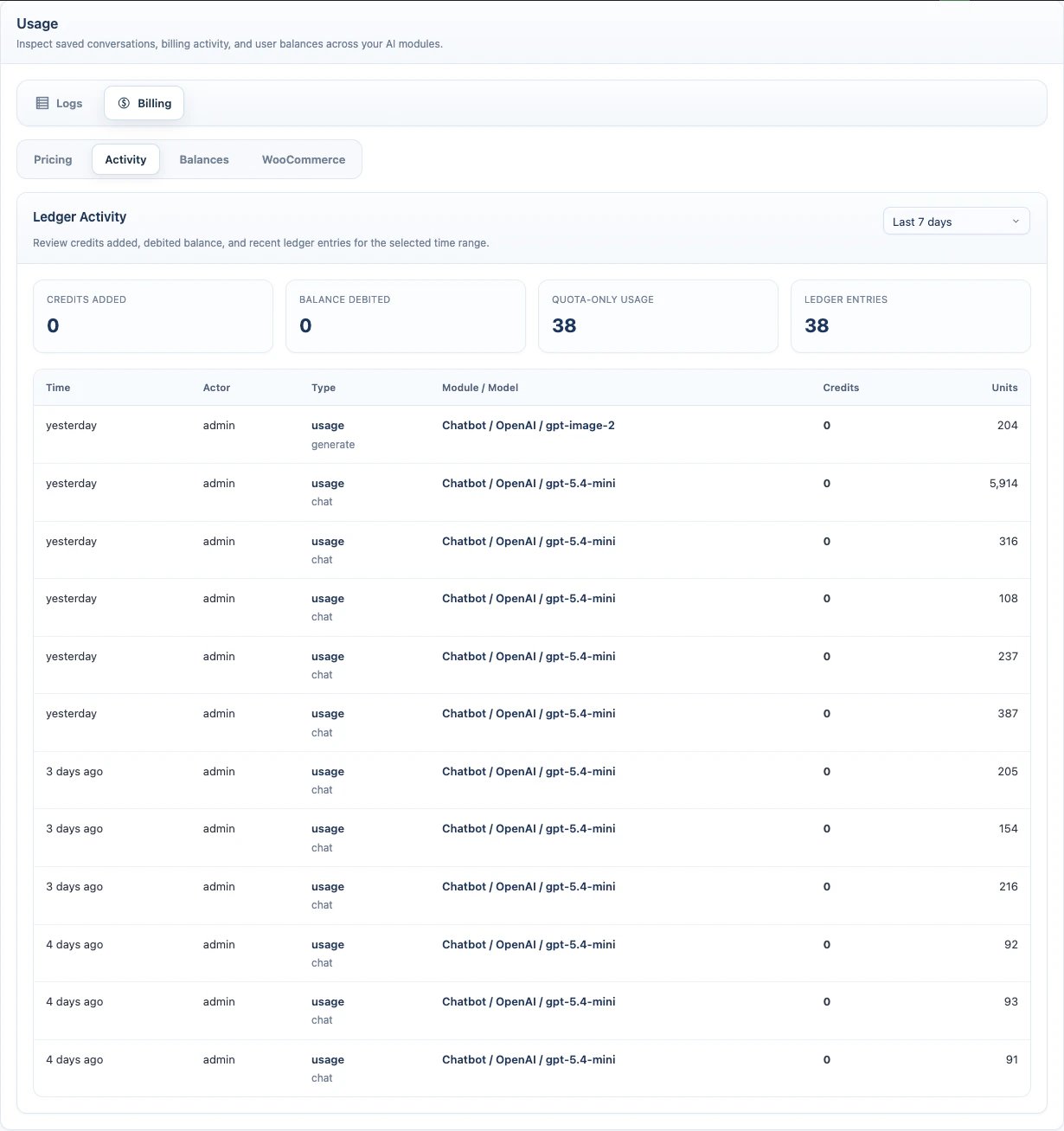
Open **AI Puffer > Usage > Billing > Activity**.
Activity shows the ledger for the selected time range.
Available ranges:
```text theme={null}
Last 7 days
Last 30 days
Last 90 days
```
Summary cards:
| Card | Meaning |
| -------------------- | ----------------------------------------------------- |
| **Credits Added** | Credits added through purchases or admin adjustments. |
| **Balance Debited** | Credits deducted from user balances. |
| **Quota-Only Usage** | Usage that did not deduct a balance. |
| **Ledger Entries** | Total ledger records in the selected range. |
The ledger table shows time, actor, type, module/model, credit change, and usage units.
Supported usage types:
| Module | Usage type |
| ------------------- | --------------------- |
| **Chatbot** | Chat |
| **AI Forms** | Form Submit |
| **Image Generator** | Generate, Edit, Video |
Supported billing methods:
| Billing method | Applies to | Rate field |
| ----------------- | ---------------------------------- | -------------------------------- |
| **Per 1K Tokens** | Chat and AI Forms | Input rate and output rate. |
| **Per Image** | Image generation and image editing | Unit rate per image. |
| **Per Video** | Video generation | Unit rate per video. |
| **Flat** | Any supported usage type | One fixed unit rate per request. |
Pricing rules can be enabled, disabled, edited, or deleted from the Pricing table.
If a matching pricing rule exists, AI Puffer uses that rule to estimate and record credit usage. If no rule matches, it falls back to the raw recorded usage units.
### Activity
Open **AI Puffer > Usage > Billing > Activity**.
Activity shows the ledger for the selected time range.
Available ranges:
```text theme={null}
Last 7 days
Last 30 days
Last 90 days
```
Summary cards:
| Card | Meaning |
| -------------------- | ----------------------------------------------------- |
| **Credits Added** | Credits added through purchases or admin adjustments. |
| **Balance Debited** | Credits deducted from user balances. |
| **Quota-Only Usage** | Usage that did not deduct a balance. |
| **Ledger Entries** | Total ledger records in the selected range. |
The ledger table shows time, actor, type, module/model, credit change, and usage units.
 ### Balances
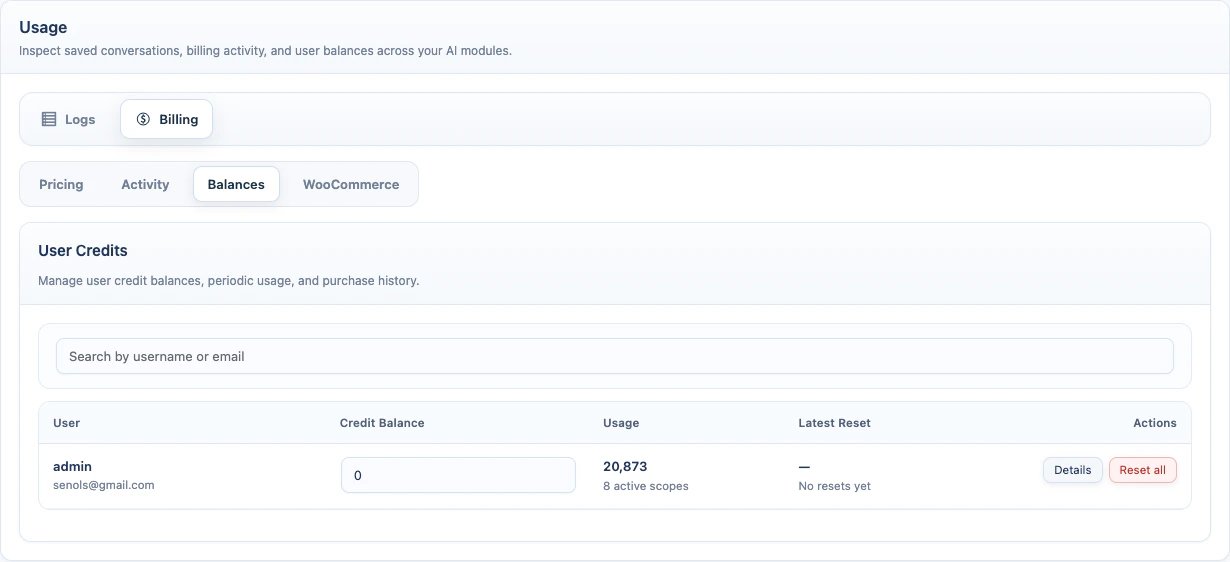
Open **AI Puffer > Usage > Billing > Balances**.
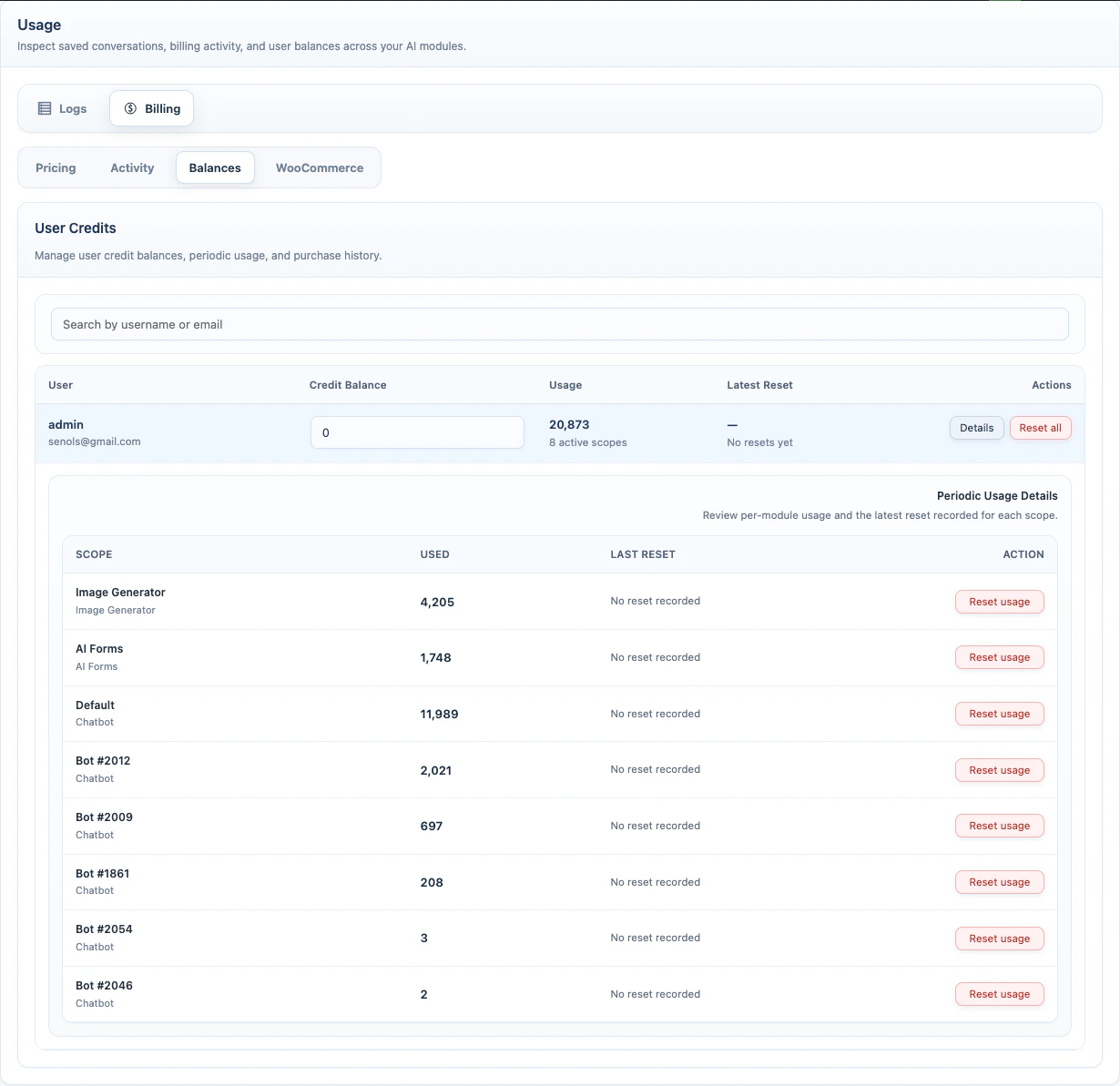
Balances is for logged-in WordPress users. Use it to search users, edit credit balances, review periodic usage, reset usage, and view purchase history.
The table includes:
| Column | Meaning |
| ------------------ | ----------------------------------------------- |
| **User** | Display name and email. |
| **Credit Balance** | Editable prepaid credit balance. |
| **Usage** | Recorded periodic usage and active scopes. |
| **Latest Reset** | Most recent usage reset time. |
| **Actions** | Details, Reset all, and History when available. |
To edit a balance:
1. Search for the user.
2. Edit **Credit Balance**.
3. Press **Enter** or click outside the field.
AI Puffer saves the new balance and records the difference as an admin adjustment in the ledger.
To reset usage:
1. Click **Details** for a user.
2. Click **Reset usage** for one scope, or **Reset all** for all scopes.
3. Confirm the reset.
Resetting usage does not change the user's credit balance.
### Balances
Open **AI Puffer > Usage > Billing > Balances**.
Balances is for logged-in WordPress users. Use it to search users, edit credit balances, review periodic usage, reset usage, and view purchase history.
The table includes:
| Column | Meaning |
| ------------------ | ----------------------------------------------- |
| **User** | Display name and email. |
| **Credit Balance** | Editable prepaid credit balance. |
| **Usage** | Recorded periodic usage and active scopes. |
| **Latest Reset** | Most recent usage reset time. |
| **Actions** | Details, Reset all, and History when available. |
To edit a balance:
1. Search for the user.
2. Edit **Credit Balance**.
3. Press **Enter** or click outside the field.
AI Puffer saves the new balance and records the difference as an admin adjustment in the ledger.
To reset usage:
1. Click **Details** for a user.
2. Click **Reset usage** for one scope, or **Reset all** for all scopes.
3. Confirm the reset.
Resetting usage does not change the user's credit balance.
 ### WooCommerce Integration
Open **AI Puffer > Usage > Billing > WooCommerce**.
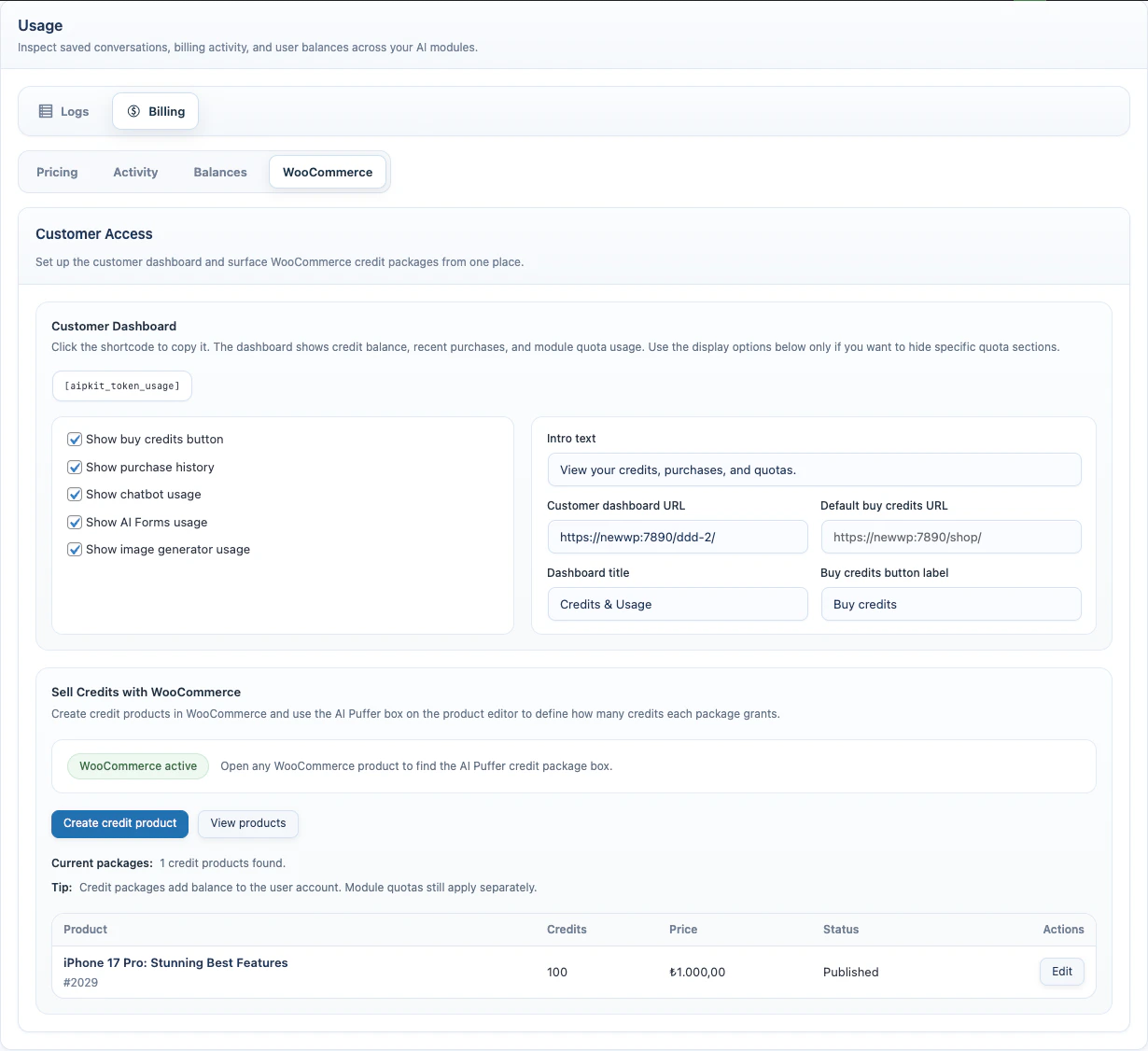
Use this tab to publish a customer dashboard and connect WooCommerce products to AI Puffer credits.
WooCommerce credit delivery requires a WordPress user account. Guest checkout orders without a linked user cannot receive credits automatically.
Customer dashboard:
1. Create a WordPress page, such as **Credits & Usage**.
2. Add this shortcode:
```text theme={null}
[aipkit_token_usage]
```
3. Publish the page.
4. Open **AI Puffer > Usage > Billing > WooCommerce**.
5. Set **Customer dashboard URL** to that page.
6. Set **Default buy credits URL** if you want dashboard buttons and quota messages to send users to a specific page.
The dashboard shows credit balance, recent purchases, and quota usage for Chatbots, AI Forms, and Images.
### WooCommerce Integration
Open **AI Puffer > Usage > Billing > WooCommerce**.
Use this tab to publish a customer dashboard and connect WooCommerce products to AI Puffer credits.
WooCommerce credit delivery requires a WordPress user account. Guest checkout orders without a linked user cannot receive credits automatically.
Customer dashboard:
1. Create a WordPress page, such as **Credits & Usage**.
2. Add this shortcode:
```text theme={null}
[aipkit_token_usage]
```
3. Publish the page.
4. Open **AI Puffer > Usage > Billing > WooCommerce**.
5. Set **Customer dashboard URL** to that page.
6. Set **Default buy credits URL** if you want dashboard buttons and quota messages to send users to a specific page.
The dashboard shows credit balance, recent purchases, and quota usage for Chatbots, AI Forms, and Images.
 Shortcode options:
| Attribute | Default | Use it for |
| ----------------- | ------------------------------------------- | ------------------------------------- |
| `chatbot` | `true` | Show or hide chatbot quota usage. |
| `aiforms` | `true` | Show or hide AI Forms quota usage. |
| `imagegenerator` | `true` | Show or hide Images quota usage. |
| `title` | `Credits & Usage` | Dashboard title. |
| `intro` | `View your credits, purchases, and quotas.` | Intro text. |
| `buycredits` | `true` | Show or hide the buy credits button. |
| `buycreditslabel` | `Buy credits` | Buy credits button label. |
| `buycreditsurl` | Empty | Override the buy credits URL. |
| `purchasehistory` | `true` | Show or hide recent purchase history. |
Examples:
```text theme={null}
[aipkit_token_usage chatbot="false"]
[aipkit_token_usage title="Credits" intro="View your balance and usage."]
[aipkit_token_usage buycreditslabel="Buy more credits" buycreditsurl="https://example.com/credits"]
```
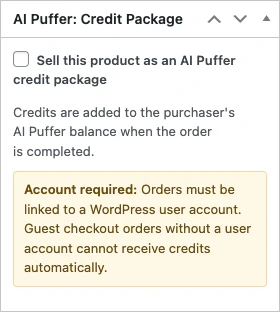
Credit packages:
1. Open **WooCommerce > Products**.
2. Create or edit a product.
3. Find the **AI Puffer: Credit Package** box.
4. Enable **Sell this product as an AI Puffer credit package**.
5. Enter **Credits Granted Per Quantity**.
6. Set the normal WooCommerce product price.
7. Publish or update the product.
Credits are granted when the WooCommerce order becomes **Completed**. Quantity is multiplied by **Credits Granted Per Quantity**.
Shortcode options:
| Attribute | Default | Use it for |
| ----------------- | ------------------------------------------- | ------------------------------------- |
| `chatbot` | `true` | Show or hide chatbot quota usage. |
| `aiforms` | `true` | Show or hide AI Forms quota usage. |
| `imagegenerator` | `true` | Show or hide Images quota usage. |
| `title` | `Credits & Usage` | Dashboard title. |
| `intro` | `View your credits, purchases, and quotas.` | Intro text. |
| `buycredits` | `true` | Show or hide the buy credits button. |
| `buycreditslabel` | `Buy credits` | Buy credits button label. |
| `buycreditsurl` | Empty | Override the buy credits URL. |
| `purchasehistory` | `true` | Show or hide recent purchase history. |
Examples:
```text theme={null}
[aipkit_token_usage chatbot="false"]
[aipkit_token_usage title="Credits" intro="View your balance and usage."]
[aipkit_token_usage buycreditslabel="Buy more credits" buycreditsurl="https://example.com/credits"]
```
Credit packages:
1. Open **WooCommerce > Products**.
2. Create or edit a product.
3. Find the **AI Puffer: Credit Package** box.
4. Enable **Sell this product as an AI Puffer credit package**.
5. Enter **Credits Granted Per Quantity**.
6. Set the normal WooCommerce product price.
7. Publish or update the product.
Credits are granted when the WooCommerce order becomes **Completed**. Quantity is multiplied by **Credits Granted Per Quantity**.
 If pricing rules exist, the product editor can show a rough package value, such as how many chat requests, form submissions, images, or videos the package may cover at current pricing.
Package previews are for sizing only. The real cost depends on the actual provider response, token usage, selected model, and matching pricing rule.
## Troubleshooting
1. Open [AI Providers](/ai-providers).
2. Confirm the provider API settings are saved.
3. Sync models for that provider.
4. Return to **Usage > Billing > Pricing** and create the rule again.
Check these items:
| Check | Expected value |
| ------------------------ | -------------------------------------- |
| WooCommerce order status | Completed. |
| Order user | Linked to a WordPress user account. |
| Product setting | Marked as an AI Puffer credit package. |
| Credit amount | Greater than `0`. |
1. Confirm the visitor is logged in.
2. Confirm the page contains `[aipkit_token_usage]`.
3. Check role access if role access is enabled.
4. Confirm the related module has recorded usage for that user.
5. Confirm the shortcode attribute for that module is not set to `false`.
Check these items:
1. Confirm the WooCommerce order is completed.
2. Confirm the user's credit balance increased in **Usage > Billing > Balances**.
3. Confirm the user is logged in.
4. Confirm the module has a matching pricing rule.
5. Confirm the request cost does not exceed the user's remaining balance plus available quota.
1. Open **Usage > Logs**.
2. Click **Set retention**.
3. Enable **Auto-delete logs**.
4. Choose a shorter retention period.
5. Delete old logs manually if needed.
1. Open **Usage > Billing > Activity**.
2. Select a date range that includes the change.
3. Check whether the balance was changed from **Usage > Billing > Balances** or through a completed WooCommerce order.
Manual balance edits and completed credit package orders create ledger entries.
If pricing rules exist, the product editor can show a rough package value, such as how many chat requests, form submissions, images, or videos the package may cover at current pricing.
Package previews are for sizing only. The real cost depends on the actual provider response, token usage, selected model, and matching pricing rule.
## Troubleshooting
1. Open [AI Providers](/ai-providers).
2. Confirm the provider API settings are saved.
3. Sync models for that provider.
4. Return to **Usage > Billing > Pricing** and create the rule again.
Check these items:
| Check | Expected value |
| ------------------------ | -------------------------------------- |
| WooCommerce order status | Completed. |
| Order user | Linked to a WordPress user account. |
| Product setting | Marked as an AI Puffer credit package. |
| Credit amount | Greater than `0`. |
1. Confirm the visitor is logged in.
2. Confirm the page contains `[aipkit_token_usage]`.
3. Check role access if role access is enabled.
4. Confirm the related module has recorded usage for that user.
5. Confirm the shortcode attribute for that module is not set to `false`.
Check these items:
1. Confirm the WooCommerce order is completed.
2. Confirm the user's credit balance increased in **Usage > Billing > Balances**.
3. Confirm the user is logged in.
4. Confirm the module has a matching pricing rule.
5. Confirm the request cost does not exceed the user's remaining balance plus available quota.
1. Open **Usage > Logs**.
2. Click **Set retention**.
3. Enable **Auto-delete logs**.
4. Choose a shorter retention period.
5. Delete old logs manually if needed.
1. Open **Usage > Billing > Activity**.
2. Select a date range that includes the change.
3. Check whether the balance was changed from **Usage > Billing > Balances** or through a completed WooCommerce order.
Manual balance edits and completed credit package orders create ledger entries.