> ## Documentation Index
> Fetch the complete documentation index at: https://docs.aipower.org/llms.txt
> Use this file to discover all available pages before exploring further.
# WordPress Utilities
> Use AI Puffer tools inside WordPress post lists and editors.
## Overview
WordPress Utilities are AI Puffer tools that appear inside normal WordPress admin screens.
Use them when you are already reviewing posts, pages, products, or editor content and want to update or index that content without opening a full module screen.
Turn these utilities on or off from **AI Puffer > Settings > Utilities**.
Update selected posts from the list screen.
Generate title, excerpt, meta, or tag suggestions for one post.
Send selected posts to a vector store, index, or collection.
Use Assistant from the Products list.
Run AI actions on selected text in the Classic Editor.
Run AI actions from the block toolbar.
## Content Assistant
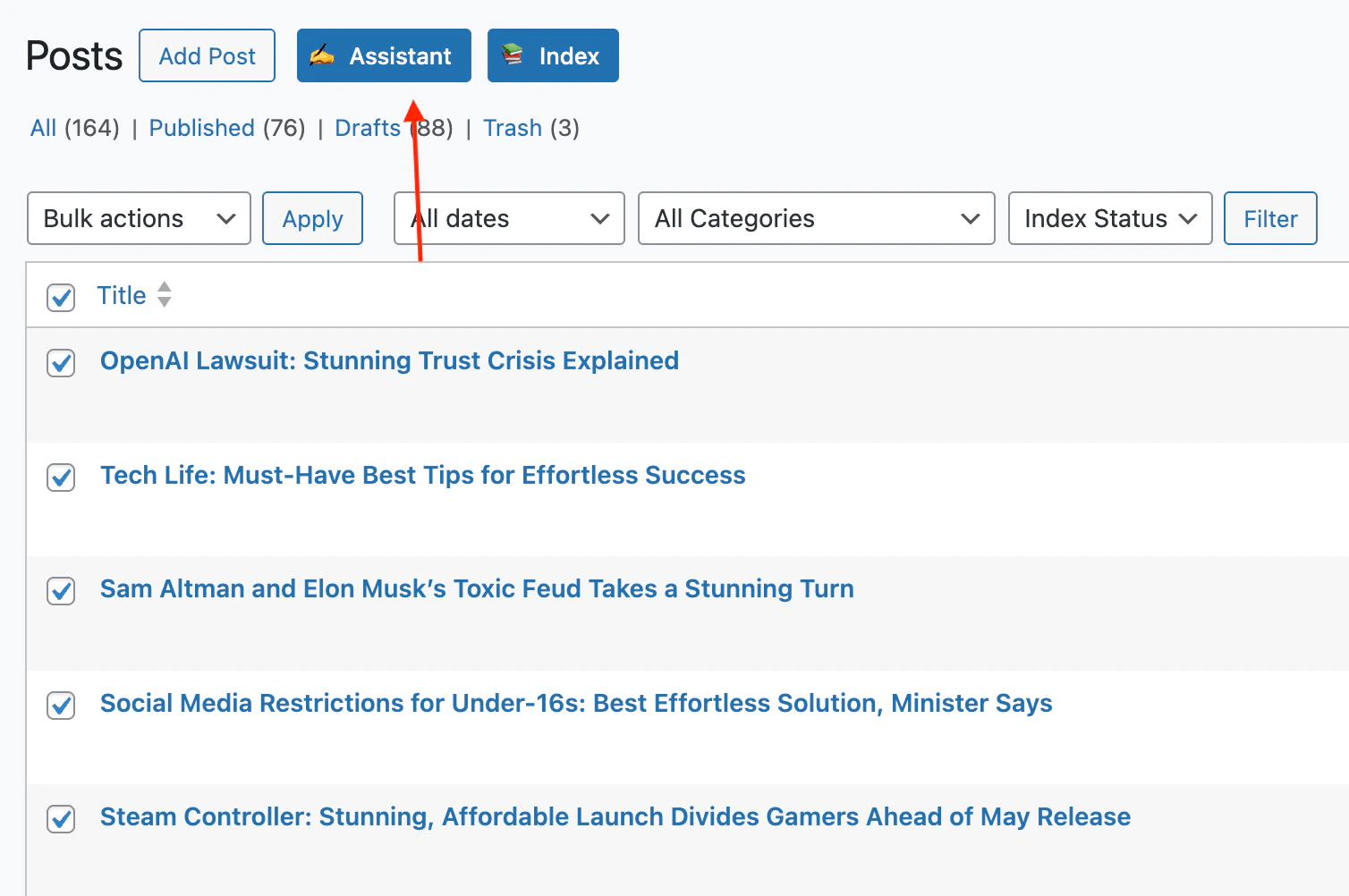
Content Assistant appears as an **Assistant** button next to **Add New** on supported post list screens.
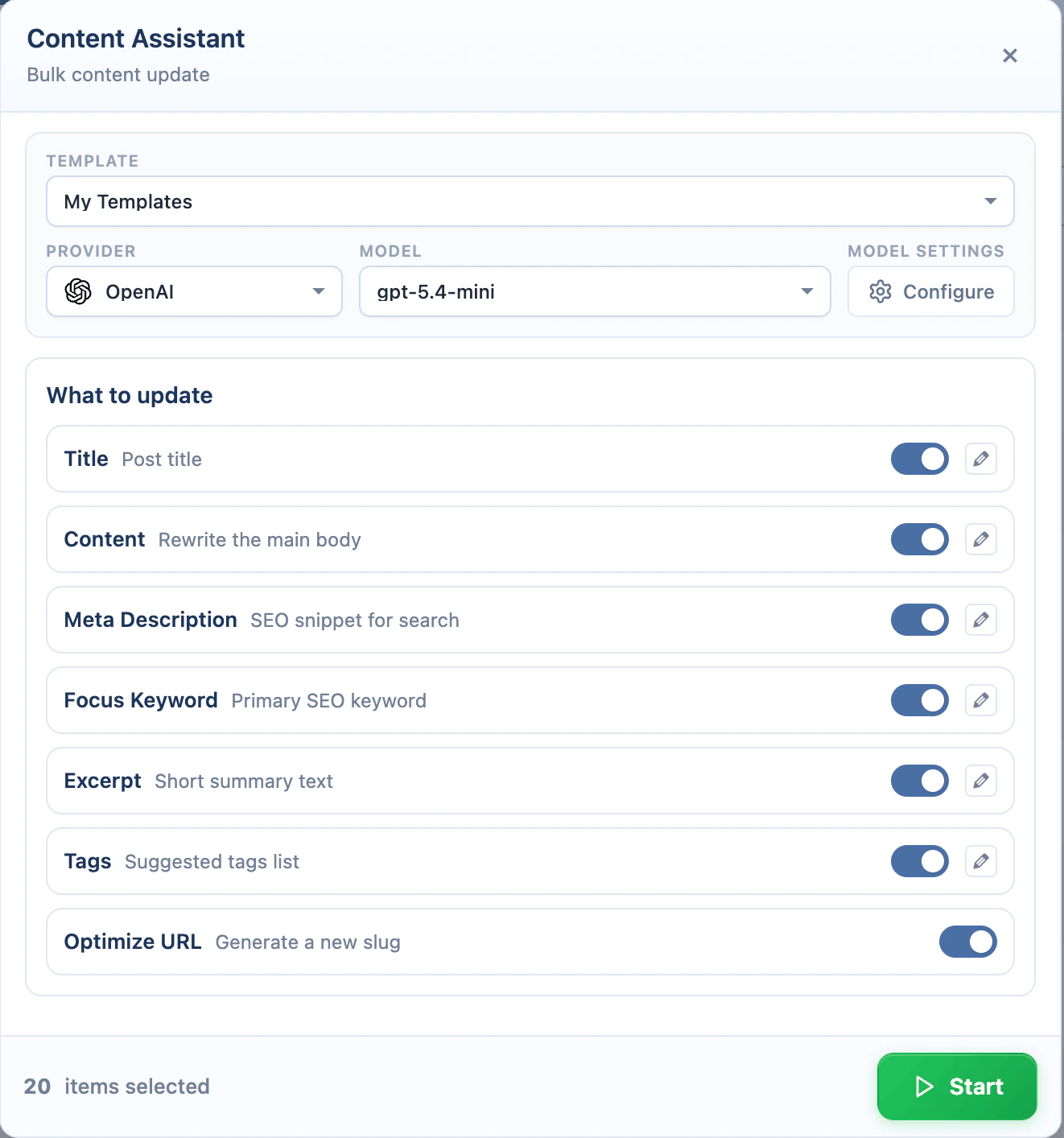
Use it when you want to update several posts, pages, or products in one run. It can update title, content, meta description, focus keyword, excerpt, tags, and URL slug.
To enable the Assistant button:
1. Go to **AI Puffer > Settings > Utilities**.
2. Turn on **Content Assistant**.
This controls the bulk **Assistant** button and the row **Assistant** menu on supported post, page, and product list screens.
 Row menu suggestions use the default AI provider and model from **Settings > AI**. Content Assistant lets you choose the provider and model before running.
To run Content Assistant:
1. Go to a WordPress post list, such as **Posts**, **Pages**, or **Products**.
2. Select one or more rows.
3. Click **Assistant** next to **Add New**.
4. Select a template if you want to reuse saved settings.
5. Choose the provider and model.
6. Under **What to update**, enable the fields you want to change.
7. Edit a prompt if needed.
8. Open settings if you want to adjust creativity, content length, reasoning, or Knowledge Base context.
9. Click **Start Processing**.
10. Review the progress log before closing the modal.
Row menu suggestions use the default AI provider and model from **Settings > AI**. Content Assistant lets you choose the provider and model before running.
To run Content Assistant:
1. Go to a WordPress post list, such as **Posts**, **Pages**, or **Products**.
2. Select one or more rows.
3. Click **Assistant** next to **Add New**.
4. Select a template if you want to reuse saved settings.
5. Choose the provider and model.
6. Under **What to update**, enable the fields you want to change.
7. Edit a prompt if needed.
8. Open settings if you want to adjust creativity, content length, reasoning, or Knowledge Base context.
9. Click **Start Processing**.
10. Review the progress log before closing the modal.
 Use Content Assistant on a small selection first. It edits real WordPress records.
## Row Assistant Menu
The row menu is for one post at a time.
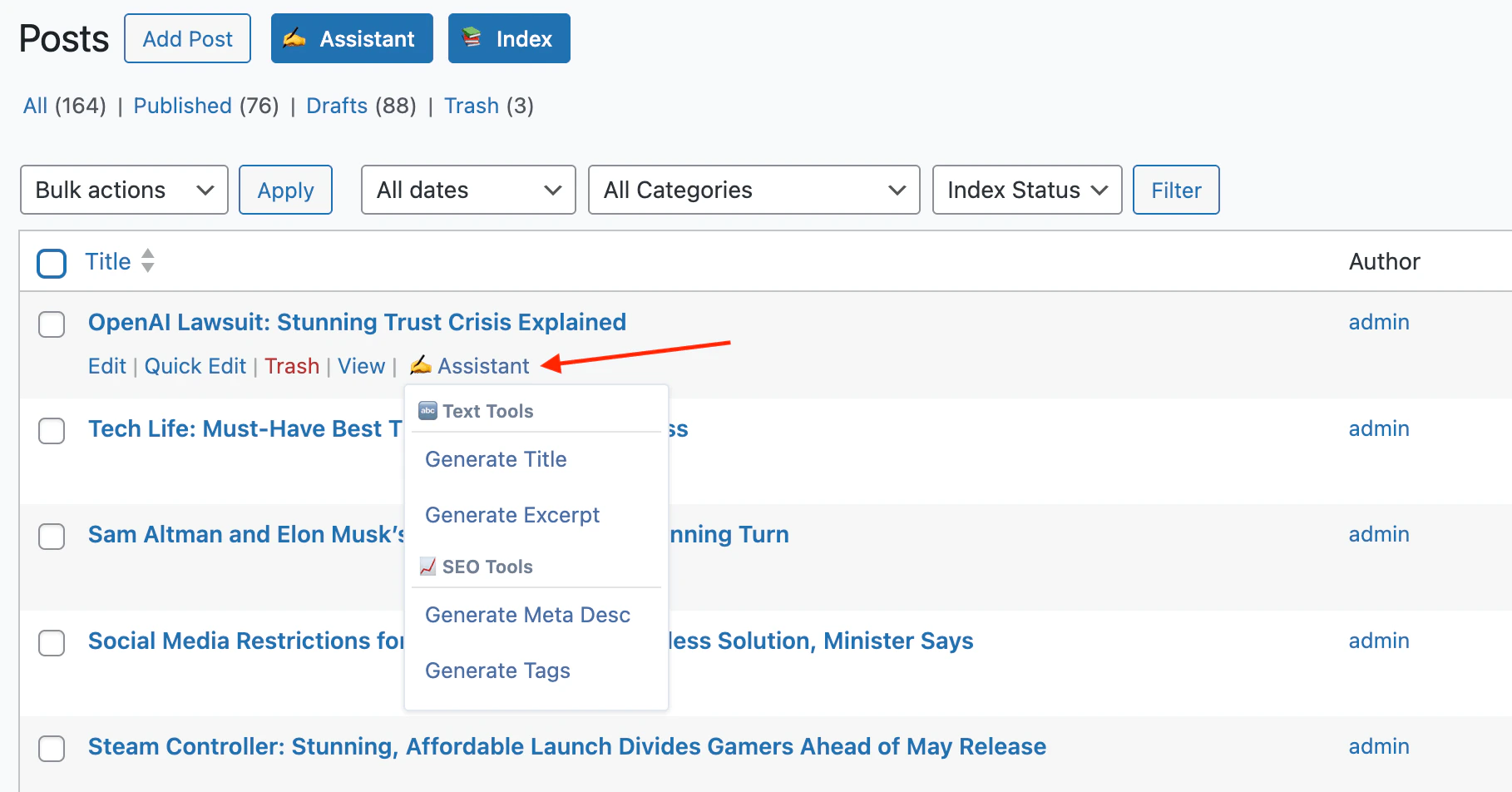
When **Content Assistant** is enabled in **Settings > Utilities**, hover over a post row and click **Assistant** to open the menu. It includes:
| Action | What it does |
| ---------------------- | ------------------------------------------------------------- |
| **Generate Title** | Creates title suggestions from the current title and content. |
| **Generate Excerpt** | Creates excerpt suggestions from the post content. |
| **Generate Meta Desc** | Creates SEO meta description suggestions. |
| **Generate Tags** | Creates tag suggestions. |
To use it:
1. Go to a supported post list.
2. Hover over a row.
3. Click **Assistant**.
4. Choose an action.
5. Wait for suggestions.
6. Click the suggestion you want to apply.
Use Content Assistant on a small selection first. It edits real WordPress records.
## Row Assistant Menu
The row menu is for one post at a time.
When **Content Assistant** is enabled in **Settings > Utilities**, hover over a post row and click **Assistant** to open the menu. It includes:
| Action | What it does |
| ---------------------- | ------------------------------------------------------------- |
| **Generate Title** | Creates title suggestions from the current title and content. |
| **Generate Excerpt** | Creates excerpt suggestions from the post content. |
| **Generate Meta Desc** | Creates SEO meta description suggestions. |
| **Generate Tags** | Creates tag suggestions. |
To use it:
1. Go to a supported post list.
2. Hover over a row.
3. Click **Assistant**.
4. Choose an action.
5. Wait for suggestions.
6. Click the suggestion you want to apply.
 ## Content Indexing
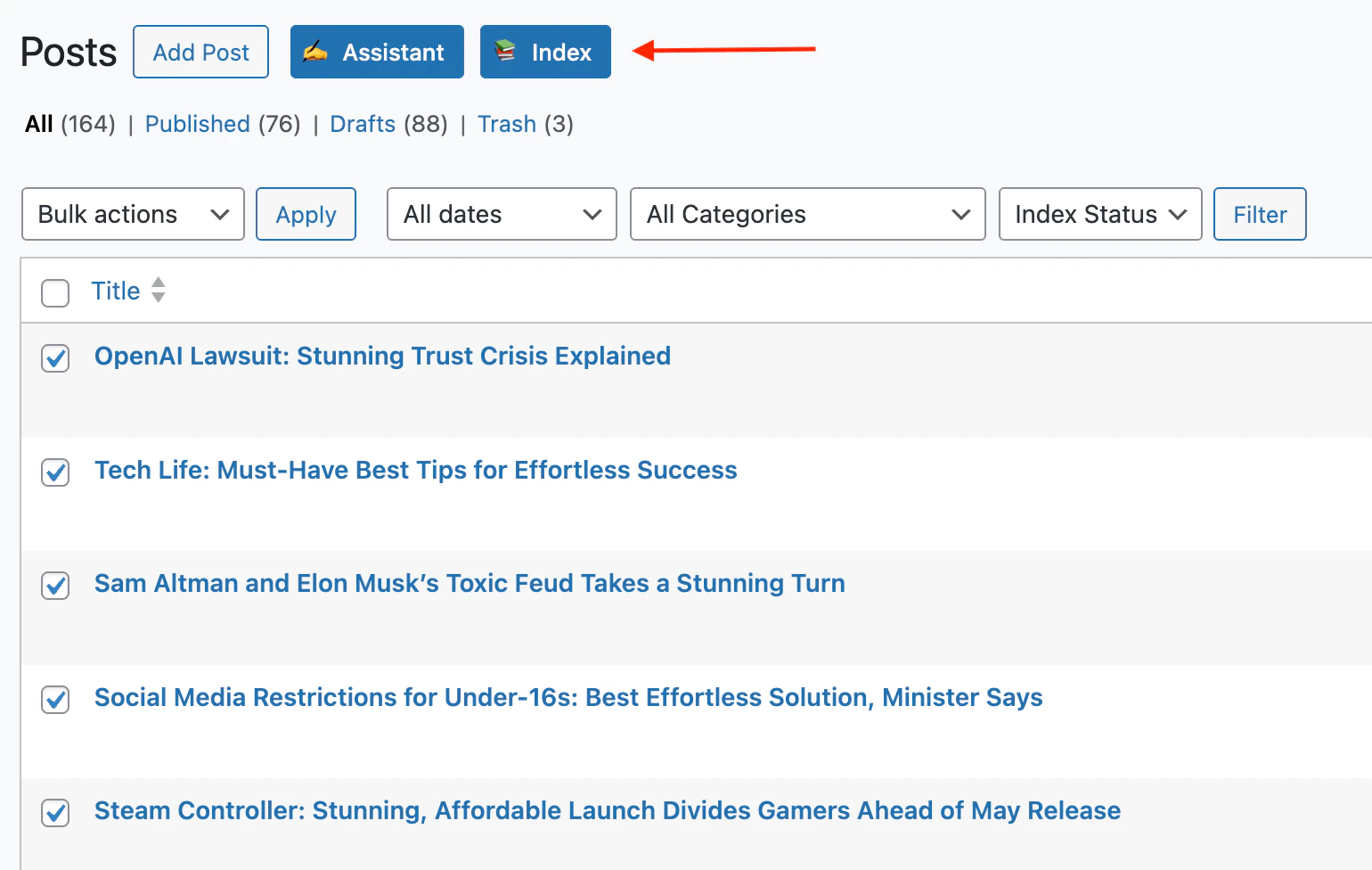
Content Indexing appears as an **Index** button next to **Add New** on post, page, and product list screens.
Use it to add selected WordPress content to Knowledge Base retrieval.
To show or hide the **Index** button:
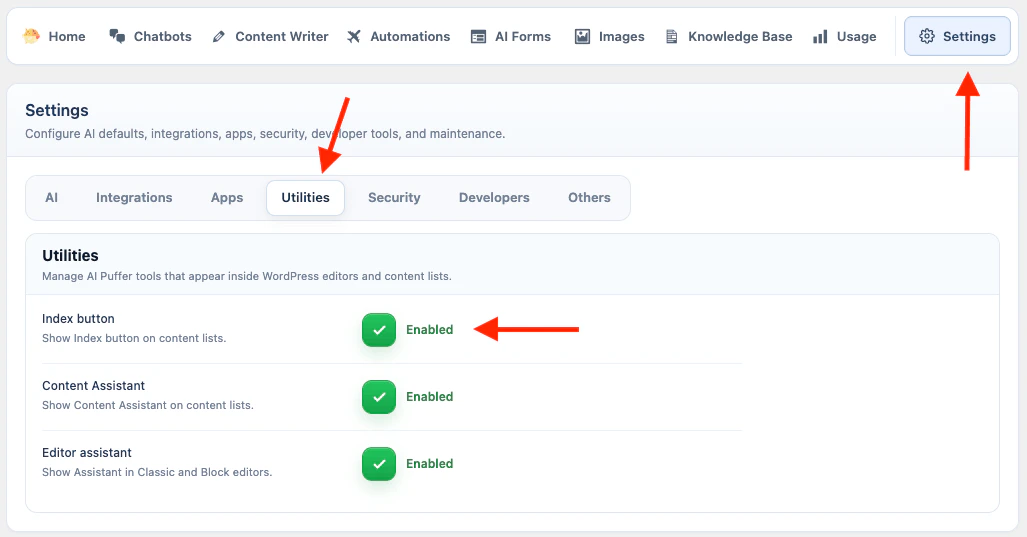
1. Go to **AI Puffer > Settings > Utilities**.
2. Turn **Index button** on or off.
## Content Indexing
Content Indexing appears as an **Index** button next to **Add New** on post, page, and product list screens.
Use it to add selected WordPress content to Knowledge Base retrieval.
To show or hide the **Index** button:
1. Go to **AI Puffer > Settings > Utilities**.
2. Turn **Index button** on or off.
 | Provider | Target | Extra requirement |
| ------------ | ------------ | ---------------------------------------------------------------------- |
| **OpenAI** | Vector store | Select an existing OpenAI vector store. |
| **Pinecone** | Index | Select the same embedding model that matches the index dimension. |
| **Qdrant** | Collection | Select the same embedding model that matches the collection dimension. |
| **Chroma** | Collection | Select the same embedding model used when the collection was indexed. |
To index selected posts:
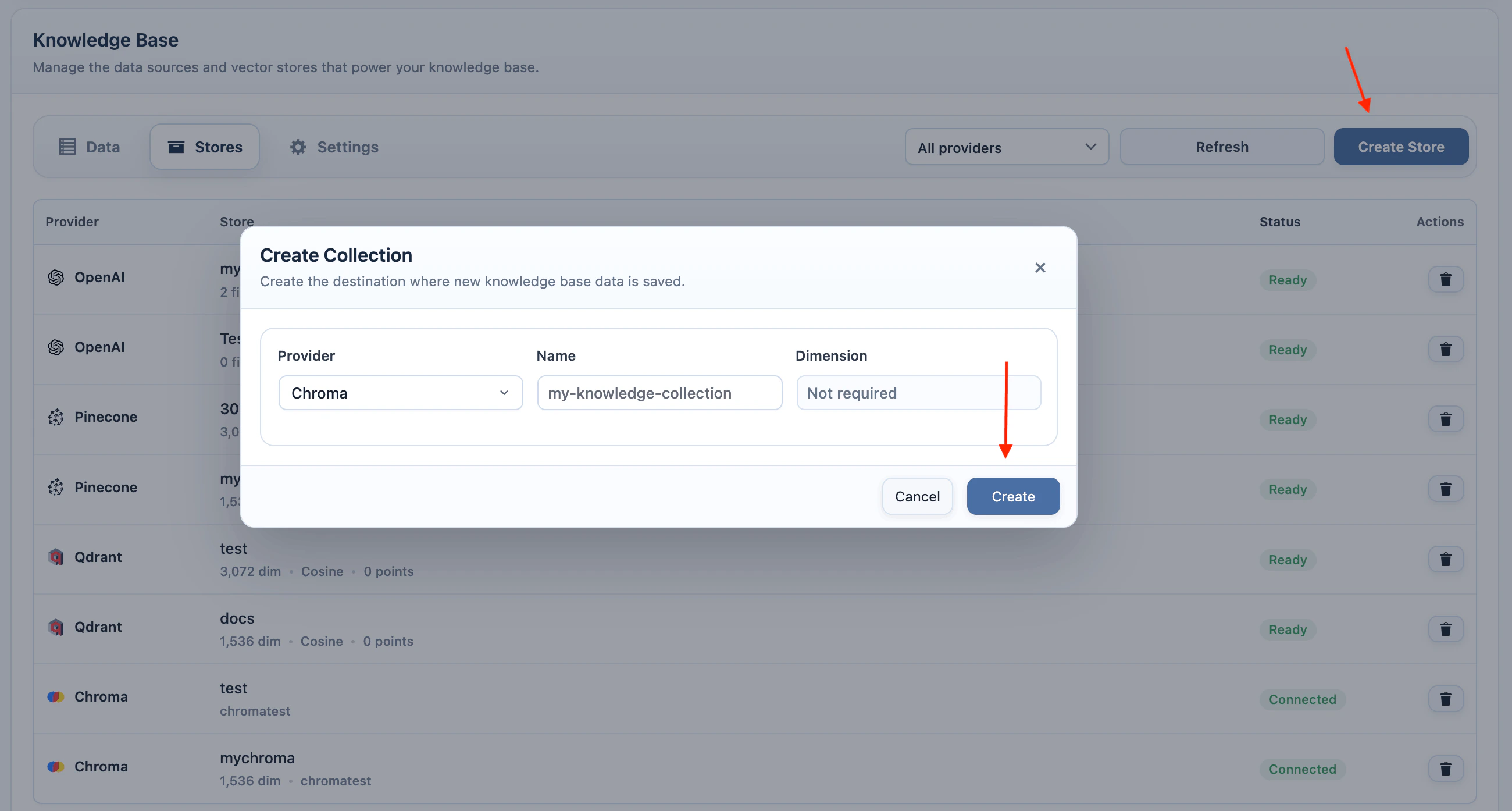
1. Create or select the target in **AI Puffer > Knowledge Base > Stores**.
2. Go to a supported WordPress post list.
3. Select one or more rows.
4. Click **Index** next to **Add New**.
5. Select **OpenAI**, **Pinecone**, **Qdrant**, or **Chroma**.
6. Select the target vector store, index, or collection.
7. For Pinecone, Qdrant, or Chroma, select the embedding model.
8. Click **Start Indexing**.
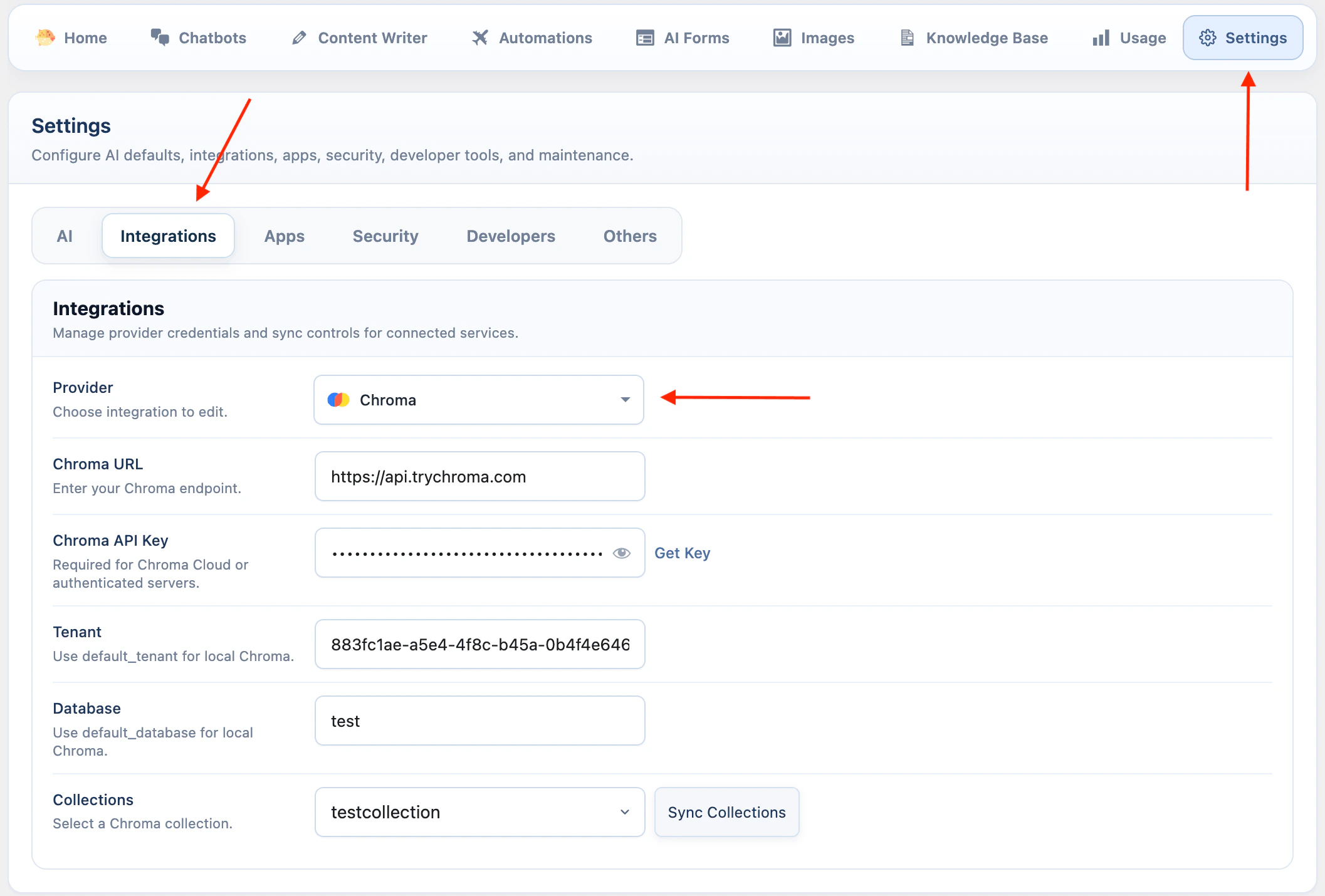
For Chroma, configure the connection and collection before using the post-list indexer.
| Provider | Target | Extra requirement |
| ------------ | ------------ | ---------------------------------------------------------------------- |
| **OpenAI** | Vector store | Select an existing OpenAI vector store. |
| **Pinecone** | Index | Select the same embedding model that matches the index dimension. |
| **Qdrant** | Collection | Select the same embedding model that matches the collection dimension. |
| **Chroma** | Collection | Select the same embedding model used when the collection was indexed. |
To index selected posts:
1. Create or select the target in **AI Puffer > Knowledge Base > Stores**.
2. Go to a supported WordPress post list.
3. Select one or more rows.
4. Click **Index** next to **Add New**.
5. Select **OpenAI**, **Pinecone**, **Qdrant**, or **Chroma**.
6. Select the target vector store, index, or collection.
7. For Pinecone, Qdrant, or Chroma, select the embedding model.
8. Click **Start Indexing**.
For Chroma, configure the connection and collection before using the post-list indexer.
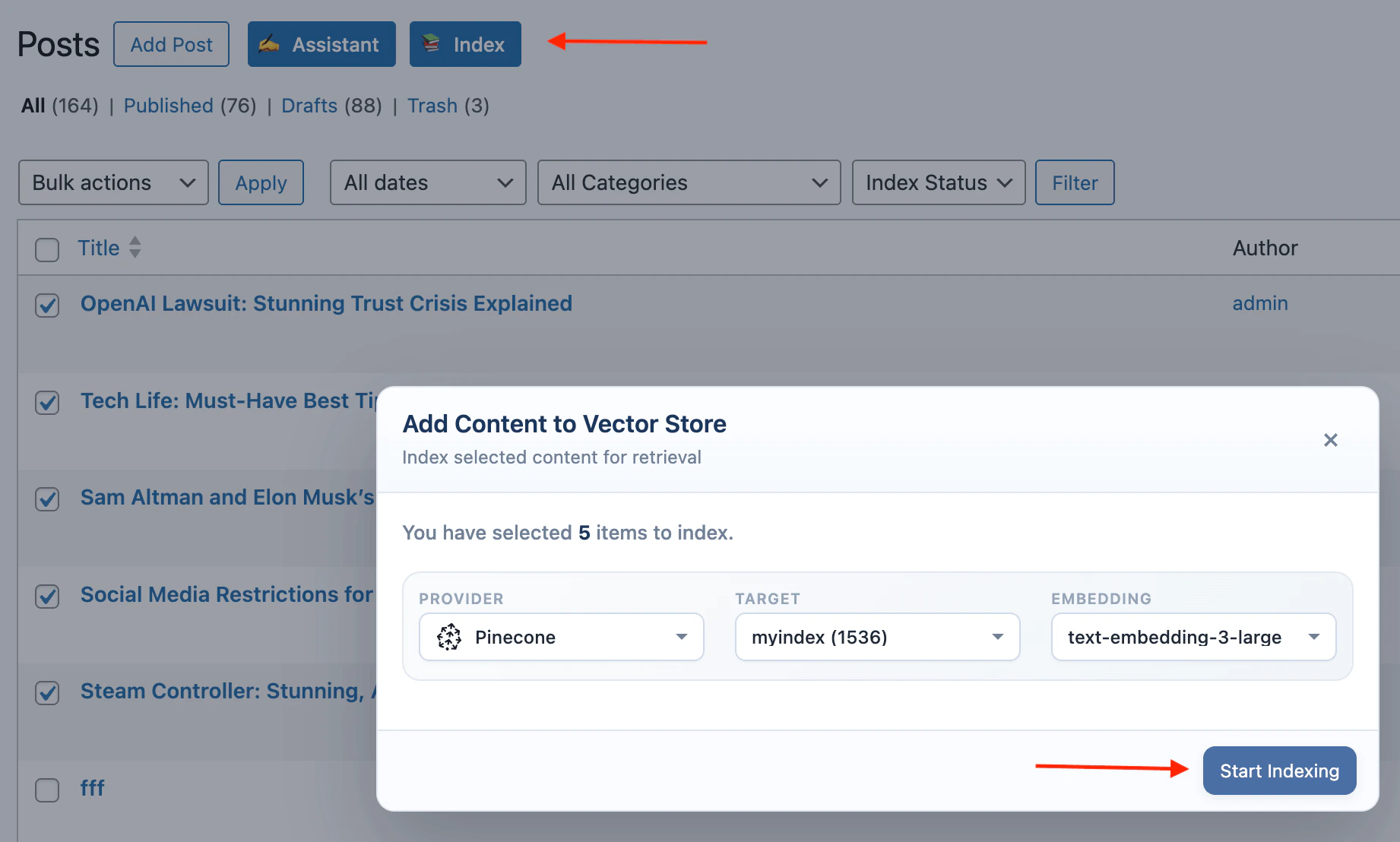 For Pinecone, Qdrant, and Chroma, the embedding model dimension must match the index or collection dimension. For example, a 3072-dimension index or collection needs a 3072-dimension embedding model.
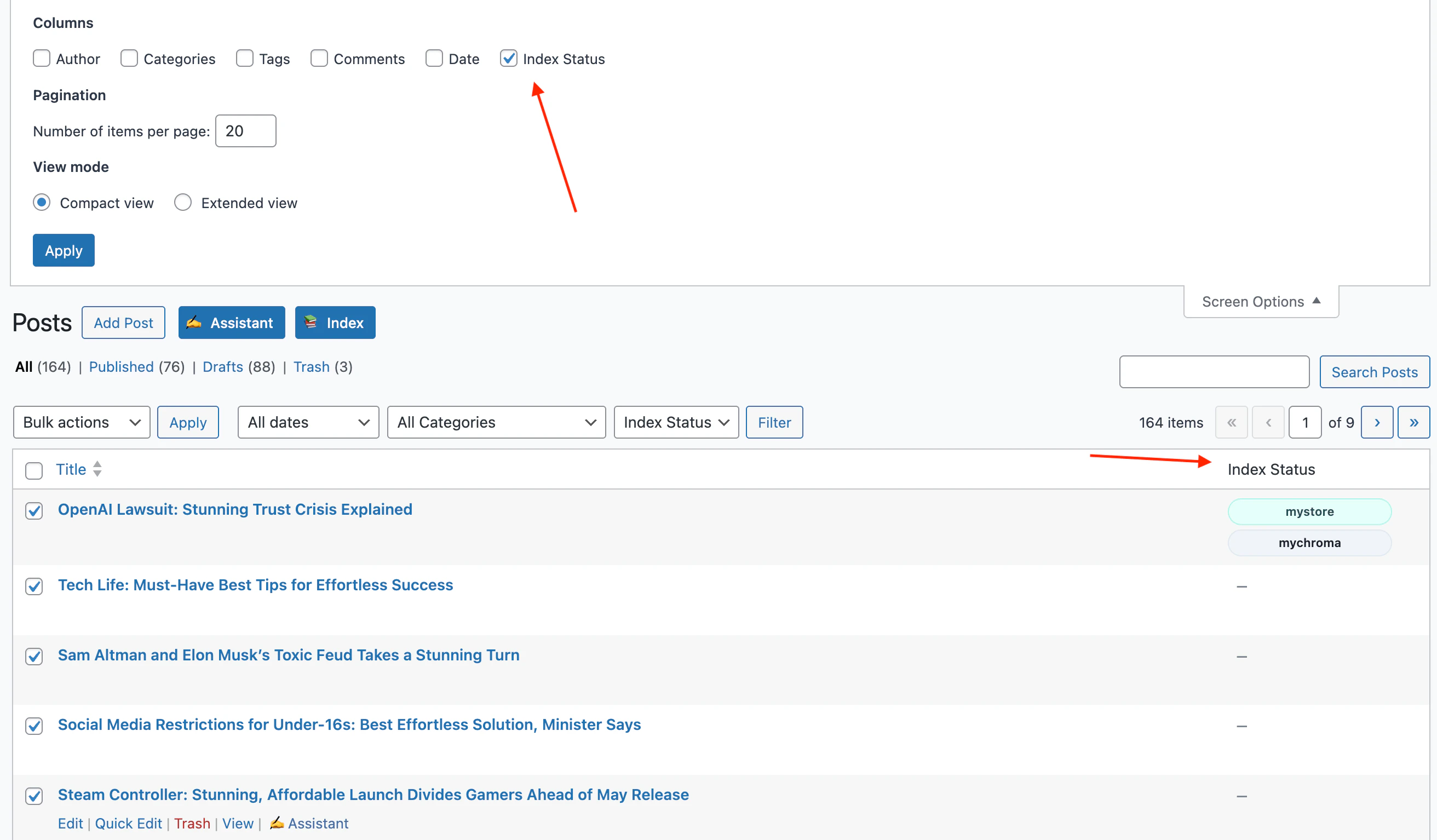
The post list includes an **Index Status** filter with **Indexed** and **Not Indexed** options.
The **Index Status** column is hidden by default. Open Screen Options, enable **Index Status**, and apply the change.
When the column is visible, indexed rows show the vector target where the post was added.
For Pinecone, Qdrant, and Chroma, the embedding model dimension must match the index or collection dimension. For example, a 3072-dimension index or collection needs a 3072-dimension embedding model.
The post list includes an **Index Status** filter with **Indexed** and **Not Indexed** options.
The **Index Status** column is hidden by default. Open Screen Options, enable **Index Status**, and apply the change.
When the column is visible, indexed rows show the vector target where the post was added.
 ## WooCommerce Assistant
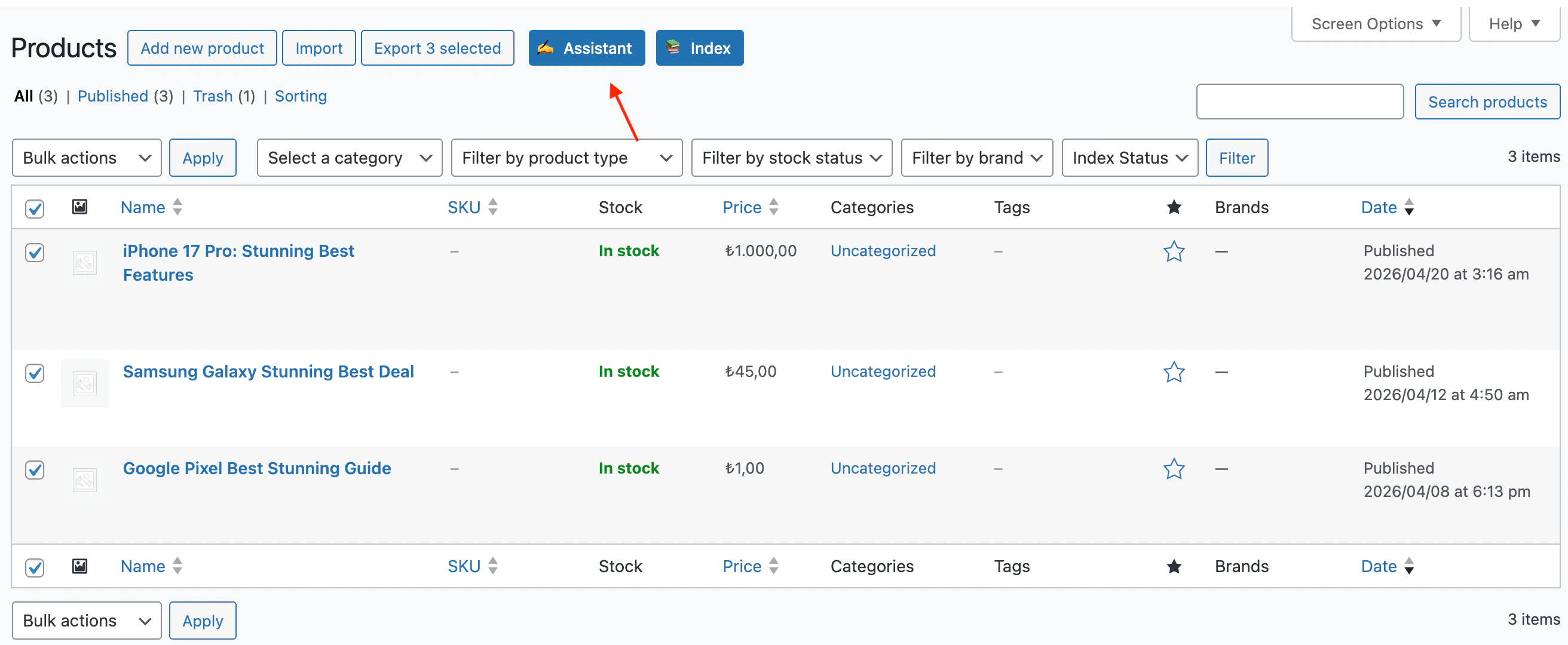
WooCommerce Assistant uses the same Assistant tools on the **Products** list.
Use it when you want to update product titles, descriptions, short descriptions, SEO fields, tags, or URL slugs from the product list screen.
To use Content Assistant on products:
1. Go to **Products > All Products**.
2. Select one or more products.
3. Click **Assistant** next to **Add New**.
4. Choose the provider and model.
5. Enable the fields you want to update.
6. Edit prompts if needed.
7. Click **Start Processing**.
## WooCommerce Assistant
WooCommerce Assistant uses the same Assistant tools on the **Products** list.
Use it when you want to update product titles, descriptions, short descriptions, SEO fields, tags, or URL slugs from the product list screen.
To use Content Assistant on products:
1. Go to **Products > All Products**.
2. Select one or more products.
3. Click **Assistant** next to **Add New**.
4. Choose the provider and model.
5. Enable the fields you want to update.
6. Edit prompts if needed.
7. Click **Start Processing**.
 To use the row menu on one product:
1. Go to **Products > All Products**.
2. Hover over a product row.
3. Click **Assistant**.
4. Choose **Generate Title**, **Generate Excerpt**, **Generate Meta Desc**, or **Generate Tags**.
5. Apply the suggestion you want to use.
When the current item is a WooCommerce product, product data is available to the assistant prompts as context, including price, SKU, stock status, dimensions, attributes, purchase note, and product categories.
WooCommerce Assistant updates product content fields. It does not change price, SKU, stock, dimensions, or other product data fields.
## Classic Editor Assistant
The Classic Editor Assistant adds an **Assistant** dropdown to the TinyMCE toolbar.
Use it to rewrite, expand, summarize, simplify, create outlines, generate FAQs, or run your own custom actions on selected text.
To use it:
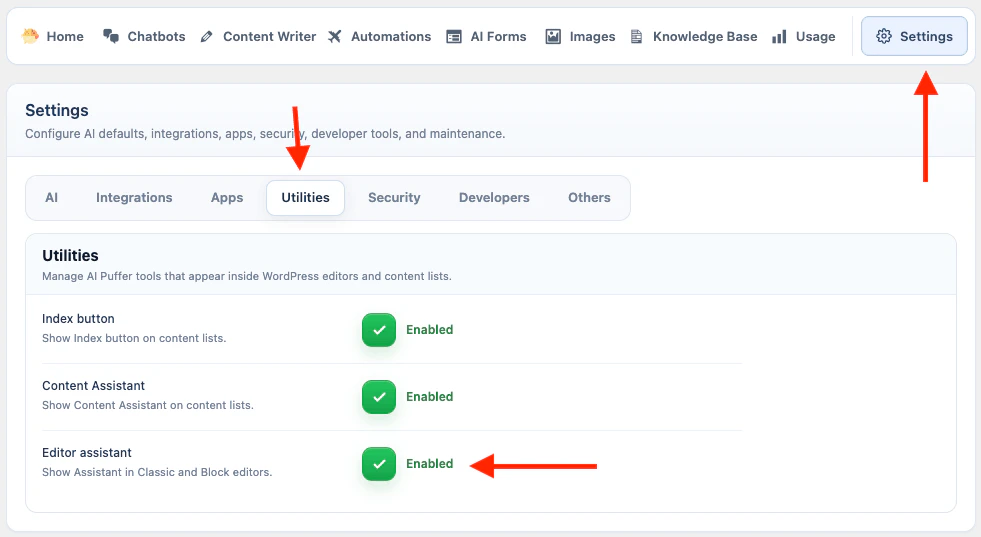
1. Go to **AI Puffer > Settings > Utilities**.
2. Turn on **Editor Assistant**.
3. Open a post or page in the Classic Editor.
4. Use the **Visual** editor.
5. Select the text you want to process.
6. Click **Assistant** in the editor toolbar.
7. Choose an action.
8. Review the inserted output.
To use the row menu on one product:
1. Go to **Products > All Products**.
2. Hover over a product row.
3. Click **Assistant**.
4. Choose **Generate Title**, **Generate Excerpt**, **Generate Meta Desc**, or **Generate Tags**.
5. Apply the suggestion you want to use.
When the current item is a WooCommerce product, product data is available to the assistant prompts as context, including price, SKU, stock status, dimensions, attributes, purchase note, and product categories.
WooCommerce Assistant updates product content fields. It does not change price, SKU, stock, dimensions, or other product data fields.
## Classic Editor Assistant
The Classic Editor Assistant adds an **Assistant** dropdown to the TinyMCE toolbar.
Use it to rewrite, expand, summarize, simplify, create outlines, generate FAQs, or run your own custom actions on selected text.
To use it:
1. Go to **AI Puffer > Settings > Utilities**.
2. Turn on **Editor Assistant**.
3. Open a post or page in the Classic Editor.
4. Use the **Visual** editor.
5. Select the text you want to process.
6. Click **Assistant** in the editor toolbar.
7. Choose an action.
8. Review the inserted output.
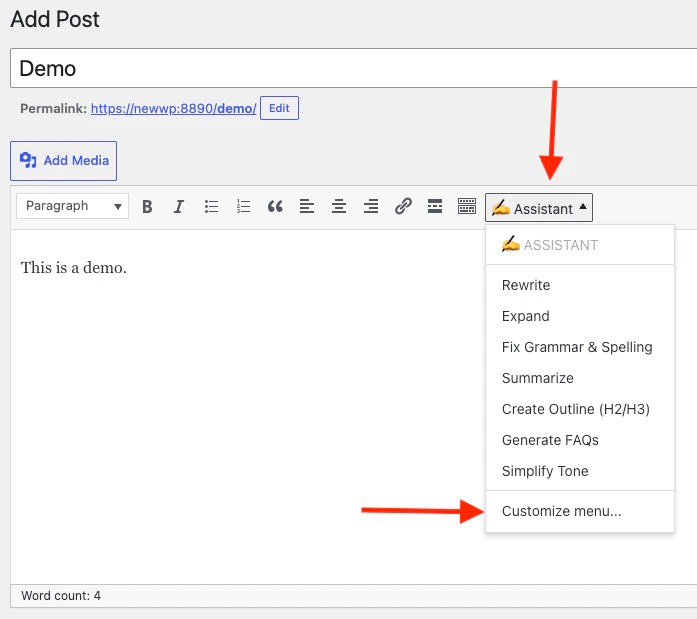 To customize the menu:
1. Open the **Assistant** dropdown in the Classic Editor.
2. Choose **Customize menu**.
3. Select an action to edit its label, prompt, and insert position.
4. Move actions up or down, add a new action, or delete actions you do not use.
5. Click **Save**.
Use `%s` in a custom prompt where the selected editor text should be inserted.
The Classic Editor and Block Editor assistants share the same action list. Changes saved from either editor apply to both menus.
If the Classic Editor button is missing, check **Editor Assistant** in **Settings > Utilities** and make sure the user's profile does not disable the visual editor.
## Block Editor Assistant
The Block Editor Assistant appears in the block toolbar when text is selected.
To use it:
1. Go to **AI Puffer > Settings > Utilities**.
2. Turn on **Editor Assistant**.
3. Open a post or page in the Block Editor.
4. Select text inside a text-based block.
5. Click the Assistant icon in the block toolbar.
6. Choose an action.
7. Review the result.
To customize the menu:
1. Open the **Assistant** dropdown in the Classic Editor.
2. Choose **Customize menu**.
3. Select an action to edit its label, prompt, and insert position.
4. Move actions up or down, add a new action, or delete actions you do not use.
5. Click **Save**.
Use `%s` in a custom prompt where the selected editor text should be inserted.
The Classic Editor and Block Editor assistants share the same action list. Changes saved from either editor apply to both menus.
If the Classic Editor button is missing, check **Editor Assistant** in **Settings > Utilities** and make sure the user's profile does not disable the visual editor.
## Block Editor Assistant
The Block Editor Assistant appears in the block toolbar when text is selected.
To use it:
1. Go to **AI Puffer > Settings > Utilities**.
2. Turn on **Editor Assistant**.
3. Open a post or page in the Block Editor.
4. Select text inside a text-based block.
5. Click the Assistant icon in the block toolbar.
6. Choose an action.
7. Review the result.
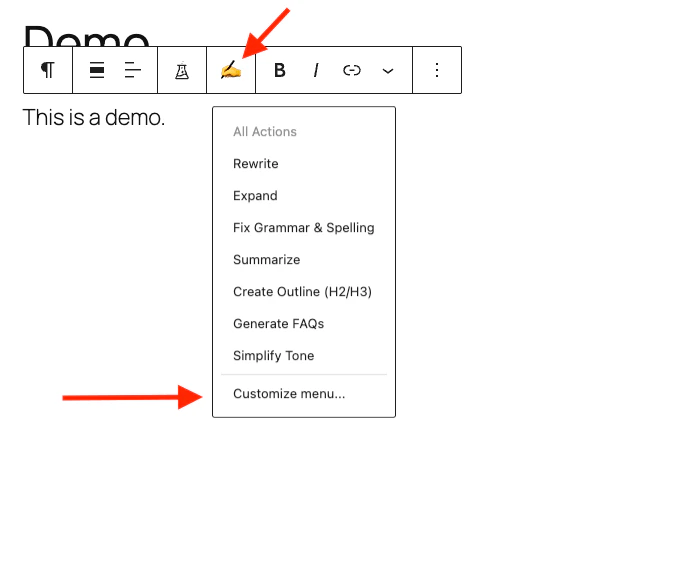 If the generated output includes headings, lists, or paragraphs, AI Puffer can insert it as formatted editor content. The Block Editor notice includes **Undo** when the change can be reverted from the notice.
To customize the menu, open the Assistant menu in the Block Editor and choose **Customize menu**. You can edit action labels, prompts, insert positions, order, and add or delete actions.
The Classic Editor and Block Editor assistants share the same action list.
## Troubleshooting
Go to **AI Puffer > Settings > Utilities** and turn on **Content Assistant**. Also confirm the current user can edit the post type and has access to the Content Assistant module.
Go to **AI Puffer > Settings > Utilities** and turn on **Index button**. The button appears on supported post, page, and product list screens when the user has access to Content Indexing.
Select one or more rows using the checkboxes in the WordPress list table, then click **Assistant** again.
Turn on **Editor Assistant** in **AI Puffer > Settings > Utilities**, then select text inside the editor. The assistant actions need selected text because the action prompt uses that text as input.
Open **Customize menu** from the editor Assistant menu, edit the action prompt, and include `%s`. AI Puffer replaces `%s` with the selected editor text before sending the request.
Check the provider credentials, sync targets again, and confirm the selected embedding model dimension matches the index or collection dimension.
Check the default provider and model in **Settings > AI**. Row menu and editor assistant actions use that default configuration.
If the generated output includes headings, lists, or paragraphs, AI Puffer can insert it as formatted editor content. The Block Editor notice includes **Undo** when the change can be reverted from the notice.
To customize the menu, open the Assistant menu in the Block Editor and choose **Customize menu**. You can edit action labels, prompts, insert positions, order, and add or delete actions.
The Classic Editor and Block Editor assistants share the same action list.
## Troubleshooting
Go to **AI Puffer > Settings > Utilities** and turn on **Content Assistant**. Also confirm the current user can edit the post type and has access to the Content Assistant module.
Go to **AI Puffer > Settings > Utilities** and turn on **Index button**. The button appears on supported post, page, and product list screens when the user has access to Content Indexing.
Select one or more rows using the checkboxes in the WordPress list table, then click **Assistant** again.
Turn on **Editor Assistant** in **AI Puffer > Settings > Utilities**, then select text inside the editor. The assistant actions need selected text because the action prompt uses that text as input.
Open **Customize menu** from the editor Assistant menu, edit the action prompt, and include `%s`. AI Puffer replaces `%s` with the selected editor text before sending the request.
Check the provider credentials, sync targets again, and confirm the selected embedding model dimension matches the index or collection dimension.
Check the default provider and model in **Settings > AI**. Row menu and editor assistant actions use that default configuration.