

Overview
Content Writer creates WordPress content from topics, CSV files, RSS feeds, web pages, and Google Sheets. It can also update existing posts, image metadata, and WooCommerce product copy. To start using Content Writer, open WordPress Admin and go to AI Puffer > Content Writer.Create Content
Generate posts from topics, CSV, RSS, URLs, and Sheets.
Optimize
Rewrite posts, update image metadata, and edit products.
Templates
Save reusable writer settings.
AI
Choose the provider, model, and generation settings.
Prompts
Customize instructions for each generated output.
SEO
Generate metadata and improve SEO scores.
Publishing
Set post type, status, author, taxonomy, and schedule.
Images
Generate or search images for content.
Knowledge Base
Use vector data while generating content.
Logs
Review generated content activity.
Use AI Puffer Cloud
Connect Cloud, then choose a Cloud text model in Content Writer’s model picker. You can write a draft without a provider API key. A draft can involve separate AI calls for content, SEO fields, rewrites, and images. Each call using a Cloud model uses Cloud credits. Configure the image model separately; your text model does not determine image pricing. Review the generated draft before publishing it. For knowledge context, choose Local or another supported store and use the same embedding model and dimension used to index its content. Cloud embeddings work independently of the store provider.Create Content
To create new content, first choose where the input comes from. You can type topics manually, upload a CSV, use RSS feed items, extract text from web pages, or read rows from Google Sheets. Manual Entry is for topics you type directly into Content Writer. Choose Single, Batch Editor, or Quick Paste, then use the right panel to select the model, edit prompts, set publishing options, add images, and enable SEO.Set up at least one AI provider before using Content Writer. If the model list is empty, configure and sync a provider in AI Providers.
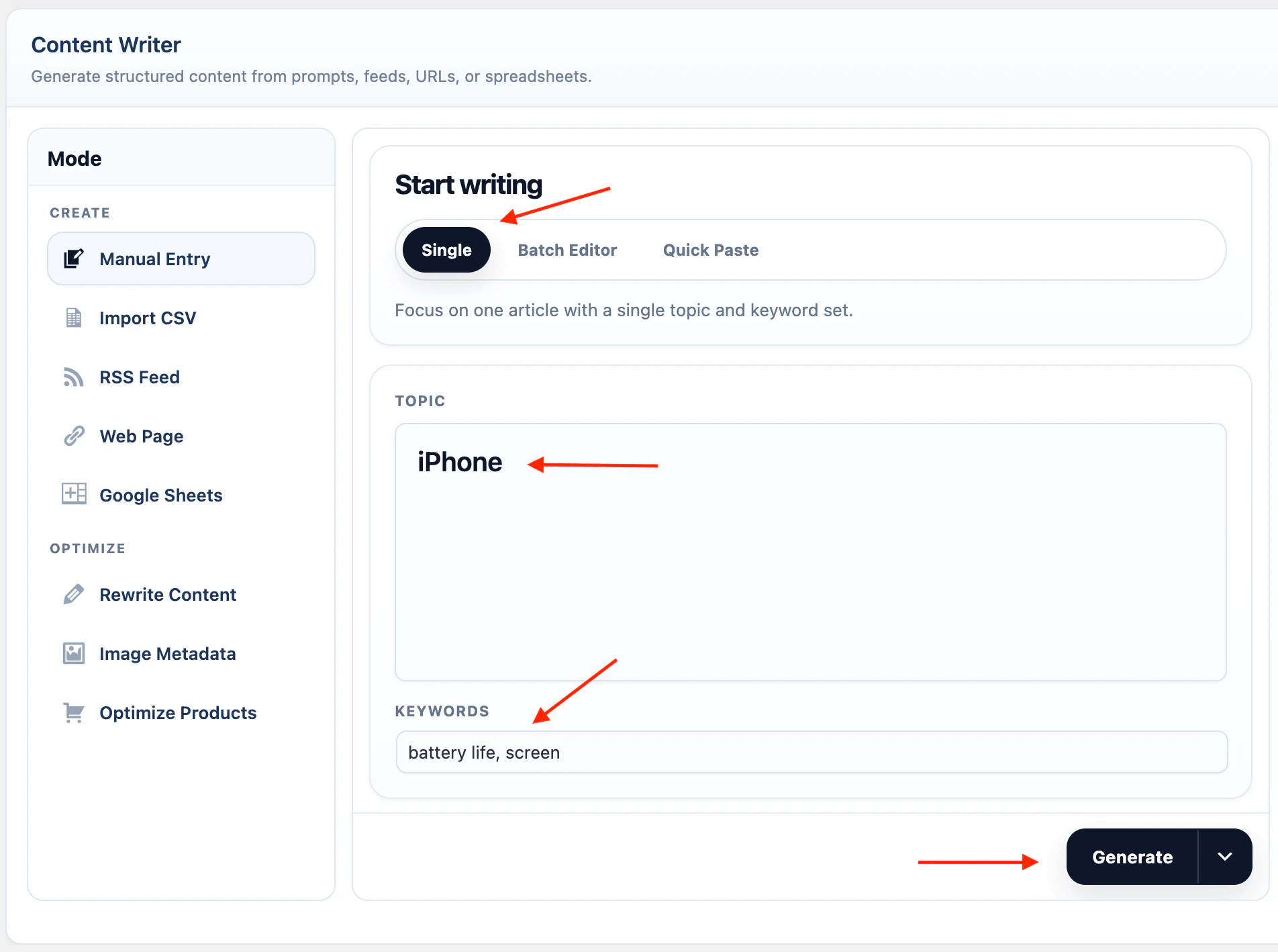
Single Entry
Single Entry is for one content item.- Select Manual Entry.
- Select Single.
- Enter the topic.
- Add keywords if needed.
- Choose the provider, model, and content length.
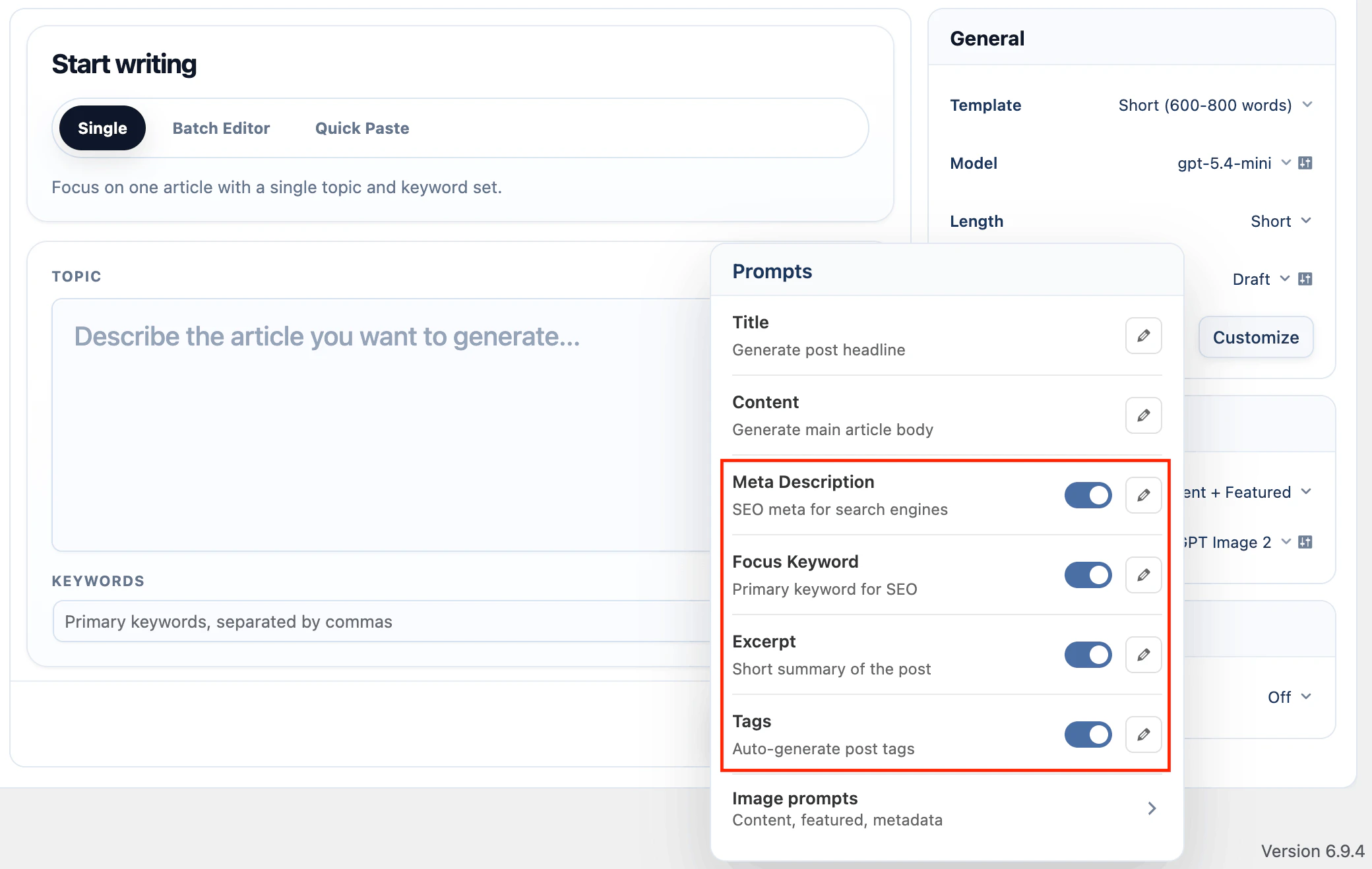
- In the right-side General card, click Customize next to Prompts if you want to edit the instructions.
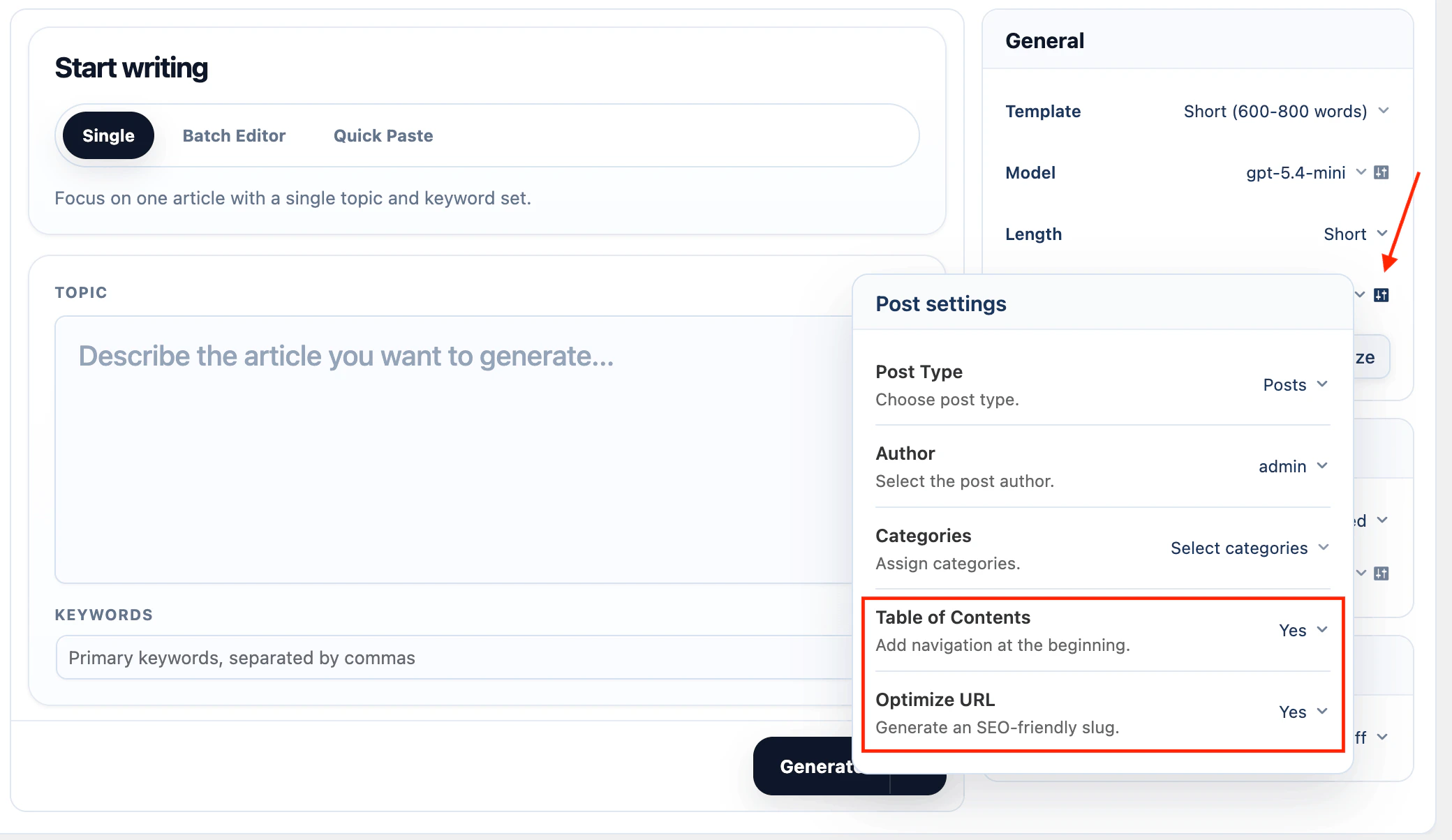
- Set the post type, status, author, categories, table of contents, and URL option.
- Click Generate.
- Review the output.
- Save it as a WordPress post when ready.
Batch Editor
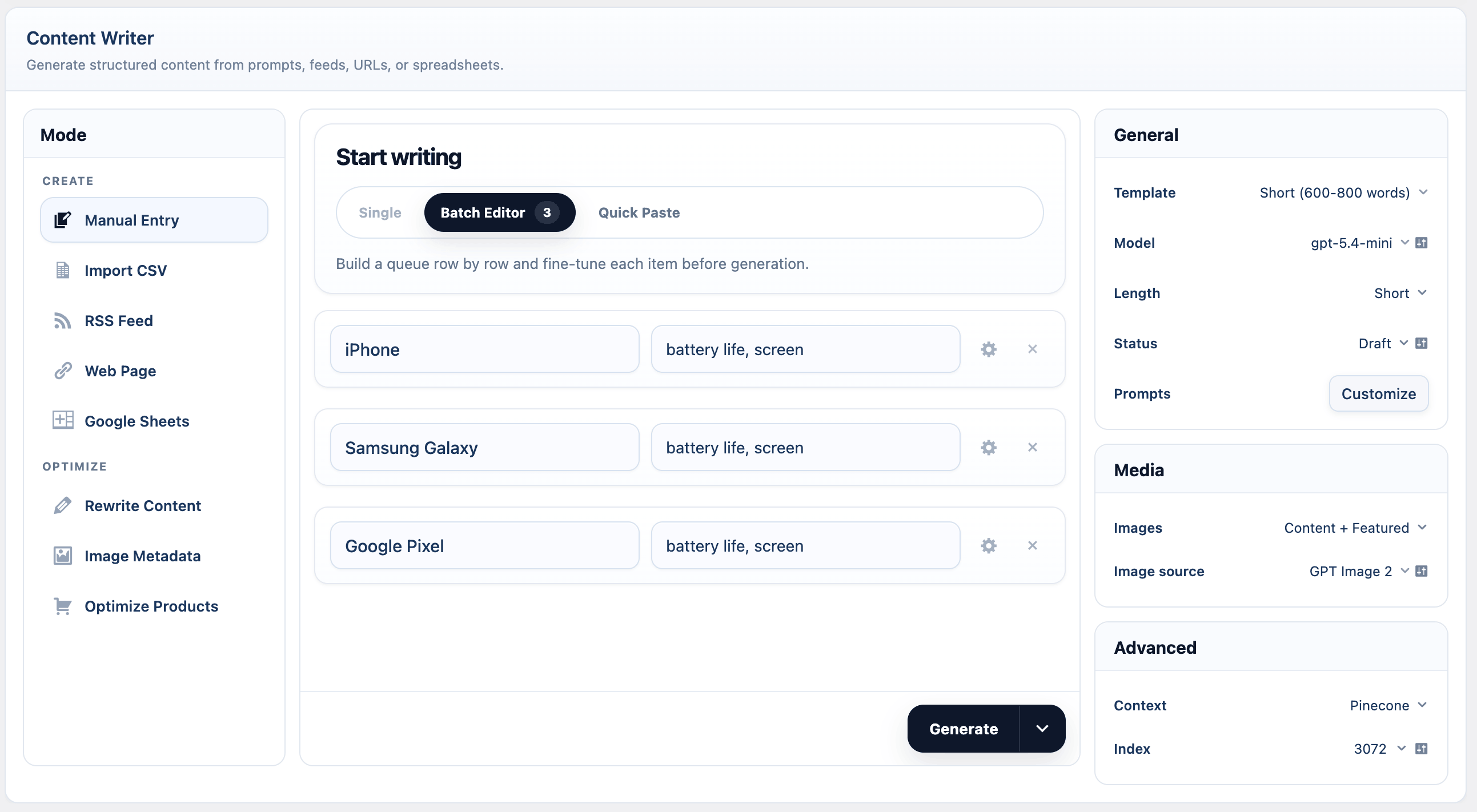
Batch Editor is a row-based queue. Each row creates one content item. The main row fields are Topic and Keywords. Click the row settings icon to set Category, Author, Post Type, and Schedule for that row.- Select Manual Entry.
- Select Batch Editor.
- Add one topic per row.
- Add keywords or row settings where needed.
- Choose the shared model, prompts, publishing, image, and SEO settings.
- If row schedules should be used, set publishing to Publish and select Use Dates from Input.
- Click Generate or Create Task.
Quick Paste
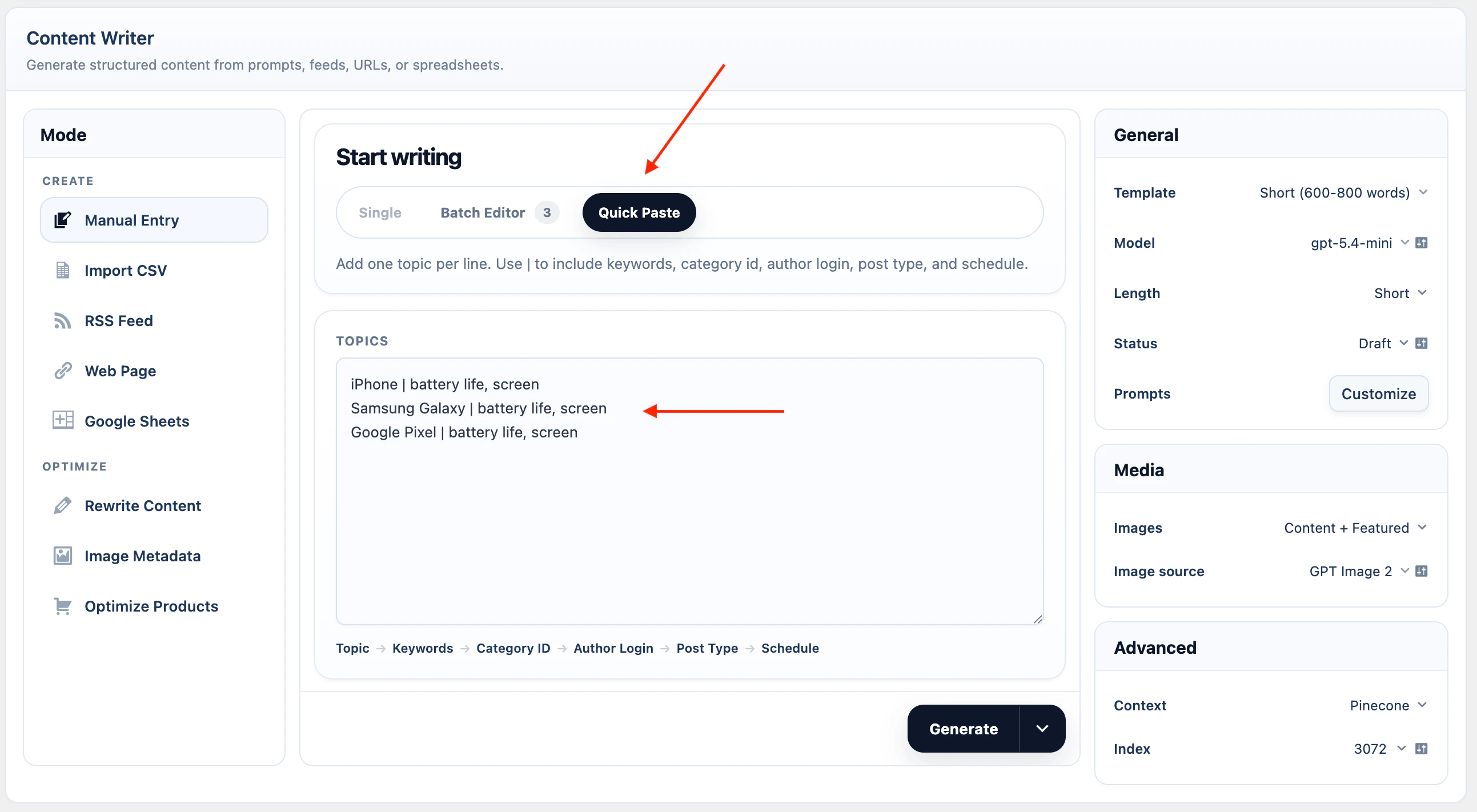
Quick Paste is for adding many rows at once. Each line becomes one Batch Editor row. Only the topic is required. Optional fields can be added with a pipe character. Quick Paste format:- Select Manual Entry.
- Select Quick Paste.
- Paste one topic per line.
- Switch to Batch Editor if you want to review or edit the rows.
- Choose the shared model, prompts, publishing, image, and SEO settings.
- If lines include schedule dates, set publishing to Publish and select Use Dates from Input.
- Click Generate or Create Task.
CSV
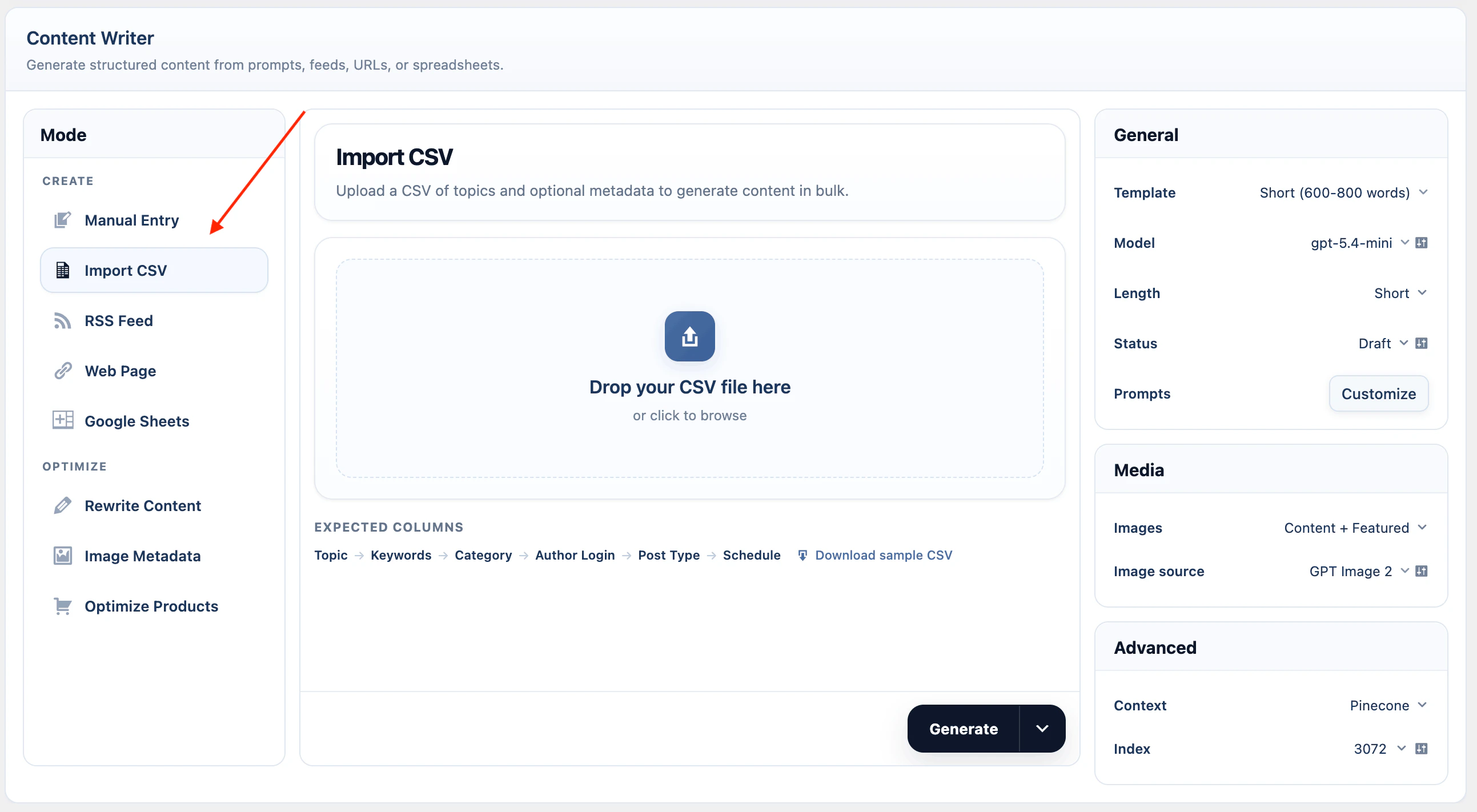
CSV import reads every non-empty row and converts it into a generation task. Download sample CSV- Select Import CSV.
- Upload a
.csvfile. - Confirm the number of tasks found.
- Set model, prompts, publishing, and other options.
- Click Generate or Create Task.
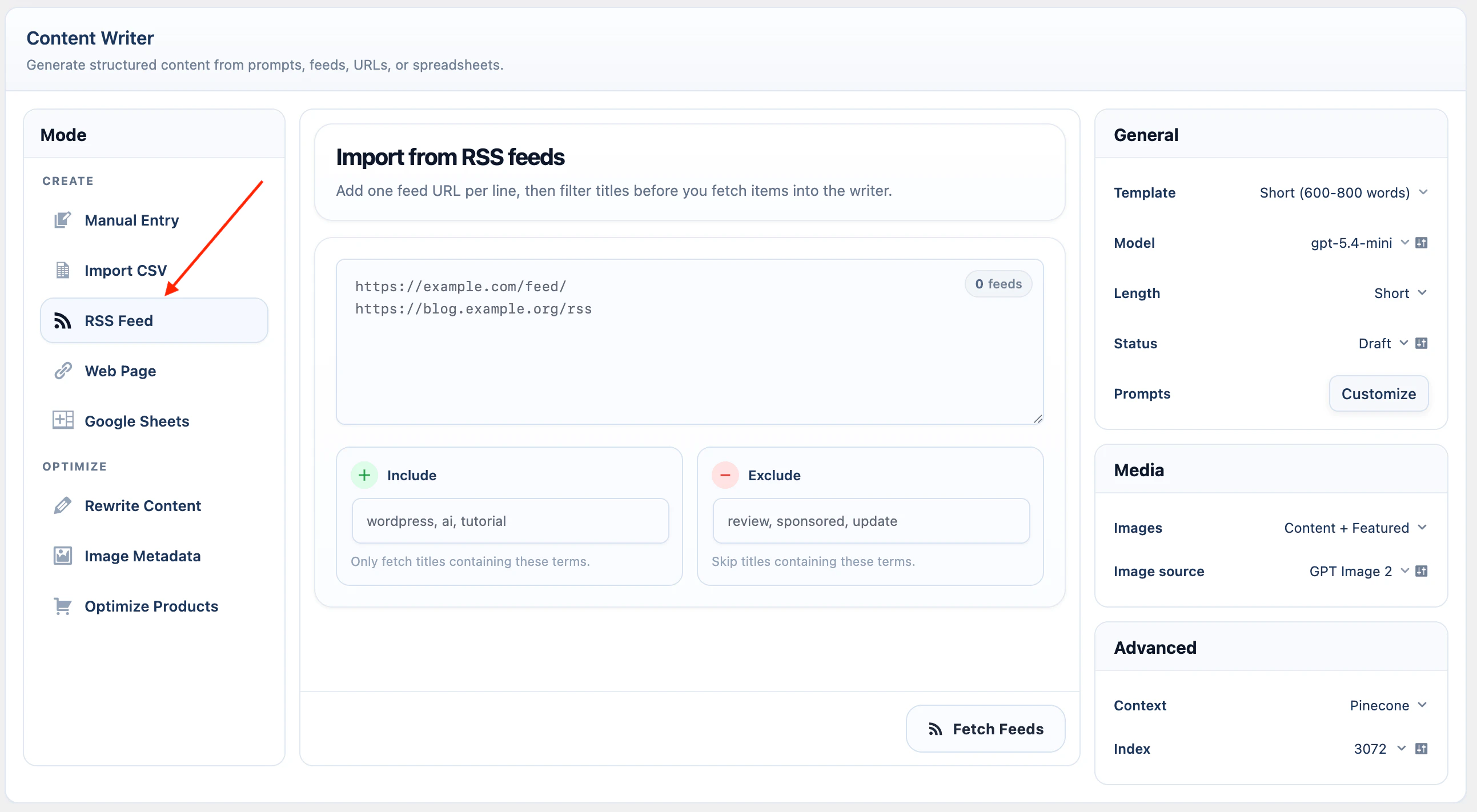
RSS Feed
Use RSS Feed to generate content from feed items.- Select RSS Feed.
- Add one feed URL per line.
- Add Include keywords if only matching titles should be used.
- Add Exclude keywords if matching titles should be skipped.
- Click Fetch Feeds to preview available items.
- Click Generate or Create Task.
Web Page
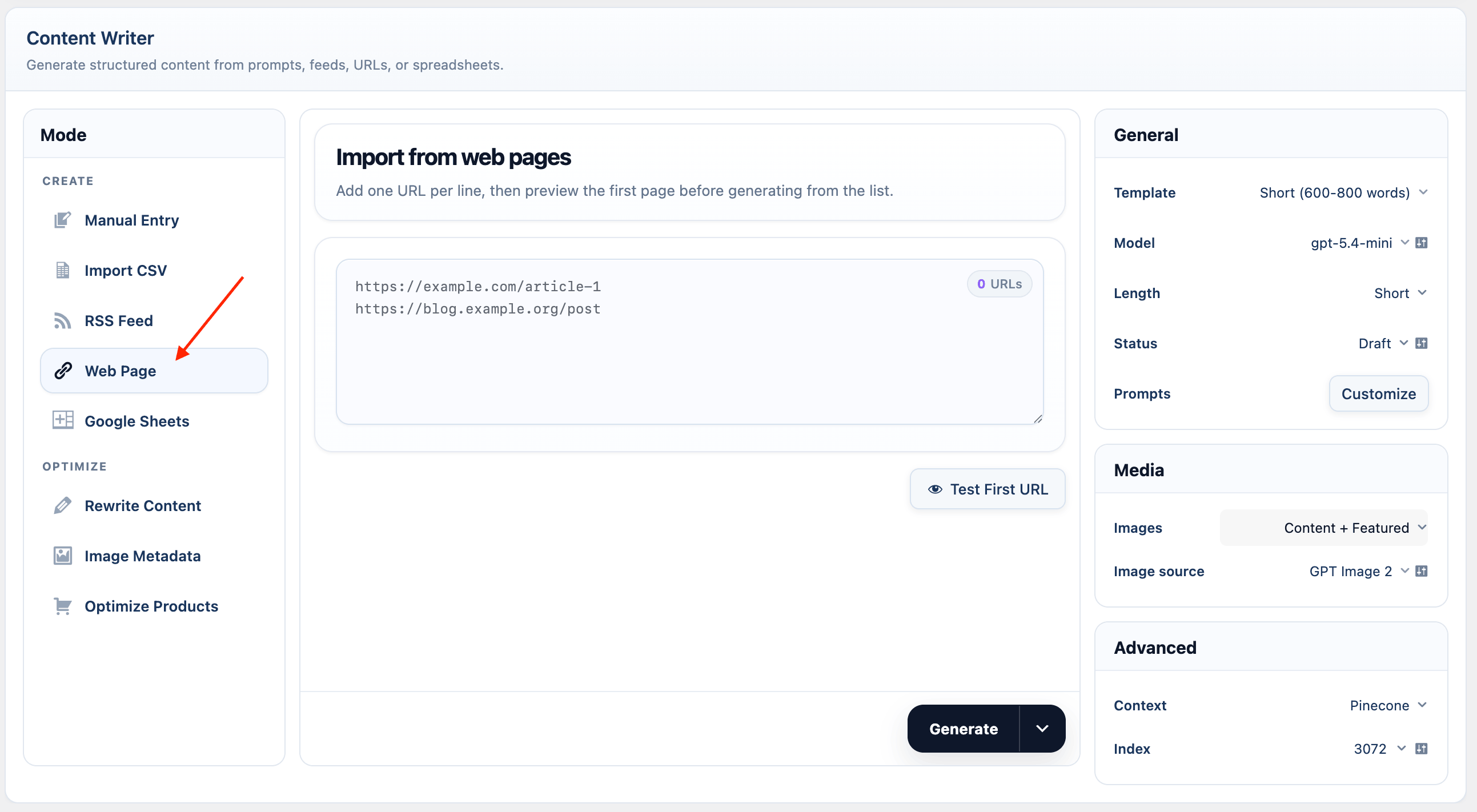
Use Web Page to generate content from a list of URLs.- Select Web Page.
- Add one URL per line.
- Click Test First URL to preview extracted text.
- Set prompts and publishing options.
- Click Generate or Create Task.
Google Sheets
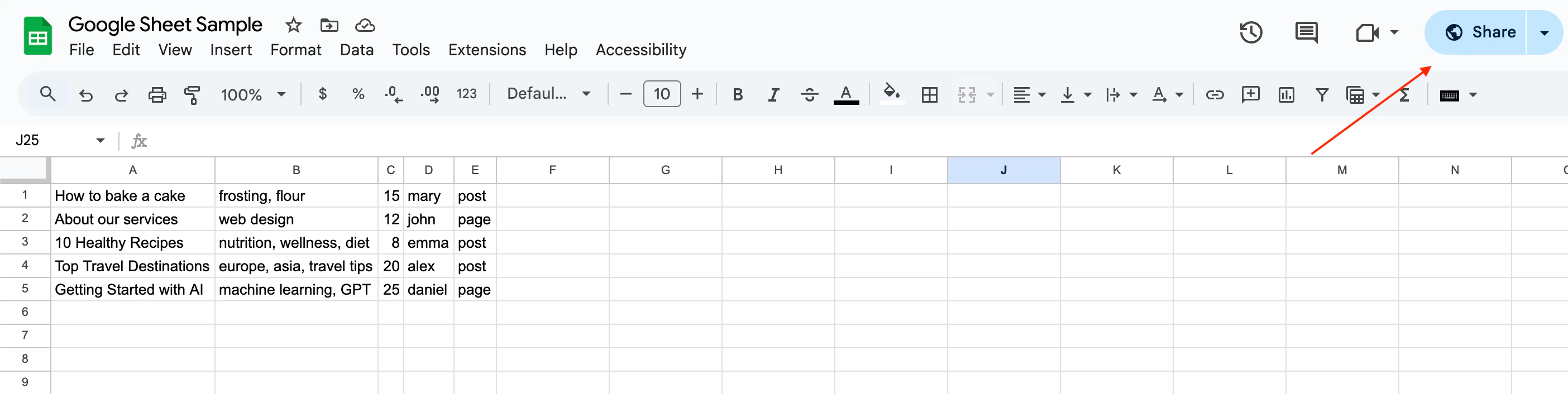
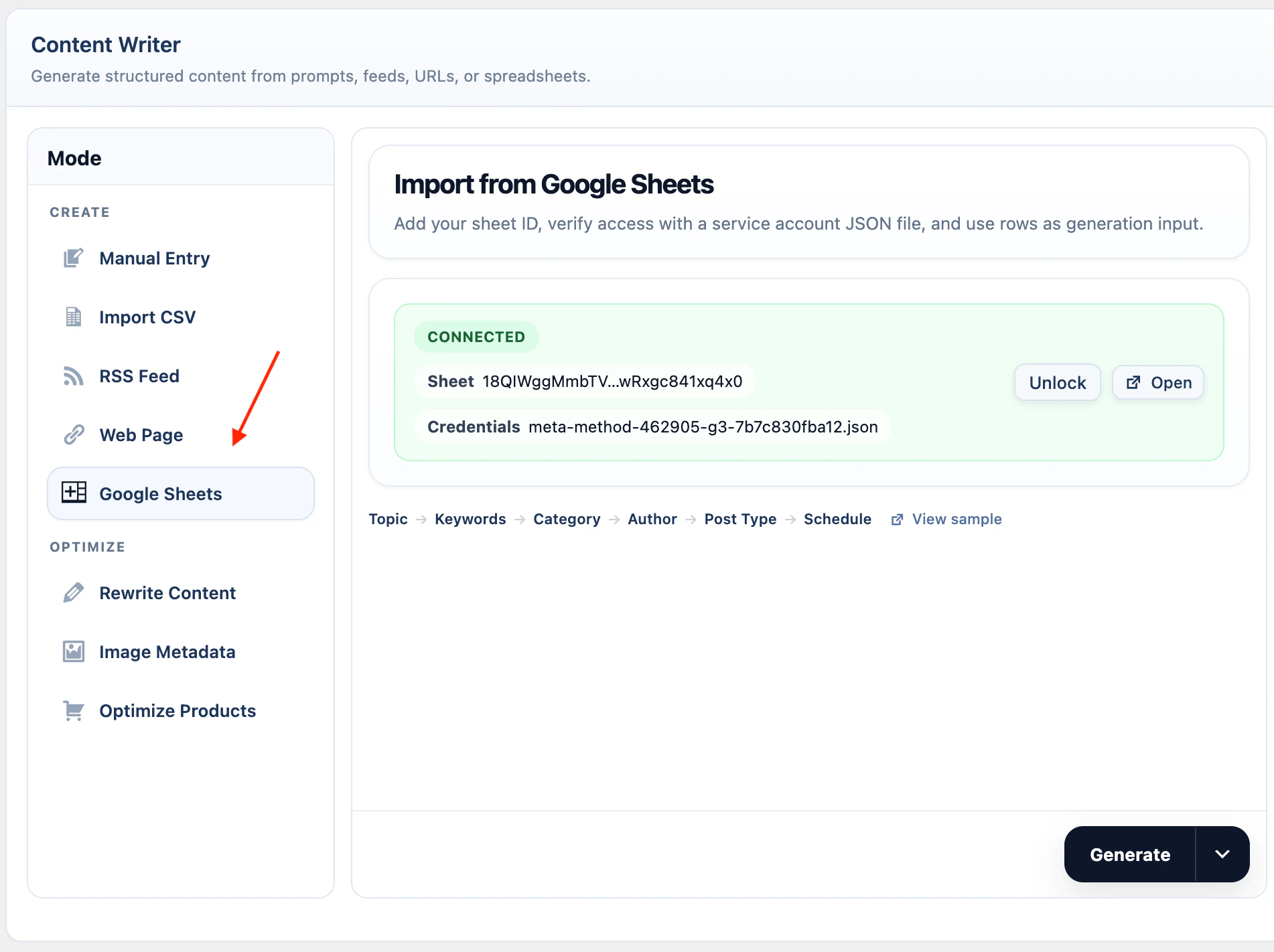
Use Google Sheets when your content inputs are managed in a spreadsheet. Open the sample Google Sheet, make a copy, and keep the same column order.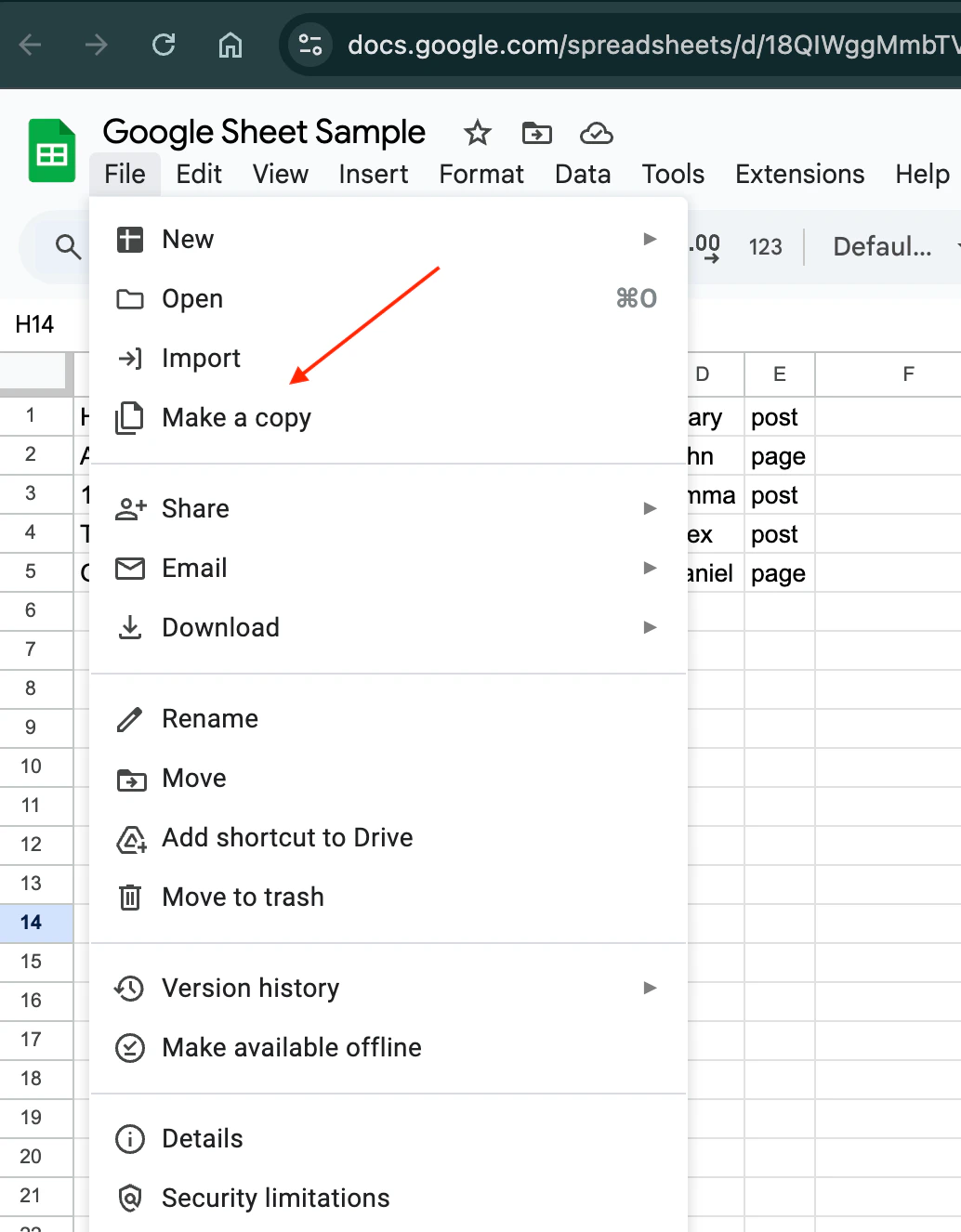
A:G.
Rows are processed only when column A has a topic and column G is empty. After a post is created, AI Puffer writes
Processed on ... to column G so the row is not used again.
If you use a header row, put a value in column G for that row, such as Status, so it is skipped.
AI Puffer uses a Google Cloud to read the sheet and update the status column.
Create the service account:
- Open Google Cloud Console.
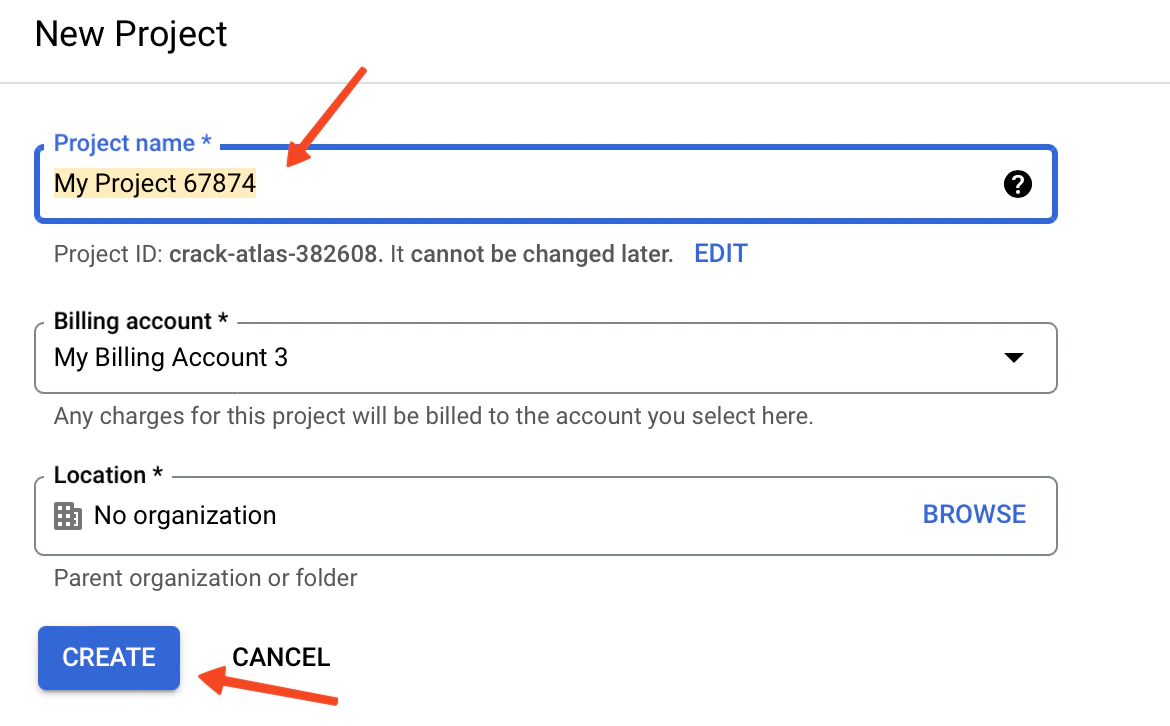
- Create a new project, or select an existing project.
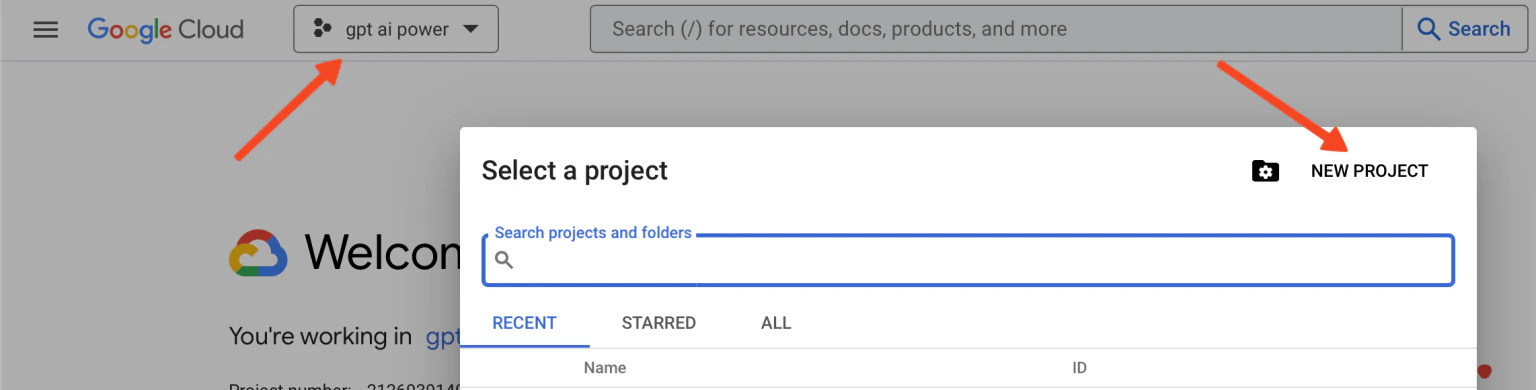
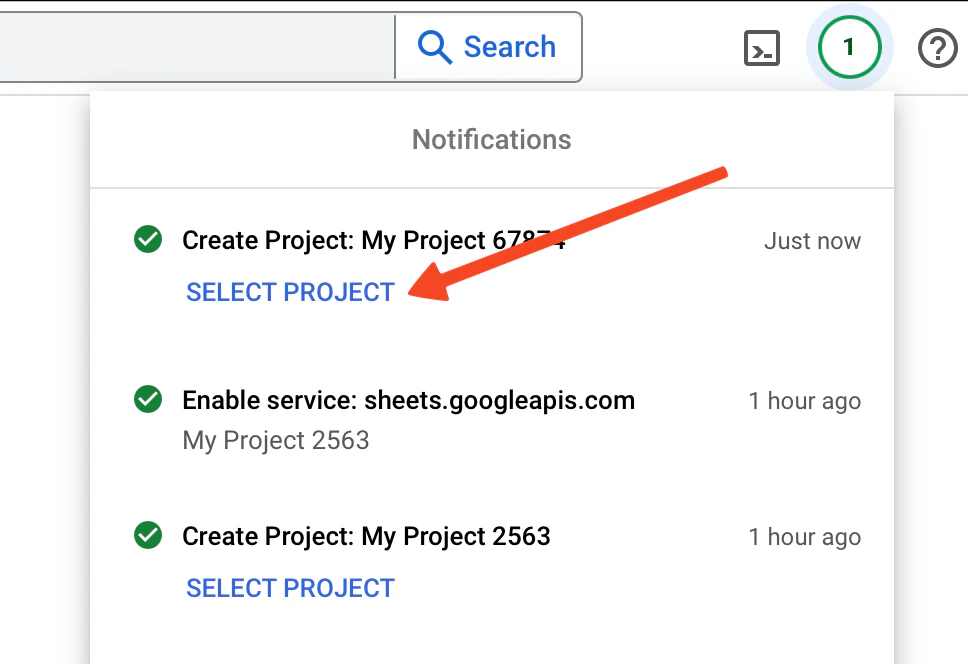
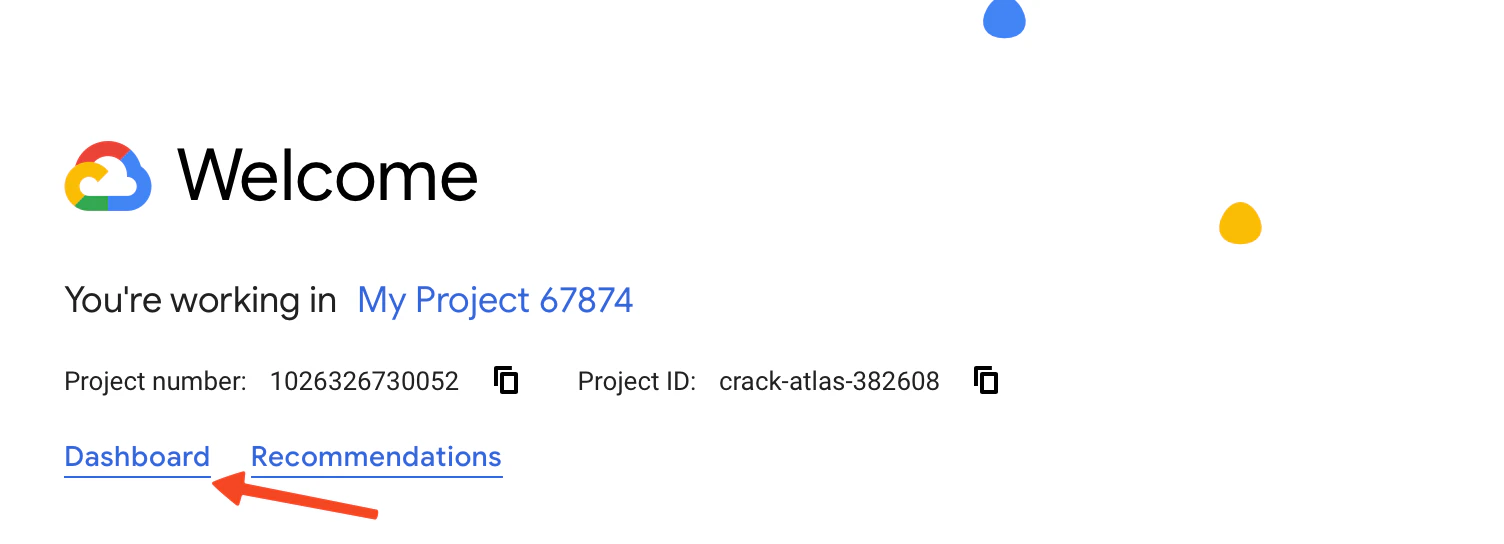
- Open the project dashboard.
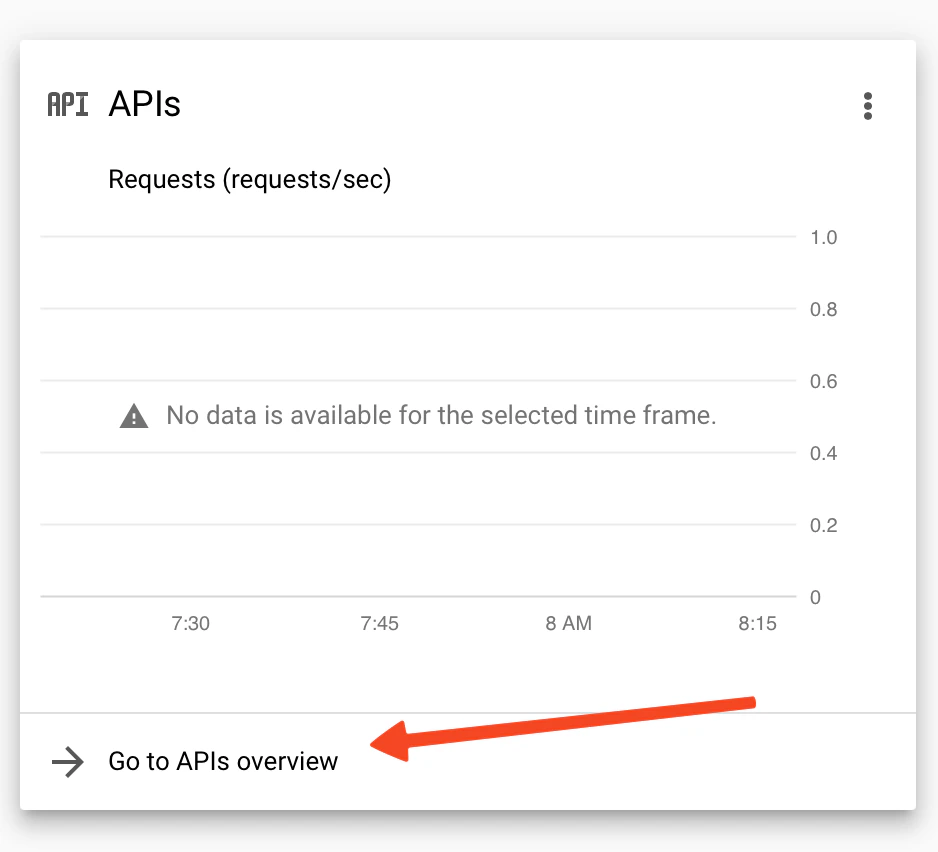
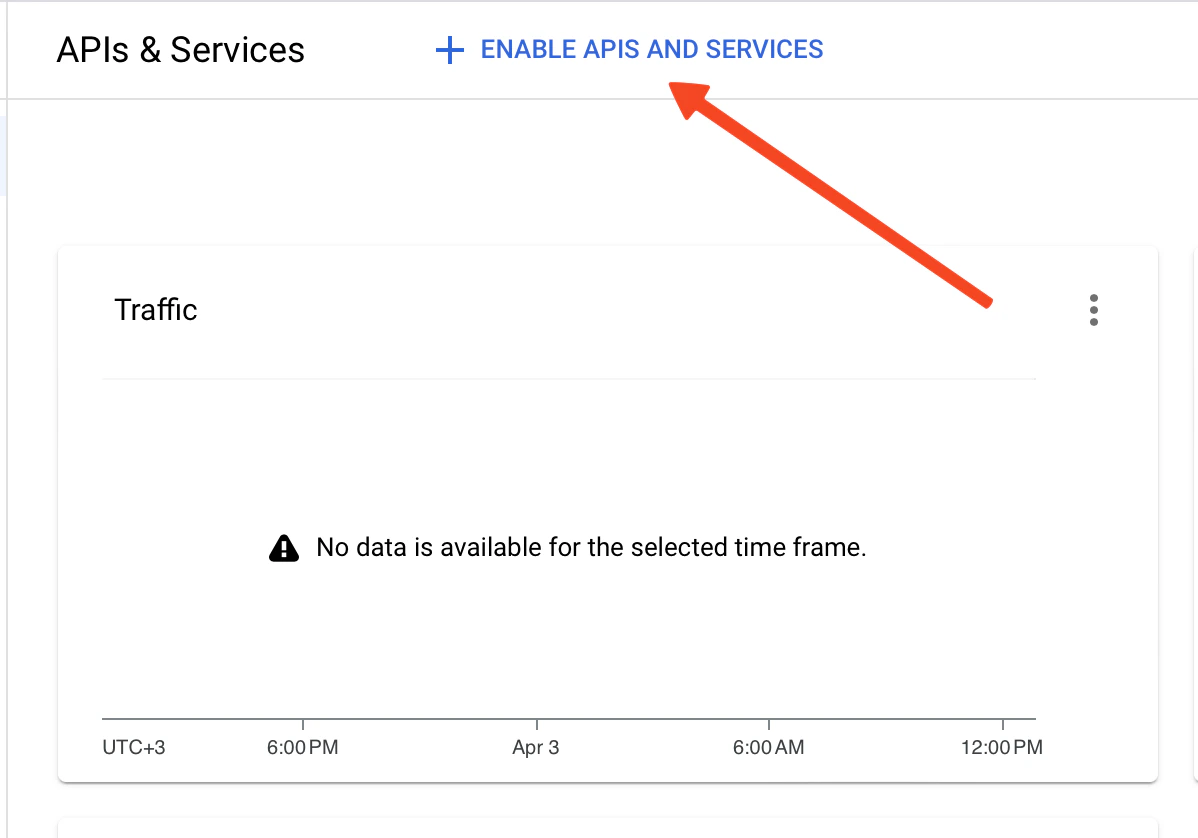
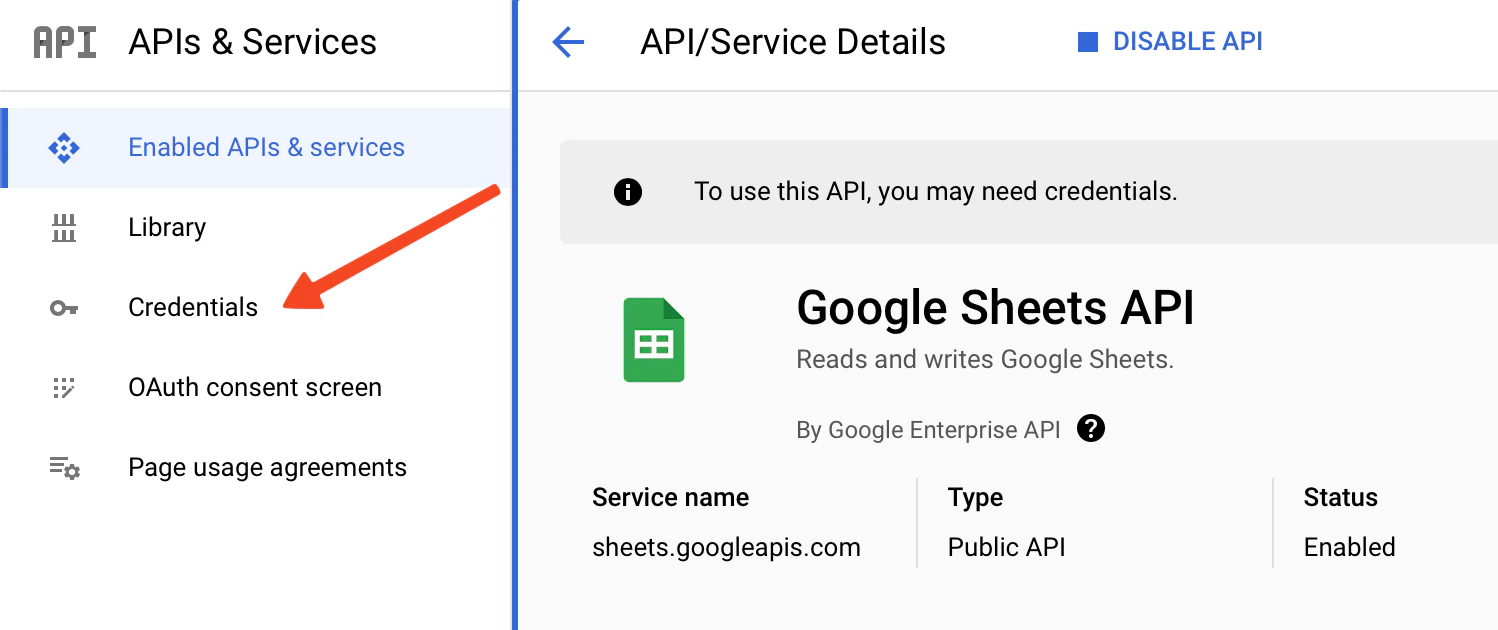
- Go to APIs & Services.
- Click Enable APIs and Services.
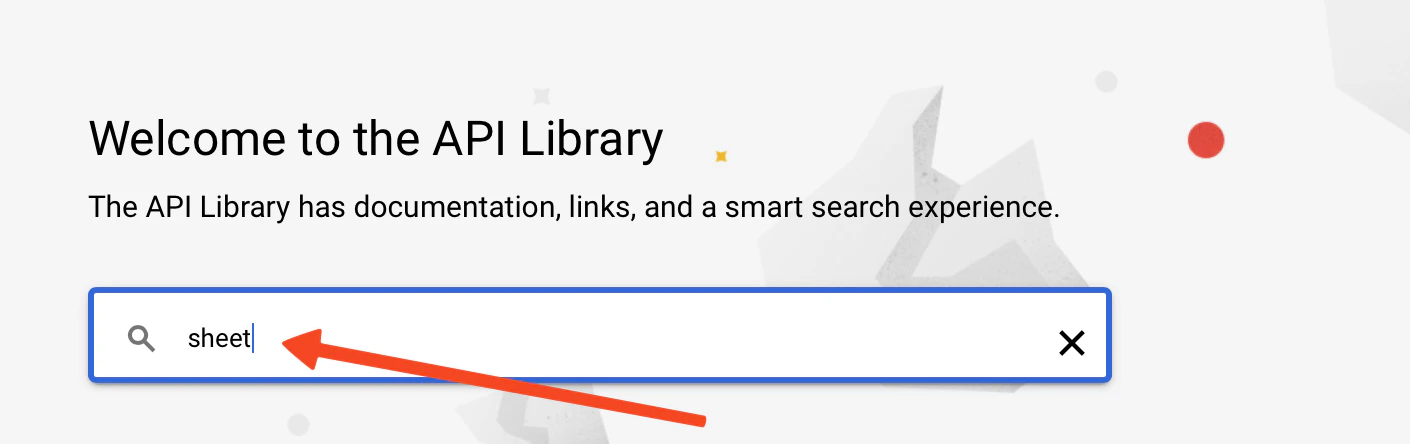
- Search for Google Sheets API.
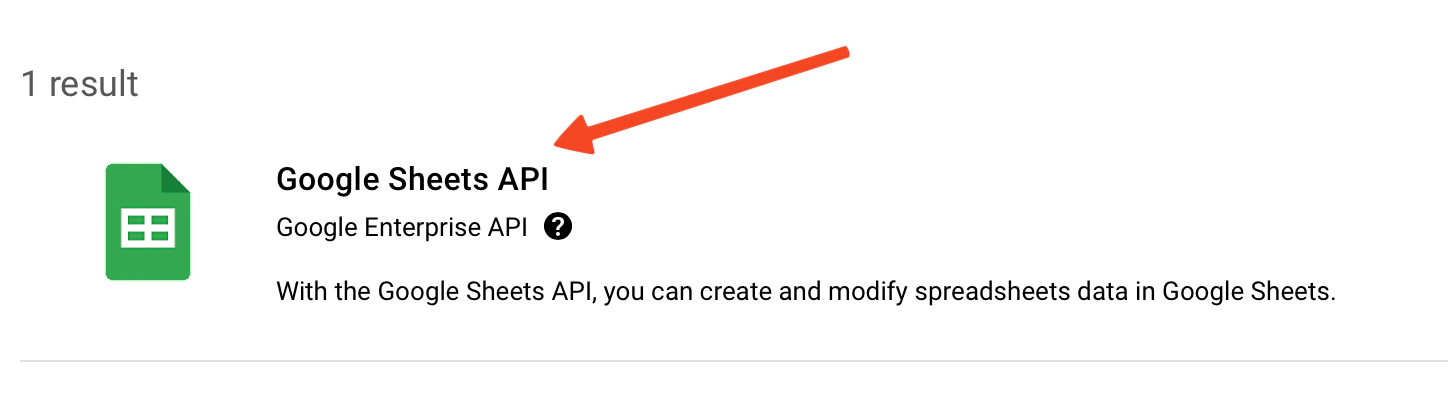
- Select Google Sheets API.
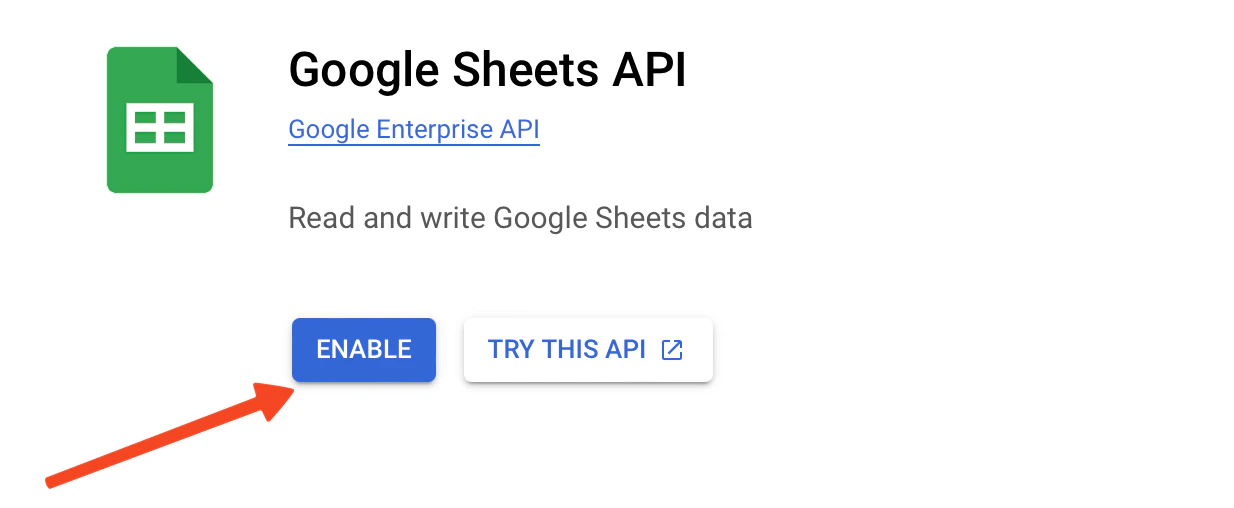
- Click Enable.
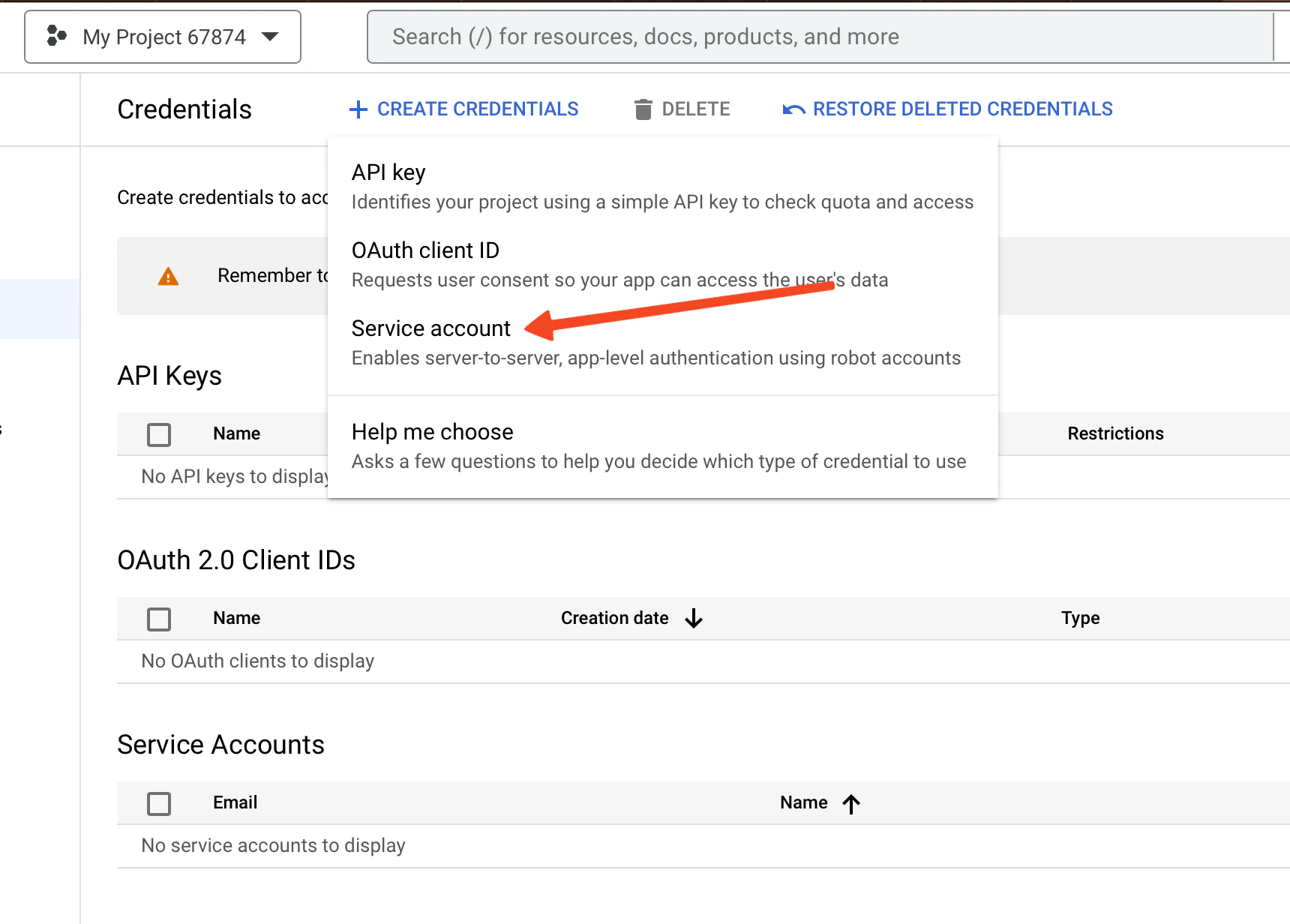
- Go to Credentials.
- Click Create credentials.
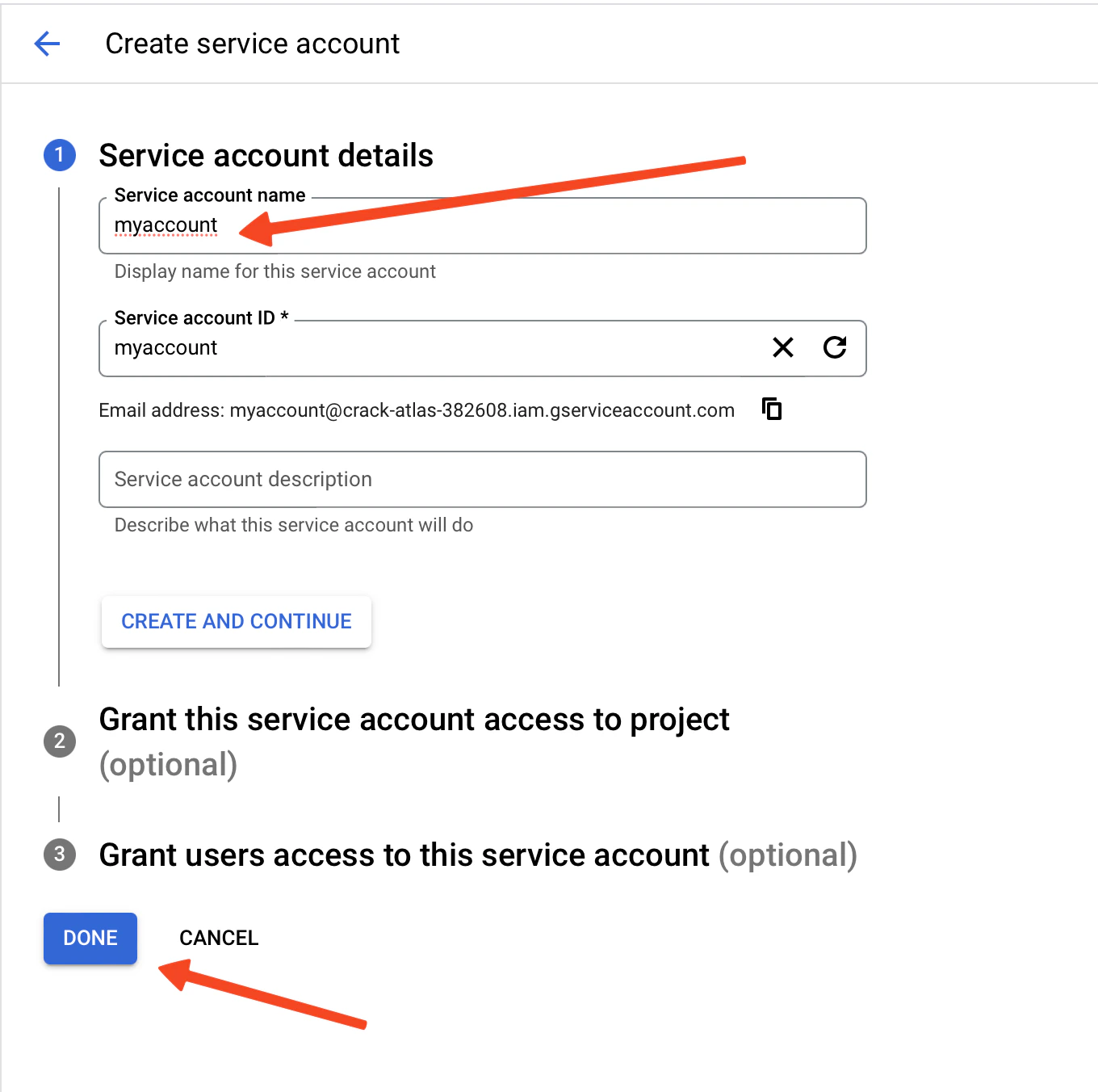
- Select Service account.
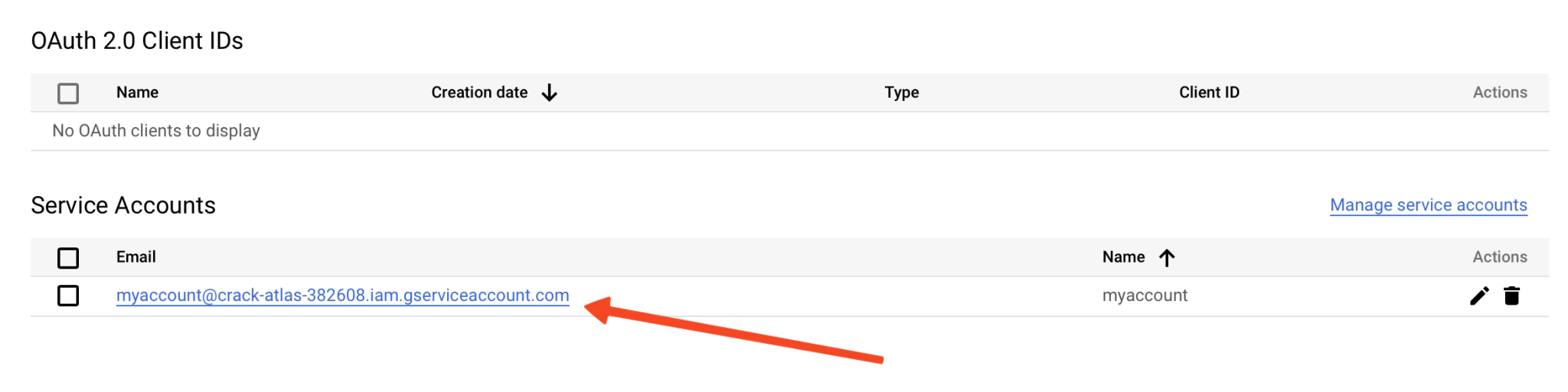
- Enter a service account name and click Done.
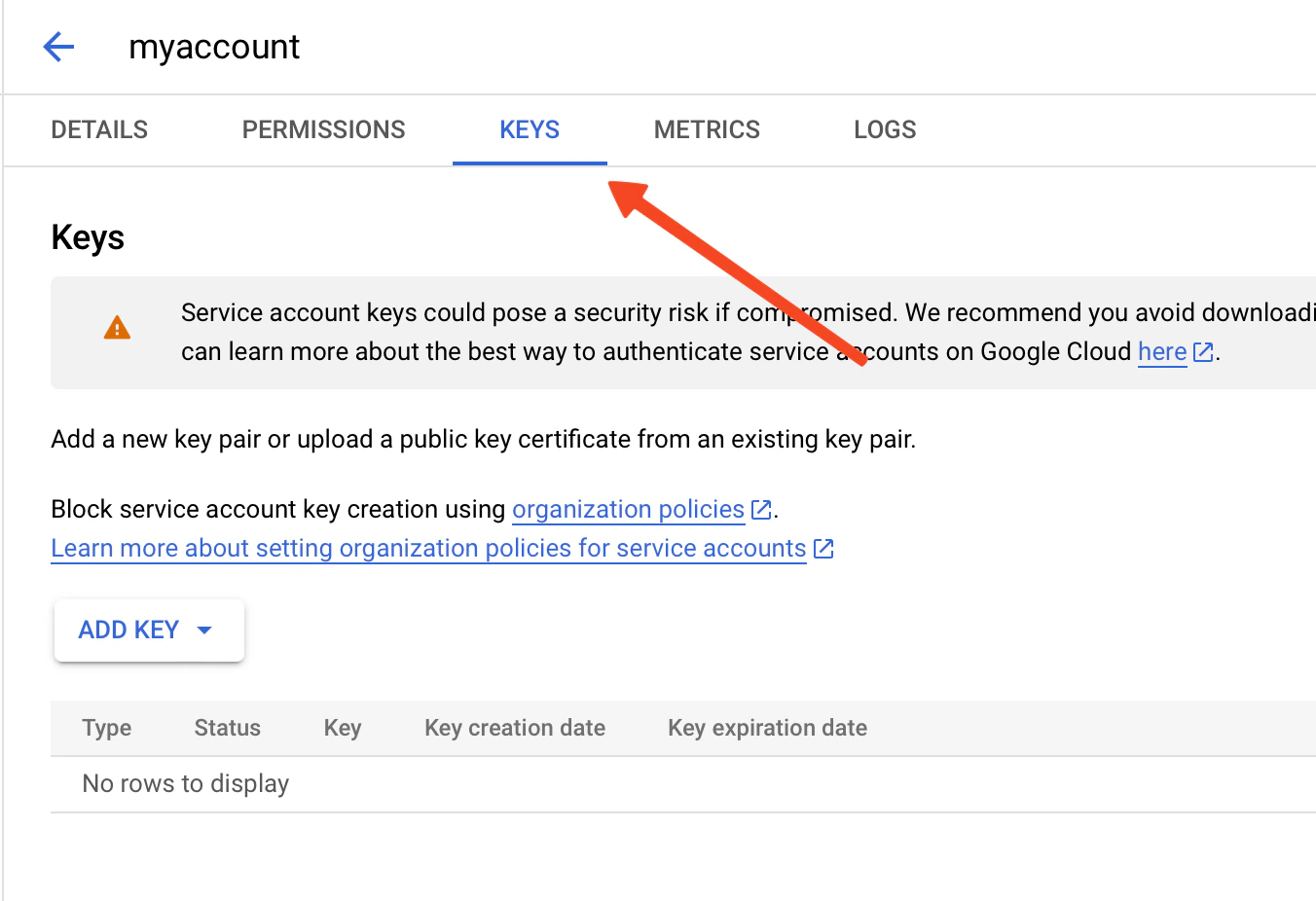
- Open the service account.
- Go to Keys.
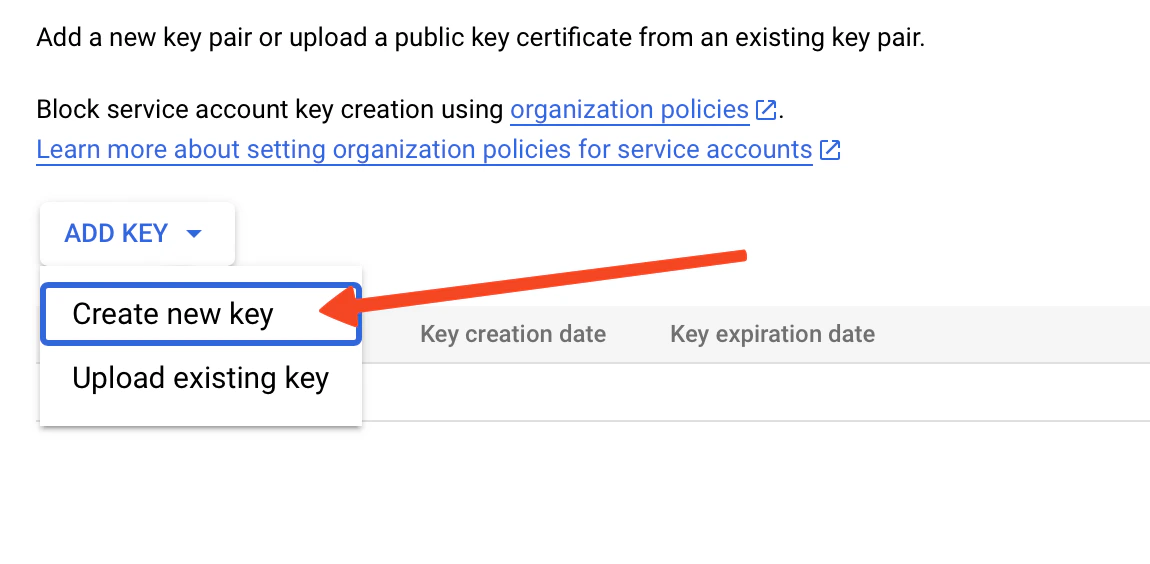
- Click Add key.
- Select Create new key.
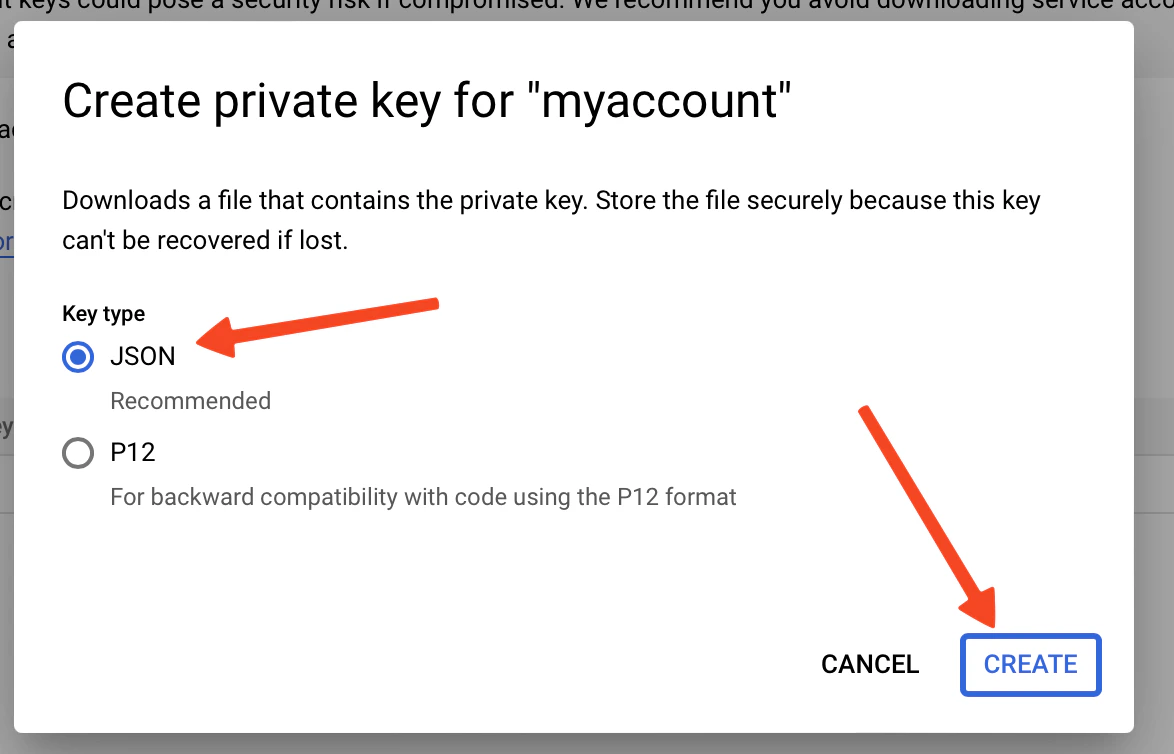
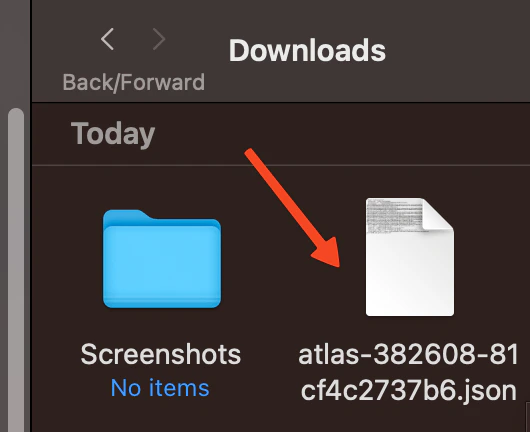
- Select JSON and click Create.
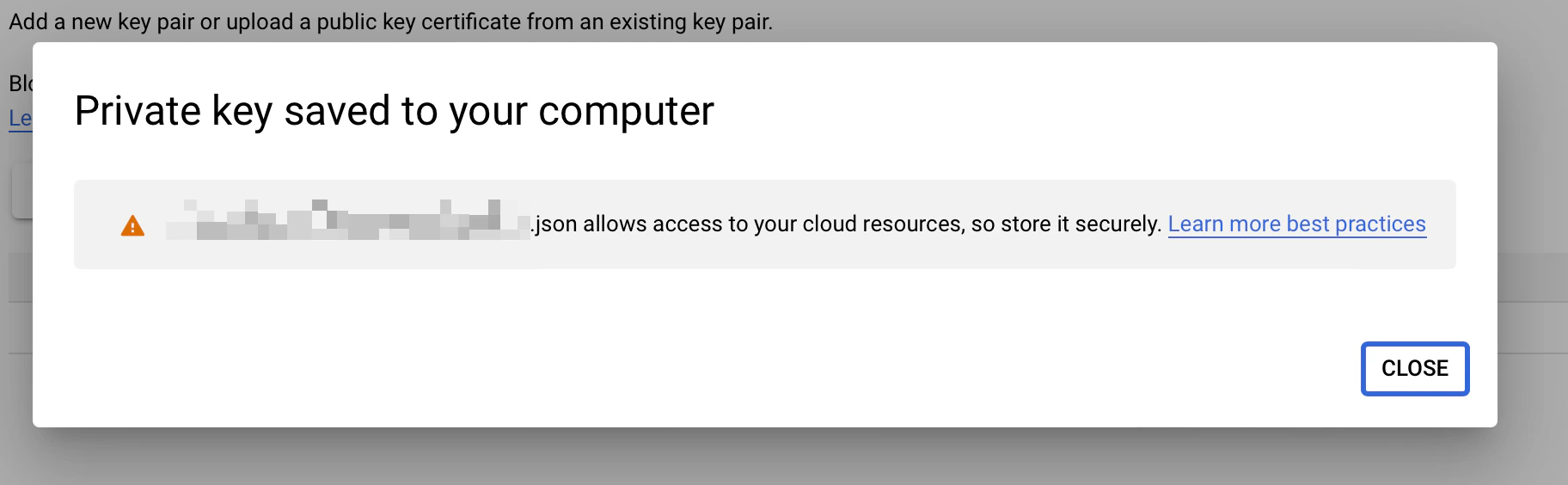
Keep the service account JSON file private. Anyone with this file can use the permissions granted to that service account.
.json file. You will upload it in AI Puffer.
- Open your Google Sheet.
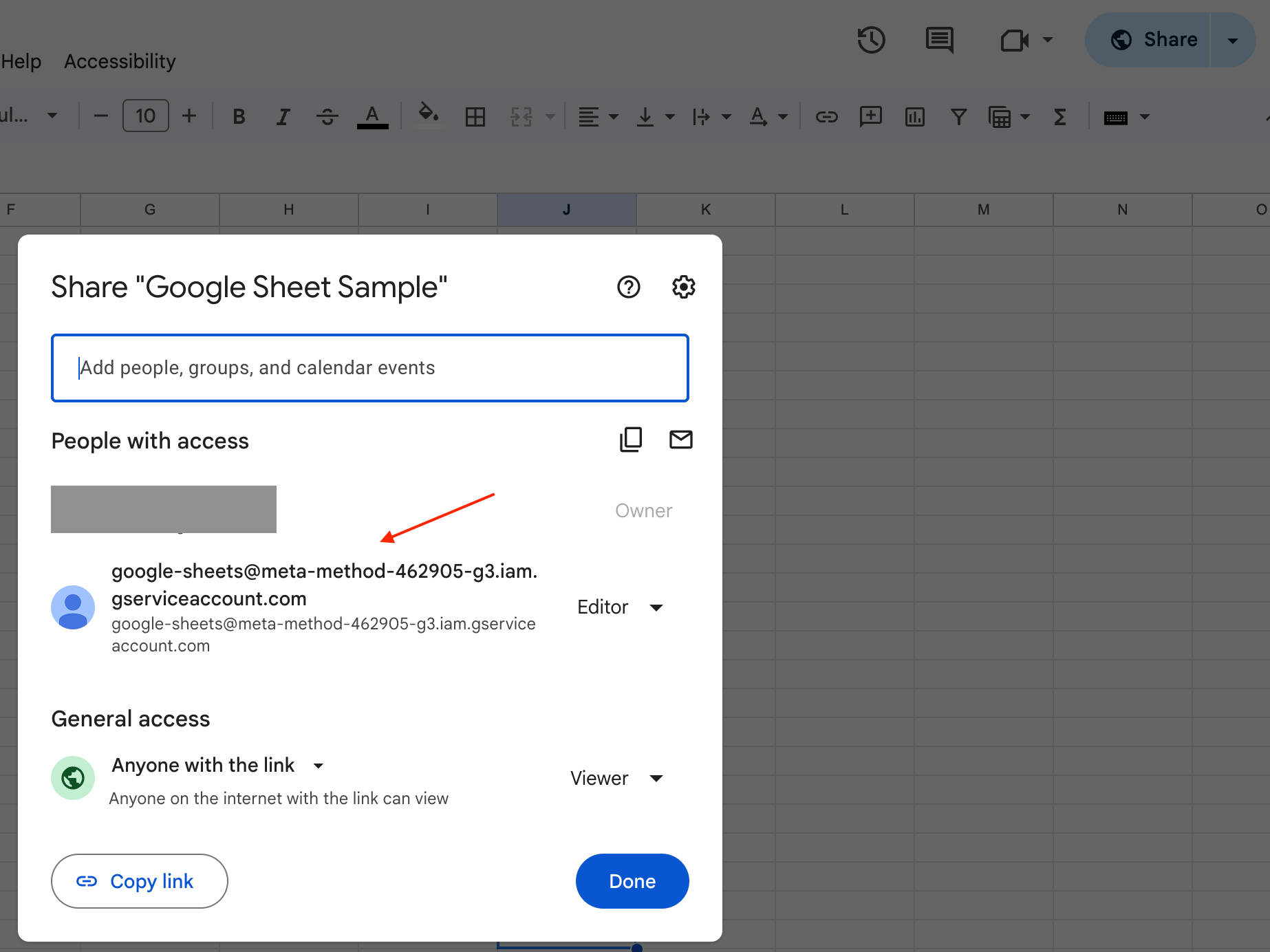
- Click Share.
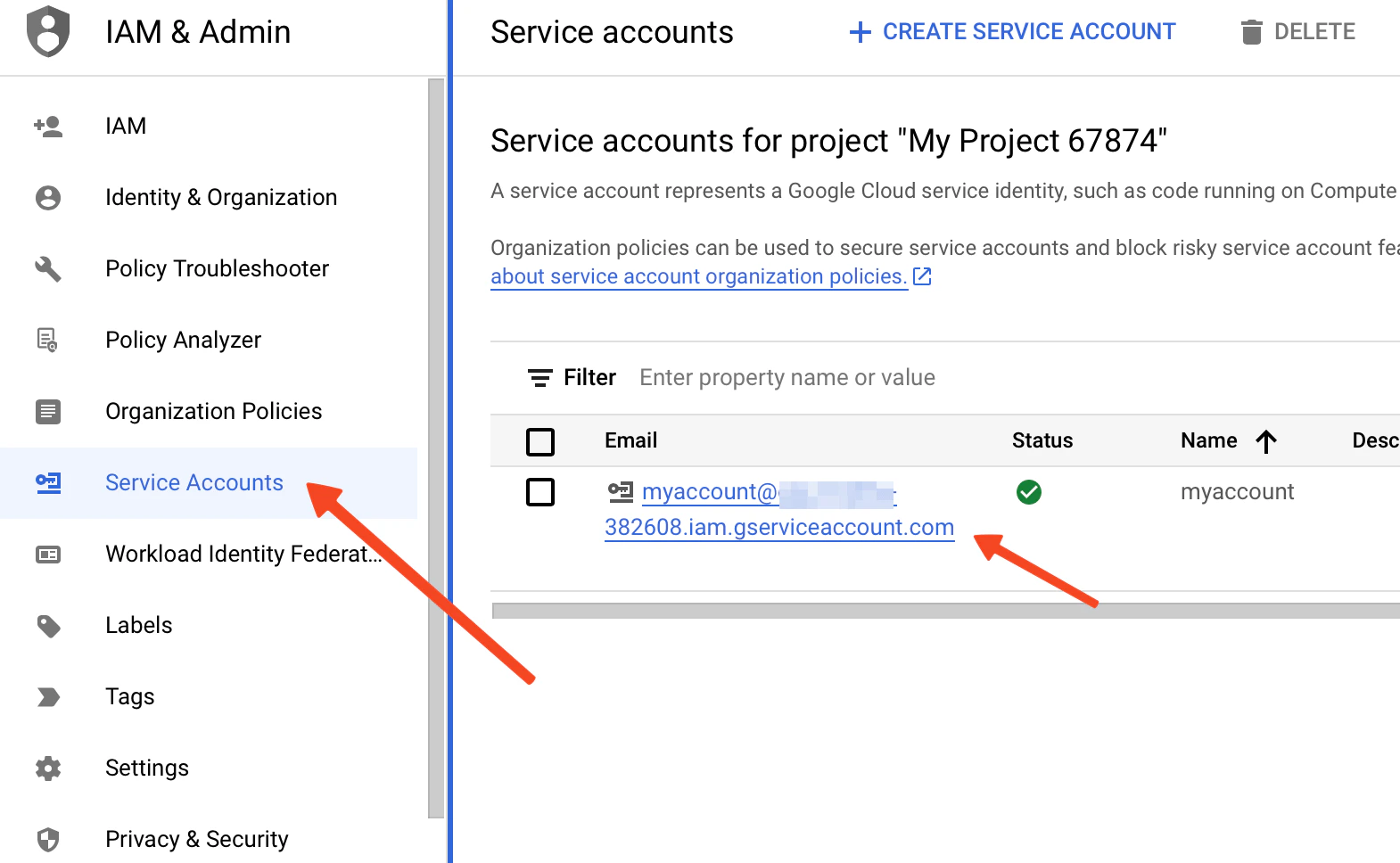
- Copy the service account email from Google Cloud or from the JSON file field named
client_email. - Share the sheet with that email as Editor.
- Select Google Sheets in Content Writer.
- Paste the Google Sheet ID.
- Upload the service account JSON file.
- Wait for the connection check to pass.
- Set the model, prompts, publishing, image, and SEO options.
- Click Generate or Create Task.
/d/ and /edit in the sheet URL.
Optimize
Use optimize modes when you want to update content that already exists in WordPress. To update content from WordPress post lists or editor screens, use WordPress Utilities.Rewrite Posts and Pages
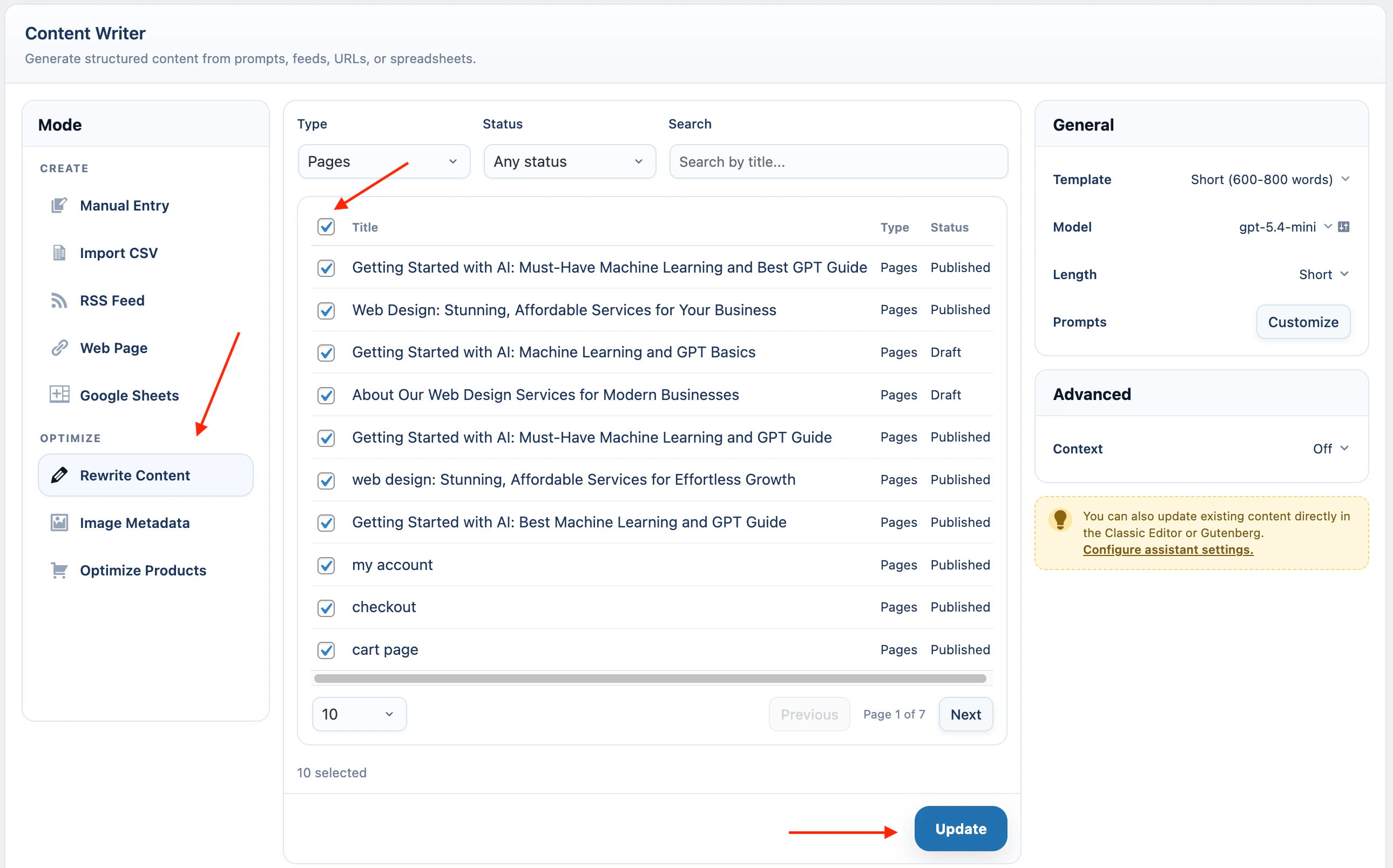
Use Rewrite Content to update selected posts or pages.- Select Rewrite Content.
- Filter by type, status, or search term.
- Select one or more rows.
- In the right-side General card, click Customize next to Prompts and choose the fields to update.
- Click Update.
For existing content prompts, include at least one source placeholder:
Image Metadata
Use Image Metadata to update media library attachment data.- Select Image Metadata.
- Filter images by media type, unattached items, owner, or search term.
- Select the image.
- In the right-side General card, click Customize next to Prompts.
- Enable the metadata fields you want to update.
- Click Update.
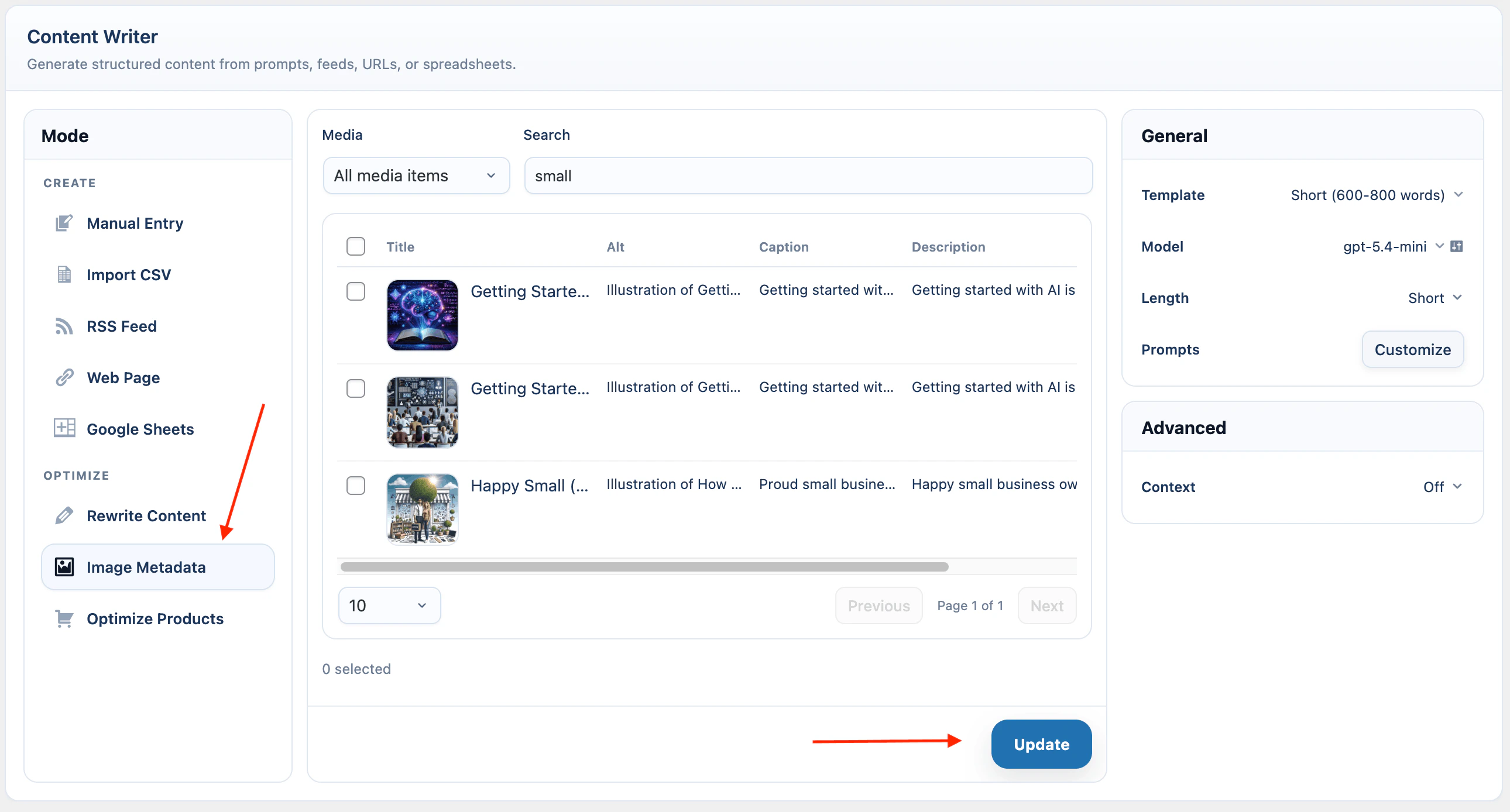
Image metadata prompts can use:
WooCommerce Products
Optimize Products appears when WooCommerce is active.Optimize Products requires AI Puffer Pro. If WooCommerce is not active, this mode is not shown. On the free version, product updates are blocked and the action button opens the upgrade flow.
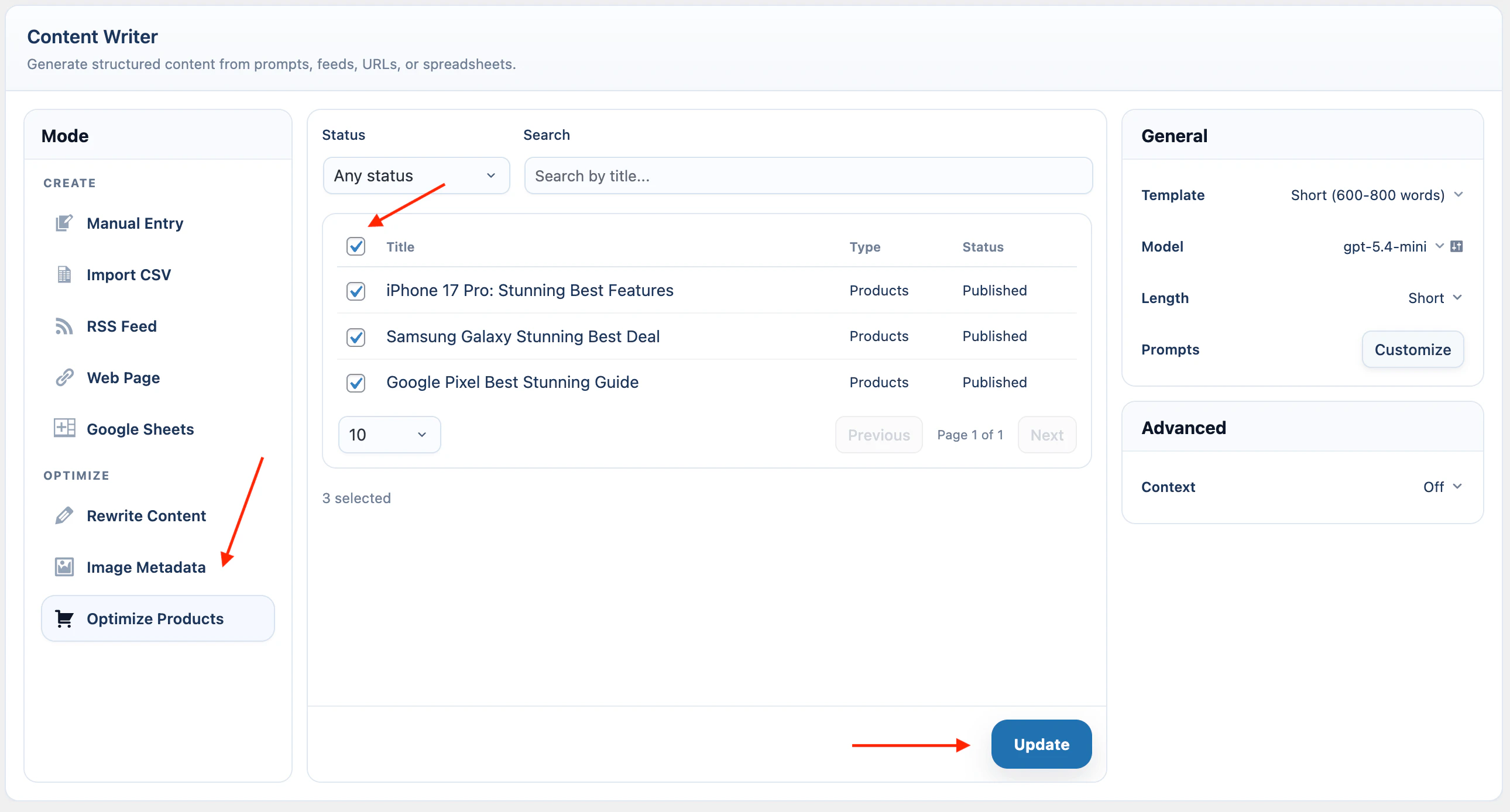
- Open AI Puffer > Content Writer.
- Select Optimize Products under Optimize.
- Use Status and Search to find products.
- Select one or more products.
- In the right-side General card, click Customize next to Prompts.
- Enable the product fields you want to update.
- Edit the prompts if needed.
- Choose the AI provider, model, and length.
- In the right-side Advanced card, set Context if product copy should use stored business or product information.
- Click Update.
Price, SKU, stock, dimensions, purchase note, categories, and attributes are available for prompts. AI Puffer uses them as source data; it does not change those WooCommerce product fields.
Product prompts can use:
Settings
Templates
Templates save reusable Content Writer settings. Use them when you often write with the same model, prompts, publishing rules, image settings, or knowledge settings. The Template control is in the General panel on the right side of Content Writer. Use the template menu to load, create, edit, rename, delete, and reset templates. Starter templates and default templates cannot be renamed or deleted.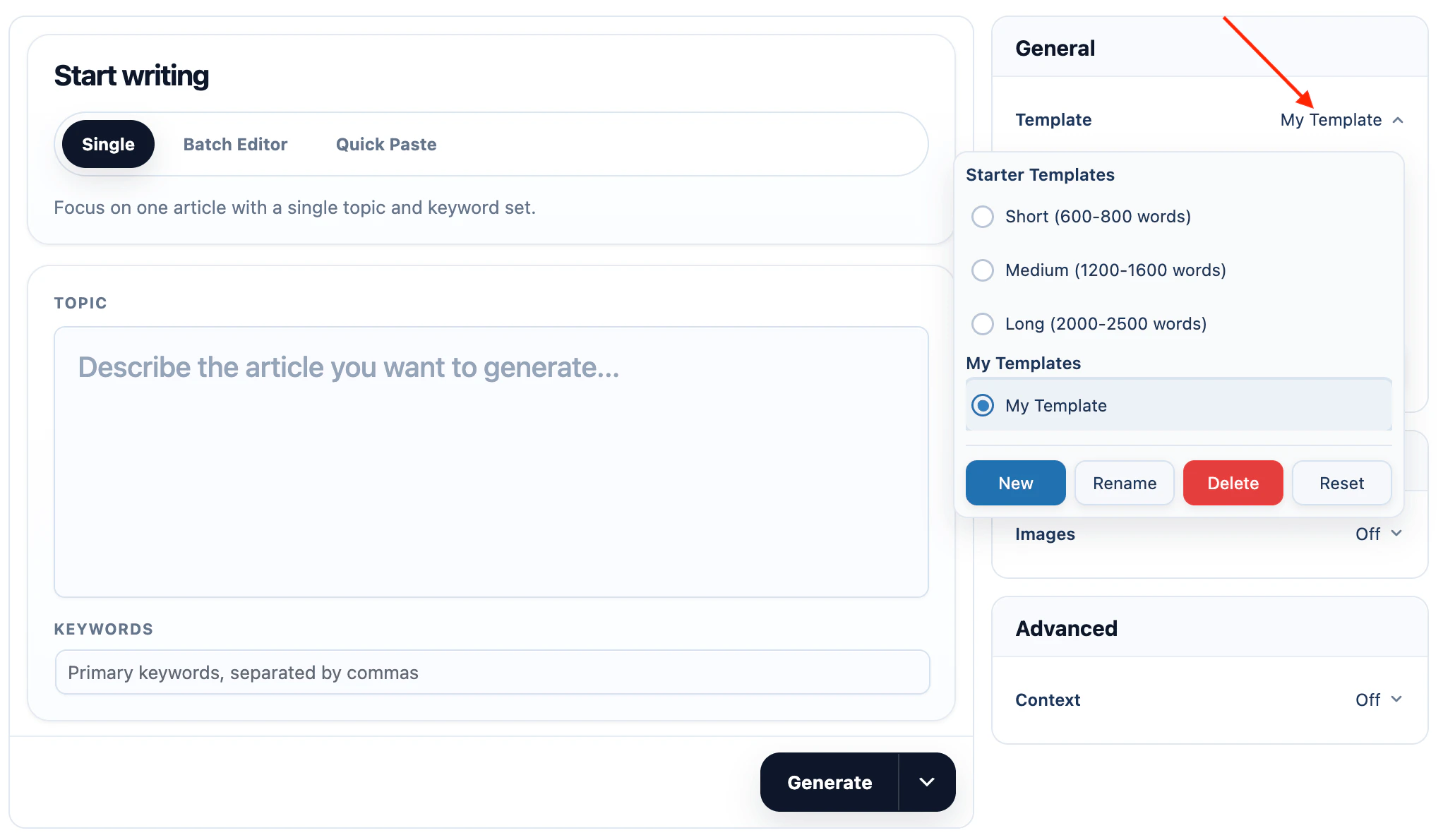
AI
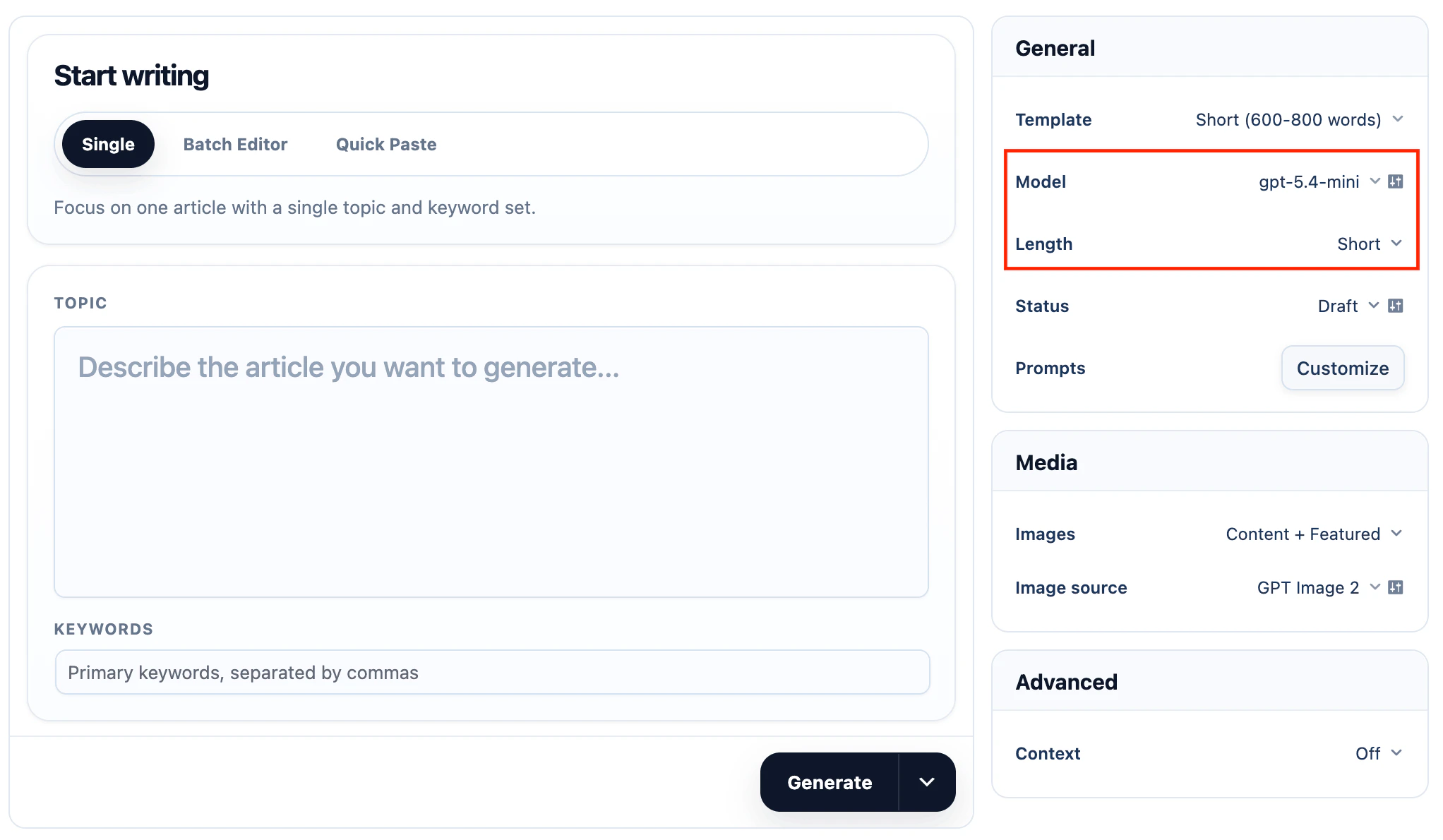
Content Writer uses the AI providers configured in AI Puffer, including hosted providers, xAI, and local Ollama models. To set the model:- In the right panel, open AI.
- Select the model.
- Select the content Length.
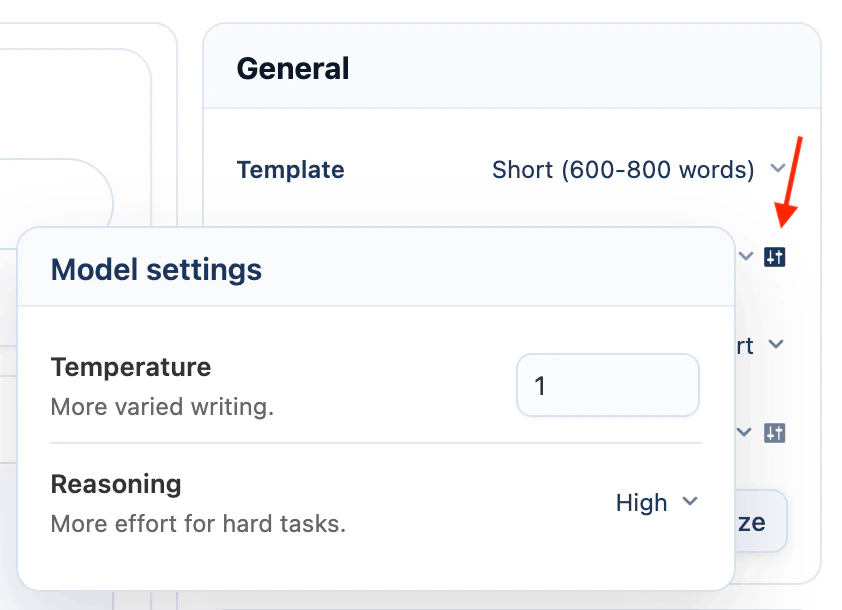
- Click the settings icon next to the model.
- Adjust Temperature if you want more or less variation.
- Set Reasoning only for models that support it. Keep it on None for faster generation.
Prompts
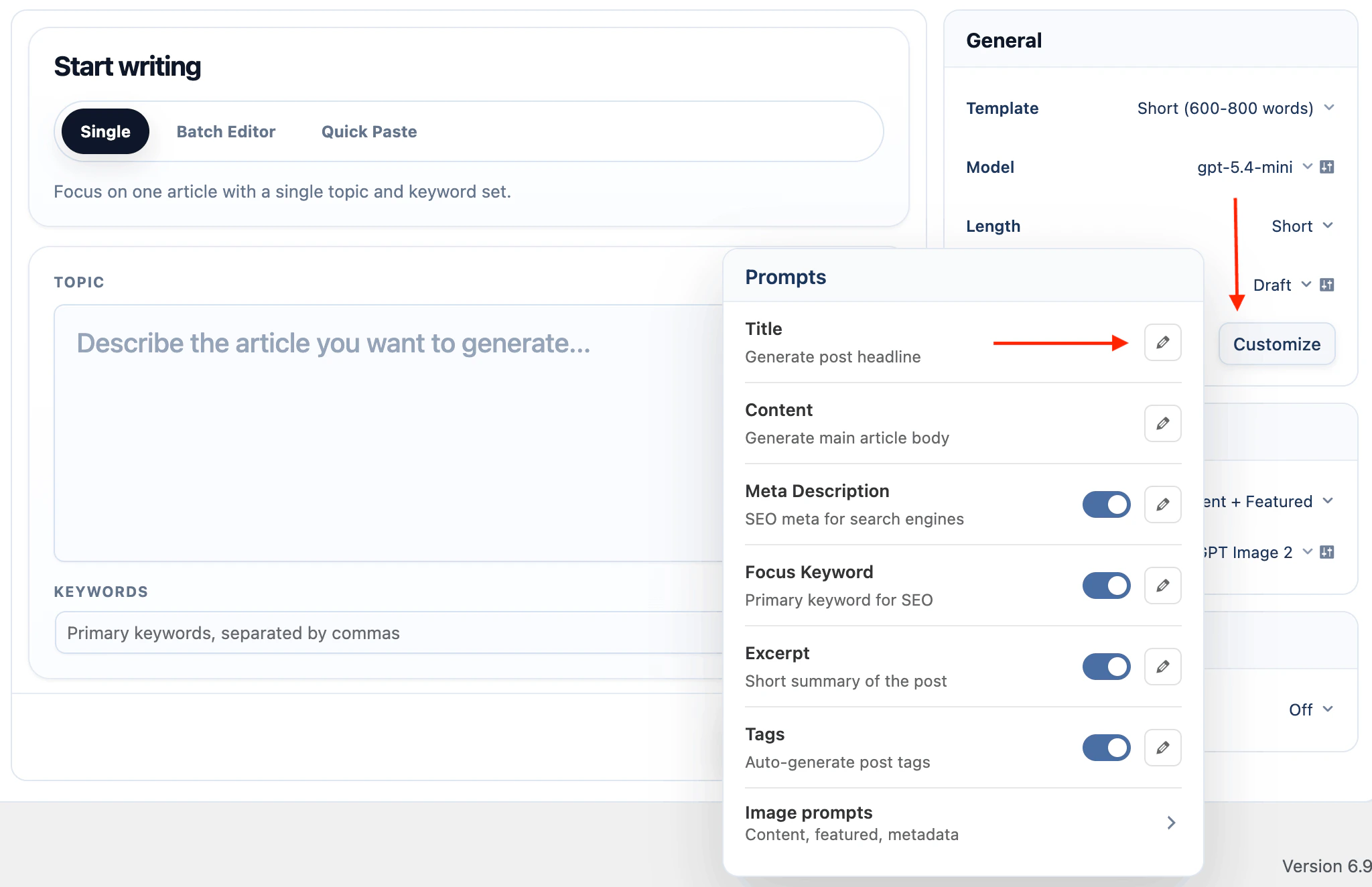
Prompts are the instructions Content Writer sends to the selected model. Each output has its own prompt, so the title, article body, SEO fields, excerpt, and tags can follow different rules. To customize prompts:- In the right-side General card, click Customize next to Prompts.
- Enable the outputs you want Content Writer to generate.
- Click the edit icon next to an output.
- Select Default or a saved prompt from the dropdown, or edit the prompt text directly.
- Use the variables shown under the editor. Click a variable to copy it.
- Click Apply changes if the button appears.
- Generate one item and review the result before running a batch.
Available variables change based on the selected source or optimize mode.
SEO
Use SEO settings when the generated post should leave Content Writer with search metadata already filled in. AI Puffer can create a meta description, focus keyword, tags, and a cleaner WordPress URL slug. Pro users can also use Smart SEO to audit and improve the generated draft against the active SEO plugin. To use SEO output:- In the right-side General card, click Customize next to Prompts.
- Enable Meta Description, Focus Keyword, or Tags.
- Edit the prompt for each enabled output if the default instruction does not match your site.
- In the right-side General card, click the settings icon next to Status to open Post settings.
- Enable Optimize URL if you want AI Puffer to update the post .
- Generate the content.
- Review the SEO fields in the output panel before saving the post.
Smart SEO
Smart SEO is a Pro feature.- It works in Content Writer Create mode.
- It supports Single generation, Batch generation, Quick Paste, CSV, RSS, URL, and Google Sheets batches.
- It automatically detects the active SEO plugin.
- It checks the generated draft against that SEO profile.
- It improves the draft before you save it.
- For SEO revisions, Smart SEO may use a quality-focused model from the same AI provider selected for generation, never switches providers, and uses the selected deployment or local model for Azure and Ollama.
- It tries to improve the generated draft up to
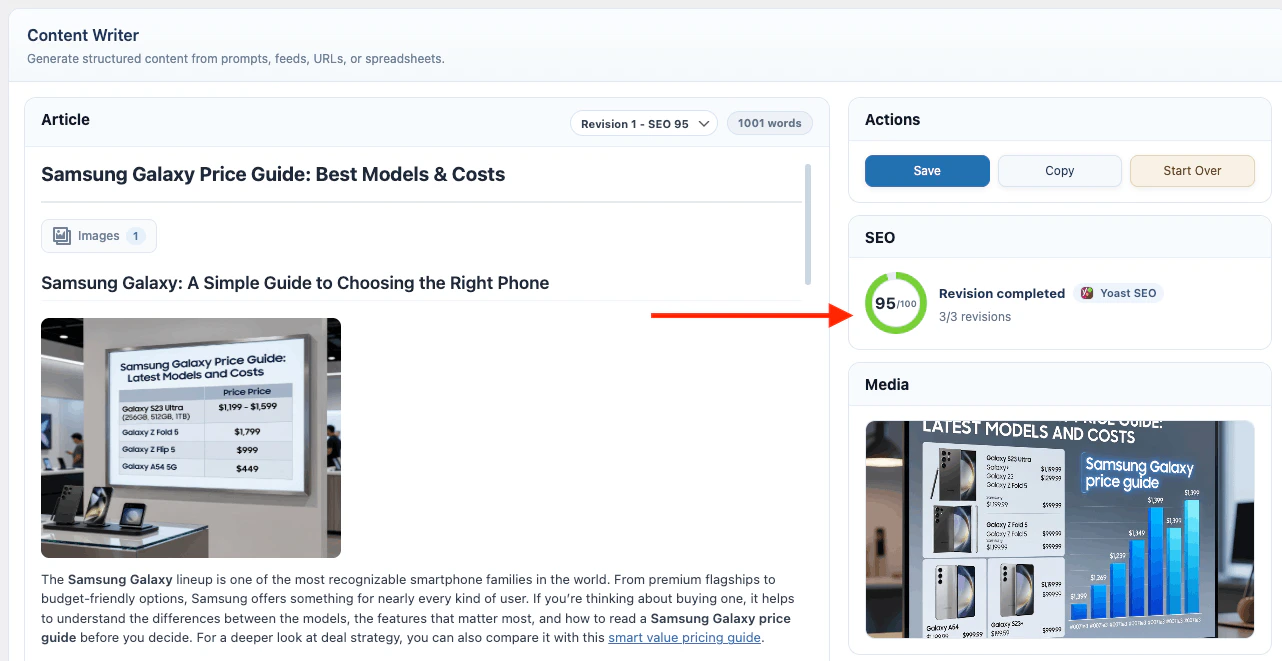
100/100. - It can run up to three SEO revisions.
- If the draft cannot reach
100/100, AI Puffer keeps the best-scoring revision. - In Single mode, users can review the SEO score and switch between revisions before saving.
- In batch modes, users see the SEO score and status in the batch monitor.
- Free users can still generate meta descriptions, focus keywords, tags, excerpts, and optimized slugs.
- Only Smart SEO score improvement is paid.
- Open AI Puffer > Content Writer.
- Choose a Create source such as Manual Entry, CSV, RSS, URL, or Google Sheets.
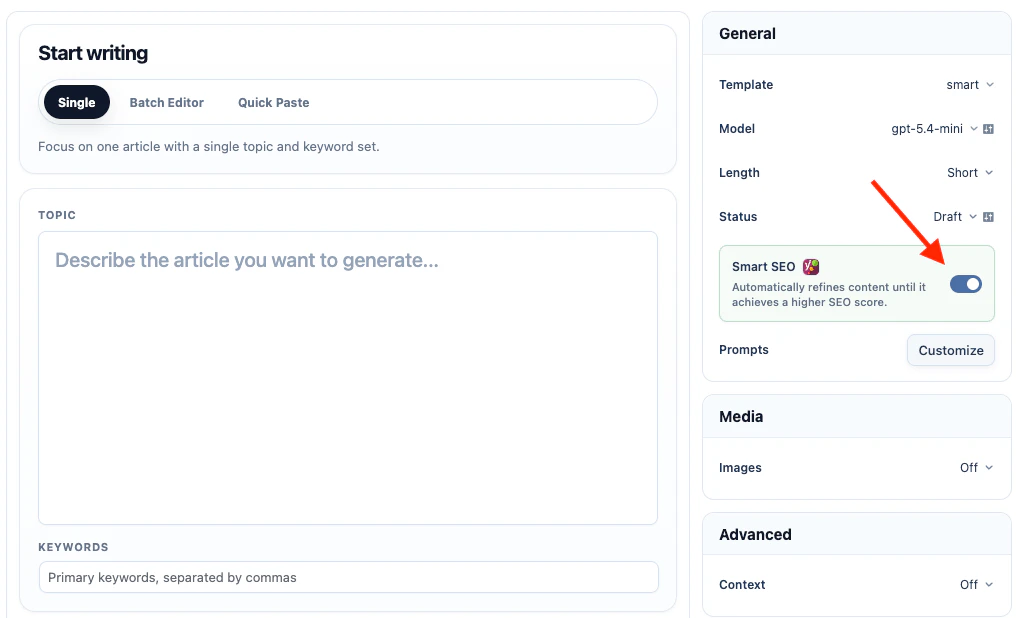
- In the right-side General card, enable Smart SEO.
- Generate the content.
- Review the SEO score and generated post before saving.
After choosing a preset, you can still toggle individual rules. If the selected rules no longer match a preset, the panel shows the selection as custom.
Depending on the active SEO plugin profile, Smart SEO can check:
The exact checks depend on the active SEO plugin profile. Some checks are shared across profiles, while others mirror plugin-specific scoring behavior.
Smart SEO rules
Smart SEO rules
Yoast SEO rules
Yoast SEO rules
Rank Math rules
Rank Math rules
All in One SEO rules
All in One SEO rules
The SEO Framework rules
The SEO Framework rules
Smart SEO follows the active SEO plugin profile automatically. If more than one supported SEO plugin is active, AI Puffer chooses one profile and shows a warning. For predictable scores, use one SEO plugin at a time.
Yoast SEO
AI Puffer saves the generated meta description to the Yoast meta description field and the generated focus keyword to the Yoast focus keyphrase field. If Optimize URL is enabled, the slug is built from the focus keyphrase when available. If there is no focus keyphrase, the post title is used. Smart SEO’s Yoast profile is tuned for Yoast SEO analysis and readability checks, including keyphrase placement, meta description length, links, image alt text, and readability signals.Rank Math
AI Puffer saves the generated meta description to the Rank Math description field and the generated focus keyword to the Rank Math focus keyword field. Smart SEO’s Rank Math profile is tuned for Rank Math’s Basic SEO, Additional SEO, Title Readability, and Content Readability checks.All in One SEO
AI Puffer saves the generated meta description to All in One SEO and updates the focus keyphrase data used by AIOSEO. Smart SEO’s All in One SEO profile is tuned for TruSEO checks, focus keyphrase analysis, readability checks, and headline score improvements.The SEO Framework
AI Puffer saves the generated meta description to The SEO Framework description field. The SEO Framework does not provide a native focus keyword field, so AI Puffer does not save a focus keyword for it. Smart SEO’s The SEO Framework profile focuses on title and description behavior because The SEO Framework does not provide a native focus keyword field. If none of the supported SEO plugins are active, AI Puffer still saves the meta description as fallback post meta. Focus keyword output remains visible in Content Writer, but there is no SEO plugin field to save it into. WordPress tags and the optimized URL slug still work without an SEO plugin.Publishing
Publishing controls the WordPress post that gets created after generation. To set the post target:- In the right-side General card, select the post Status.
- Click the settings icon next to Status to open Post settings.
- Select the Post Type.
- Select the Author.
- Select categories if the post type supports them.
- Enable Table of Contents if you want a generated table of contents added to the top of the post.
- Enable Optimize URL if you want AI Puffer to generate a cleaner WordPress slug.
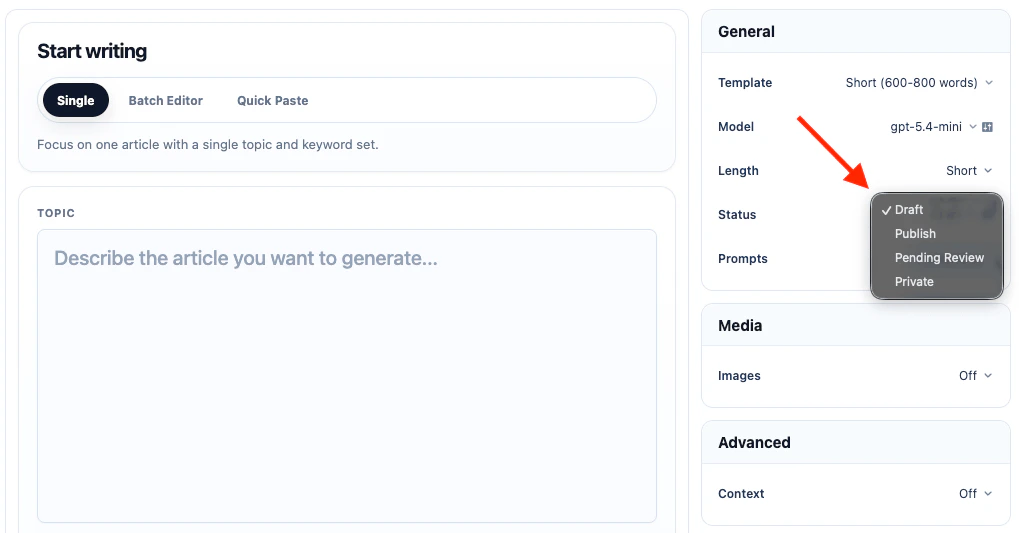
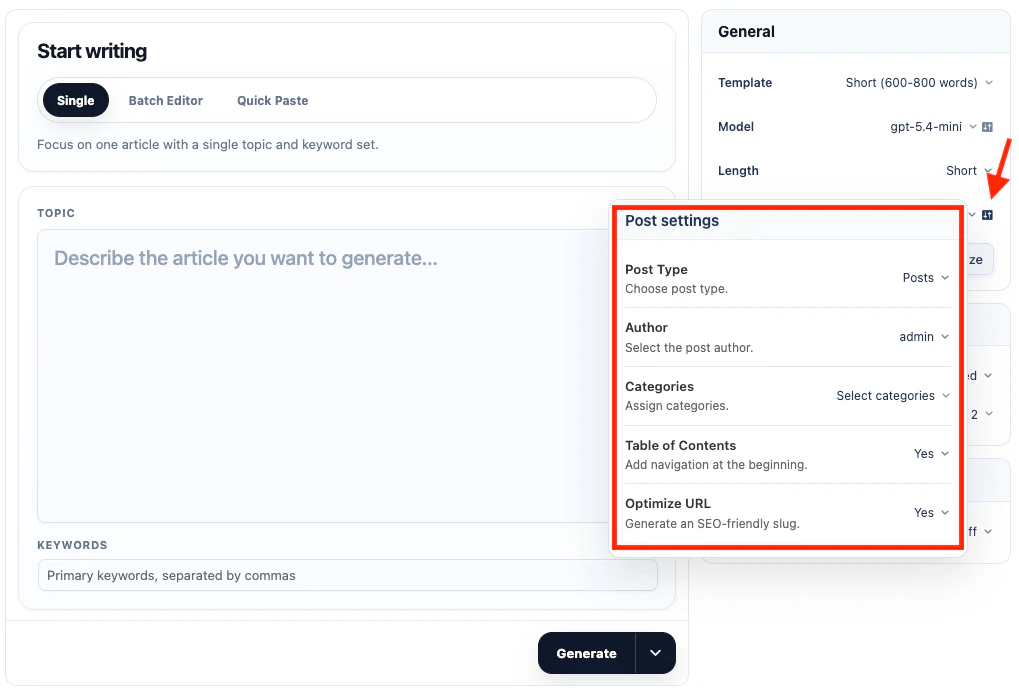
Schedule
Schedule options appear when Status is set to Publish and you are generating multiple items. Single Entry publishes immediately when the status is Publish. To schedule posts:- Set Status to Publish.
- Choose one of the available schedule modes.
- Use Smart Schedule when AI Puffer should space posts automatically.
- Use Use Dates from Input when each row, CSV line, or Google Sheets row already has its own date.
- Generate the batch or create the task.
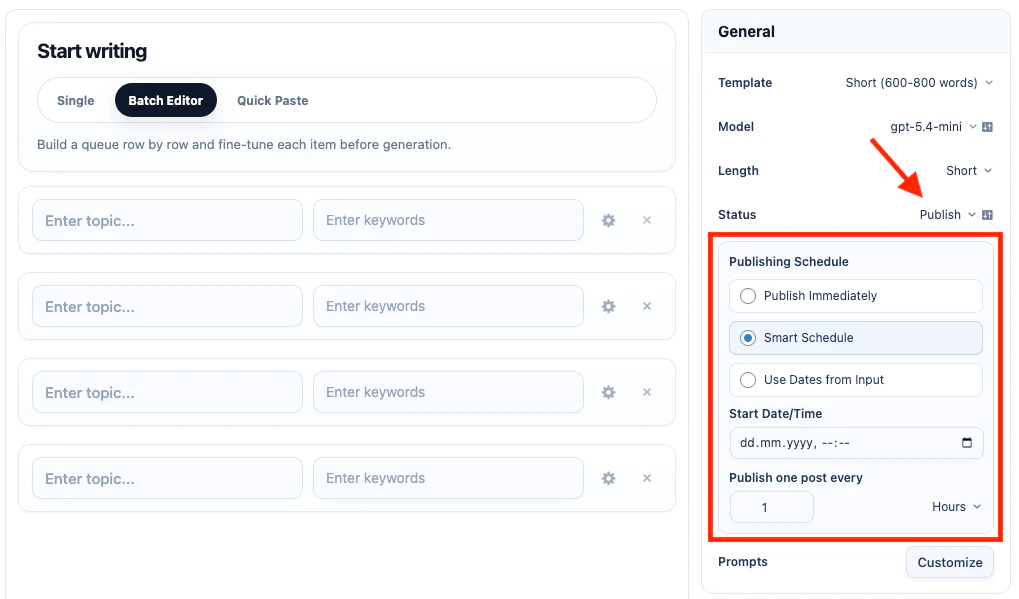
Use this date format:
Use Dates from Input is available for Batch Editor, Quick Paste, CSV, and Google Sheets. RSS Feed and Web Page sources can use Publish Immediately or Smart Schedule.
Images
AI Puffer Cloud is available for supported image generation models. Connect Cloud and refresh its catalog before selecting the image model. Generated images use credits separately from text. Cloud image editing and video are not available. Images can be inserted into the article content, set as the featured image, or both. To use images, first choose what AI Puffer should create:- In the right-side Media card, set Images to Content, Featured, or Content + Featured.
- Select the image provider or model from Image source.
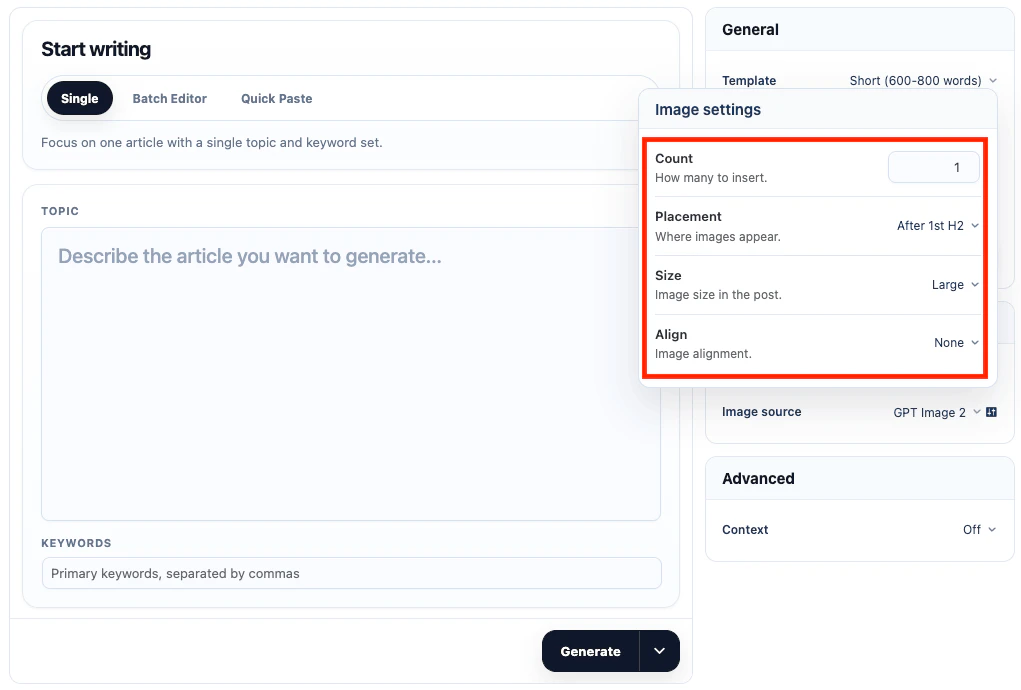
- Click the settings icon beside Image source to open Image settings.
- Set the image count, placement, WordPress display size, alignment, and provider options.
- Generate one item and review the image previews before saving the post.
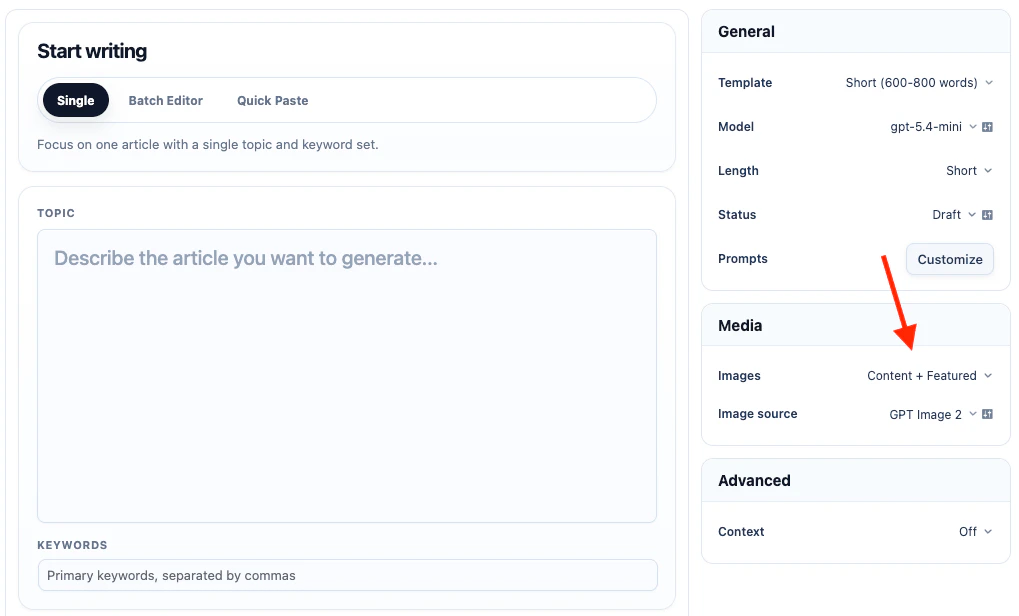
AI image sources use the image prompt. Stock photo sources use the generated keywords first. If there are no keywords, AI Puffer uses the topic or title as the search query.
Image prompts are used for OpenAI, Google, OpenRouter, Azure, xAI, and Replicate. Pexels and Pixabay do not use image prompts because they search existing stock photos.
Placement options:
OpenAI
OpenAI uses your OpenAI API key and one of the image models available in your synced model list. To set it up:- Go to AI Puffer > Settings > AI.
- Select OpenAI.
- Add your OpenAI API key.
- Sync models.
- In the right-side Media card, set Images to Content, Featured, or Content + Featured.
- Select an OpenAI image model from Image source.
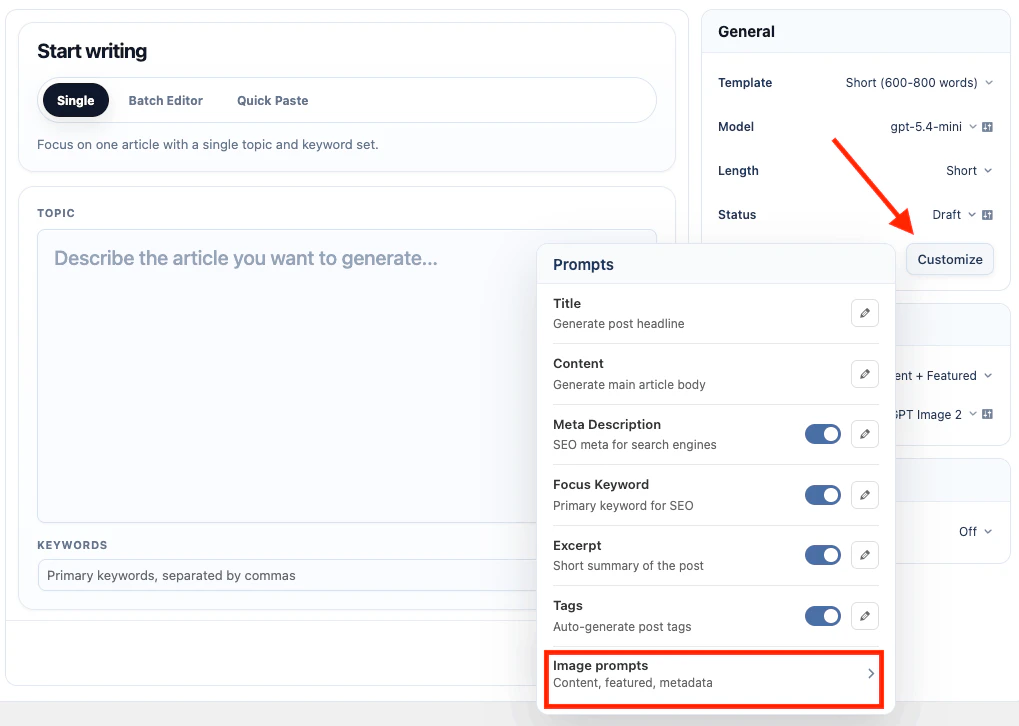
- In the right-side General card, click Customize next to Prompts if you want to change the image prompt or featured image prompt.
- Go to AI Puffer > Settings > AI.
- Select Google.
- Add your Google API key.
- Sync models.
- In the right-side Media card, set Images to Content, Featured, or Content + Featured.
- Select a Google image model from Image source.
- In the right-side General card, click Customize next to Prompts if you want to change the image prompt or featured image prompt.
OpenRouter
OpenRouter uses image-capable models from your OpenRouter account. To set it up:- Go to AI Puffer > Settings > AI.
- Select OpenRouter.
- Add your OpenRouter API key.
- Sync models.
- In the right-side Media card, set Images to Content, Featured, or Content + Featured.
- Select an OpenRouter image model from Image source.
Azure
Azure uses your Azure OpenAI endpoint, API key, API version, and image deployment. To set it up:- Go to AI Puffer > Settings > AI.
- Select Azure.
- Add the Azure endpoint and API key.
- Add or sync the image deployment you want to use.
- In the right-side Media card, set Images to Content, Featured, or Content + Featured.
- Select the Azure image deployment from Image source.
xAI
xAI uses your xAI API key and synced xAI image models such asgrok-imagine-image.
To set it up:
- Go to AI Puffer > Settings > AI.
- Select xAI.
- Add your xAI API key.
- Sync models.
- In the right-side Media card, set Images to Content, Featured, or Content + Featured.
- Select an xAI image model from Image source.
Replicate
Replicate uses your Replicate API key and synced text-to-image models. To set it up:- Go to AI Puffer > Settings > Integrations.
- Select Replicate.
- Add your Replicate API key.
- Sync Replicate models.
- In the right-side Media card, set Images to Content, Featured, or Content + Featured.
- Select a Replicate model from Image source.
Pexels
Pexels searches stock photos instead of generating a new image. To set it up:- Go to AI Puffer > Settings > Integrations.
- Select Pexels.
- Add your Pexels API key, or use the Get Key link to create one.
- In the right-side Media card, set Images to Content, Featured, or Content + Featured.
- Select Pexels from Image source.
- Click the settings icon beside Image source to open Image settings.
- Set Orientation, Size, and Color if you want to filter results.
- Generate one item and review the selected photo.
Pixabay
Pixabay searches stock photos, illustrations, or vectors. To set it up:- Go to AI Puffer > Settings > Integrations.
- Select Pixabay.
- Add your Pixabay API key, or use the Get Key link to create one.
- In the right-side Media card, set Images to Content, Featured, or Content + Featured.
- Select Pixabay from Image source.
- Click the settings icon beside Image source to open Image settings.
- Set Orientation, Type, and Category if you want to narrow results.
- Generate one item and review the selected image.
Provider Options
Provider options control the generation request sent to the selected AI provider. They are separate from WordPress display settings such as Display size and Align. Only options supported by the selected provider and model are shown.Pexels and Pixabay are stock image sources. Their filters narrow search results instead of changing an AI generation request.
Image Prompts
For AI image providers, the image prompt controls content images and the featured image prompt controls the featured image. You can use these placeholders: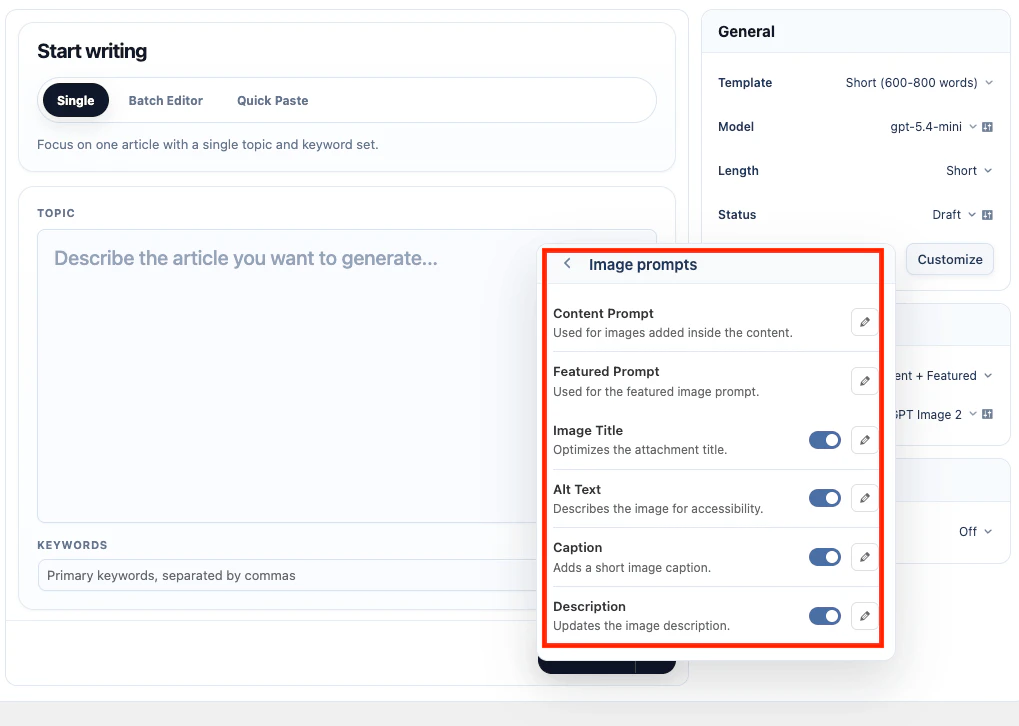
Image Metadata
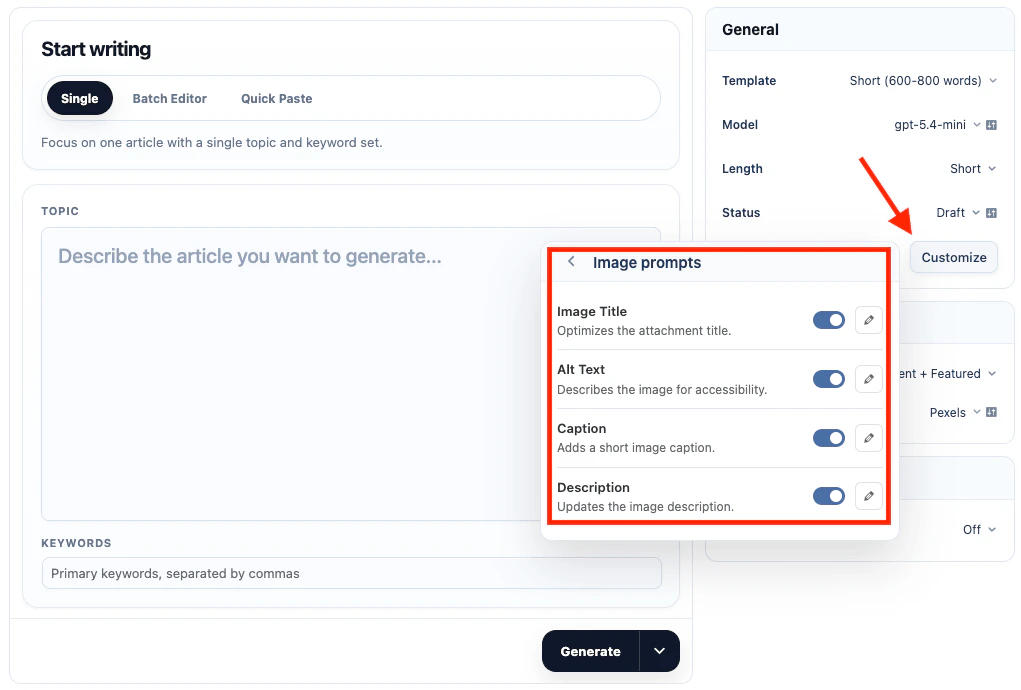
To generate image metadata:- In the right-side General card, click Customize next to Prompts.
- Enable the image metadata fields you want: Title, Alt Text, Caption, or Description.
- Edit the metadata prompts if needed.
- Generate the content and images.
Knowledge Base
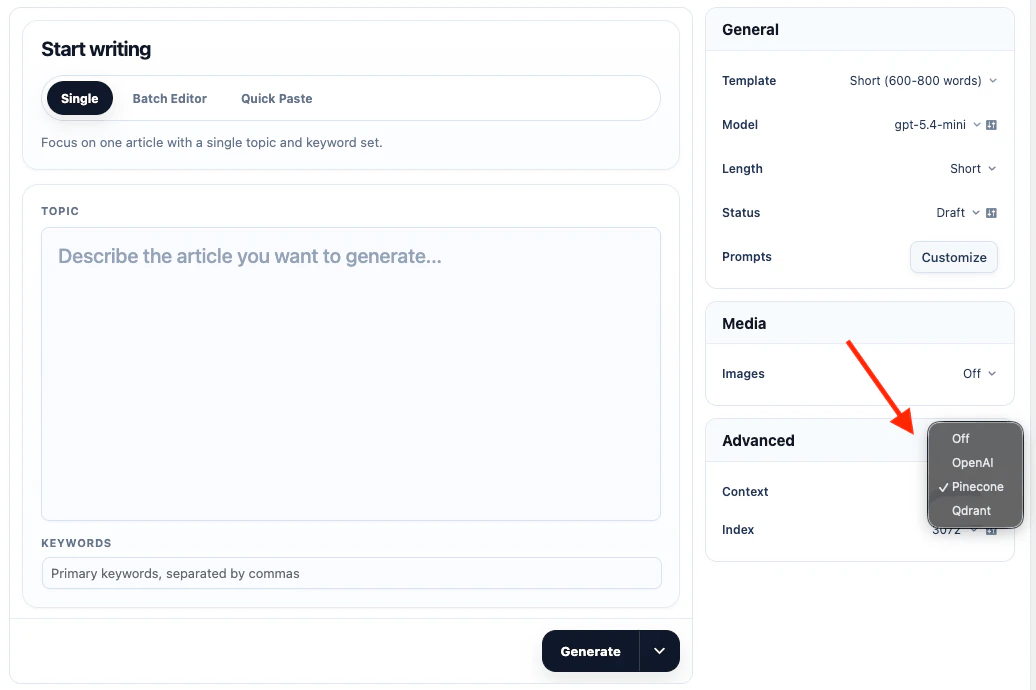
For Local, choose a store and the same embedding model/output dimension used during indexing. Cloud embedding models work with Local and compatible Pinecone, Qdrant, or Chroma targets. Storage and embeddings are separate choices. Knowledge Base lets Content Writer use vector data you already added in AI Puffer > Knowledge Base > Data. When Knowledge Base is enabled, AI Puffer searches the selected vector source with the current generation prompt and adds the closest matches to the request. To enable it:- Add data in AI Puffer > Knowledge Base > Data first.
- In the right-side Advanced card, set Context to OpenAI, Pinecone, Qdrant, or Chroma.
- Select the vector store, index, or collection in Source.
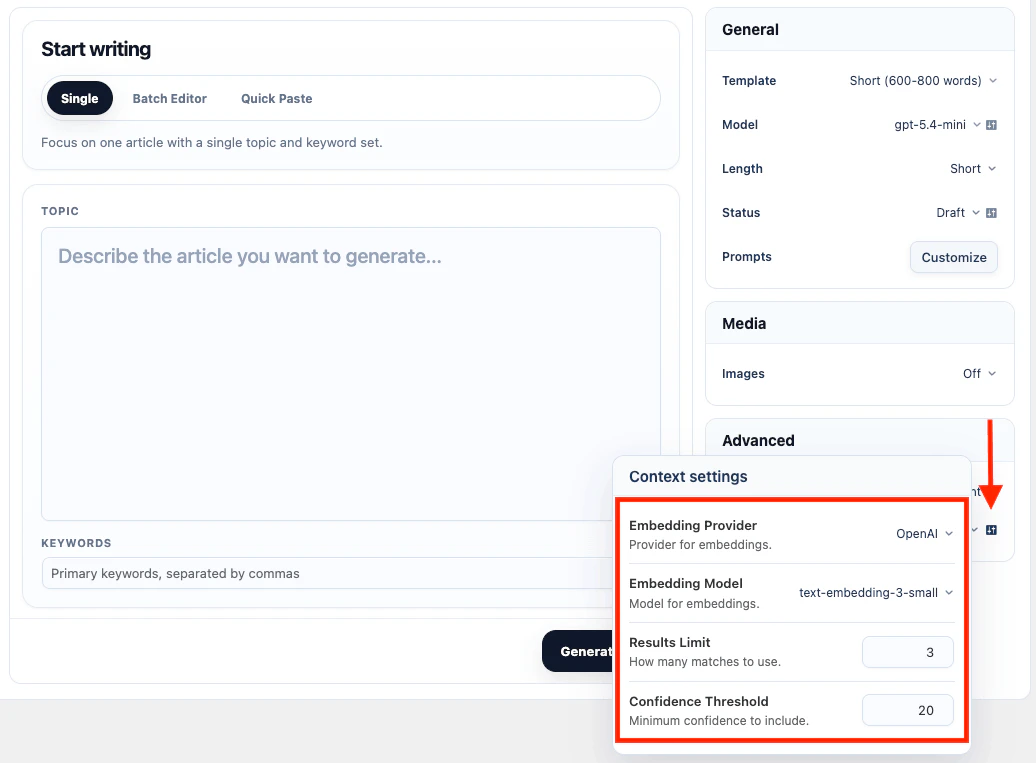
- Click the settings icon beside Source to open Context settings.
- For Local, Pinecone, Qdrant, or Chroma, select the embedding provider and model in Context settings.
- Set Results Limit and Confidence Threshold.
- Generate one item and check the output.
OpenAI
OpenAI uses OpenAI Vector Stores. To create a store:- Go to AI Puffer > Knowledge Base > Stores.
- Select OpenAI as the provider.
- Click Create Store.
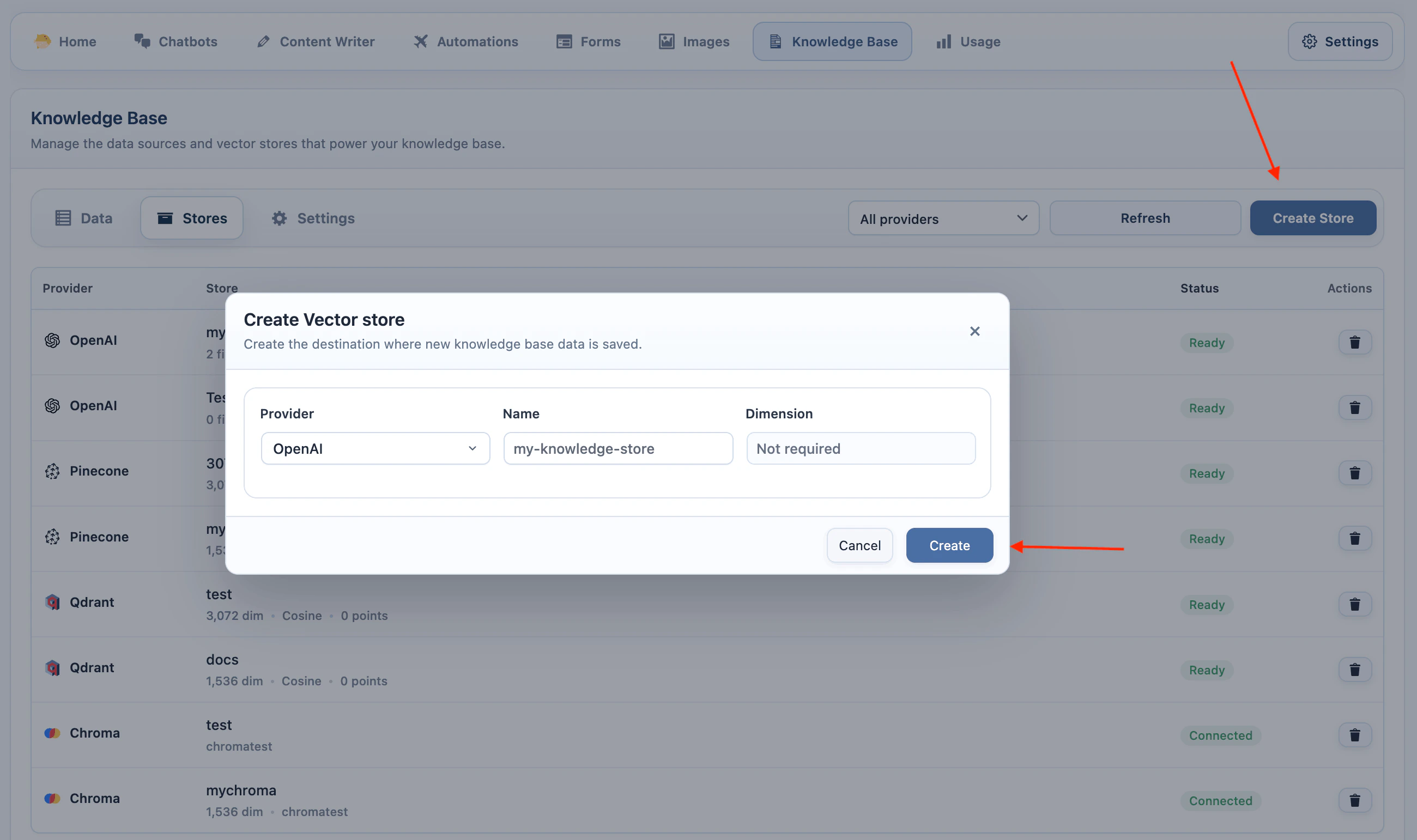
- Enter a store name and create it.
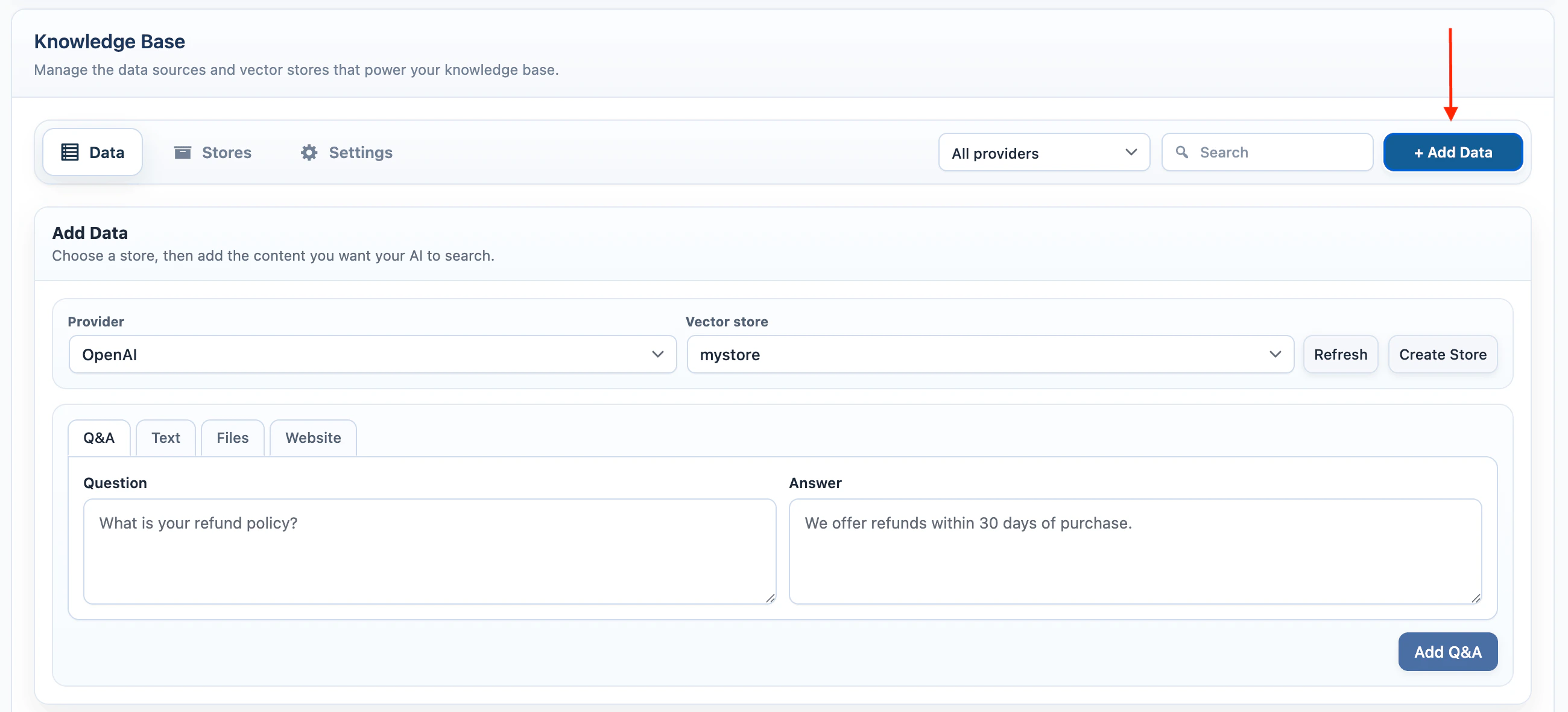
- Go to AI Puffer > Knowledge Base > Data and add data to the store.
- In the right-side Advanced card, set Context to OpenAI.
- Select one or more vector stores in Source.
- Click the settings icon beside Source if you need to adjust Results Limit or Confidence Threshold.
Pinecone
Pinecone stores vectors in an index. AI Puffer creates and searches those vectors with the embedding model you choose. The Pinecone index dimension must match the embedding model. For example, if your index is 3072 dimensions, use a 3072-dimension embedding model. To create an index:- Add your Pinecone credentials in AI Puffer > Settings > Integrations.
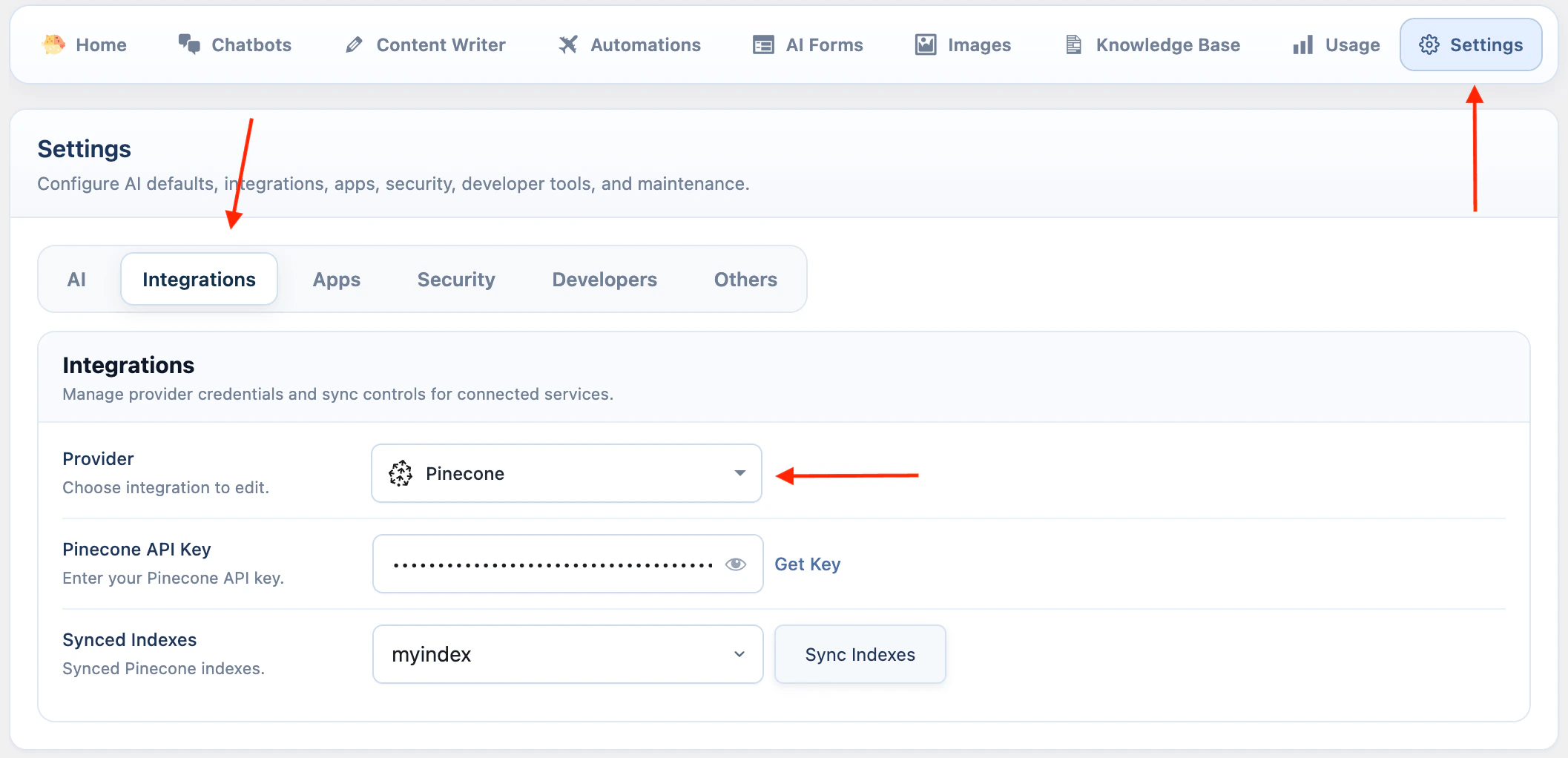
- Go to AI Puffer > Knowledge Base > Stores.
- Select Pinecone as the provider.
- Select the embedding model you want to use.
- Click Create Store.
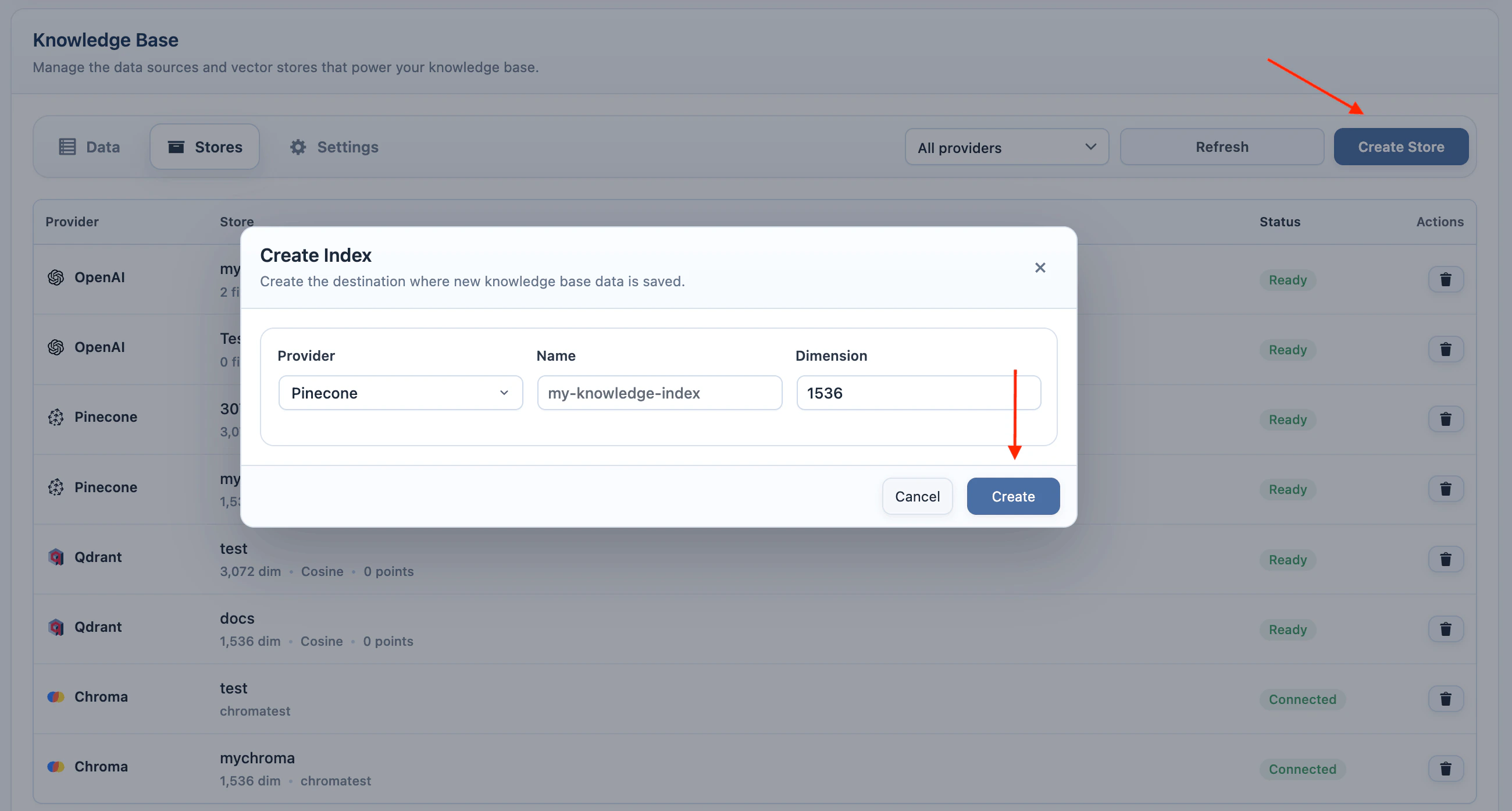
- Enter an index name and use the dimension for the selected embedding model.
- Create the index, then add data with the same embedding model.
- In the right-side Advanced card, set Context to Pinecone.
- Select the Pinecone index in Source.
- Click the settings icon beside Source to open Context settings.
- Select the same embedding provider and model used when you added the data.
- Adjust Results Limit or Confidence Threshold if needed.
Qdrant
Qdrant stores vectors in a collection. AI Puffer creates and searches those vectors with the embedding model you choose. The Qdrant collection size must match the embedding model. For example, if your collection is 3072 dimensions, use a 3072-dimension embedding model. To create a collection:- Add your Qdrant URL and API key in AI Puffer > Settings > Integrations.
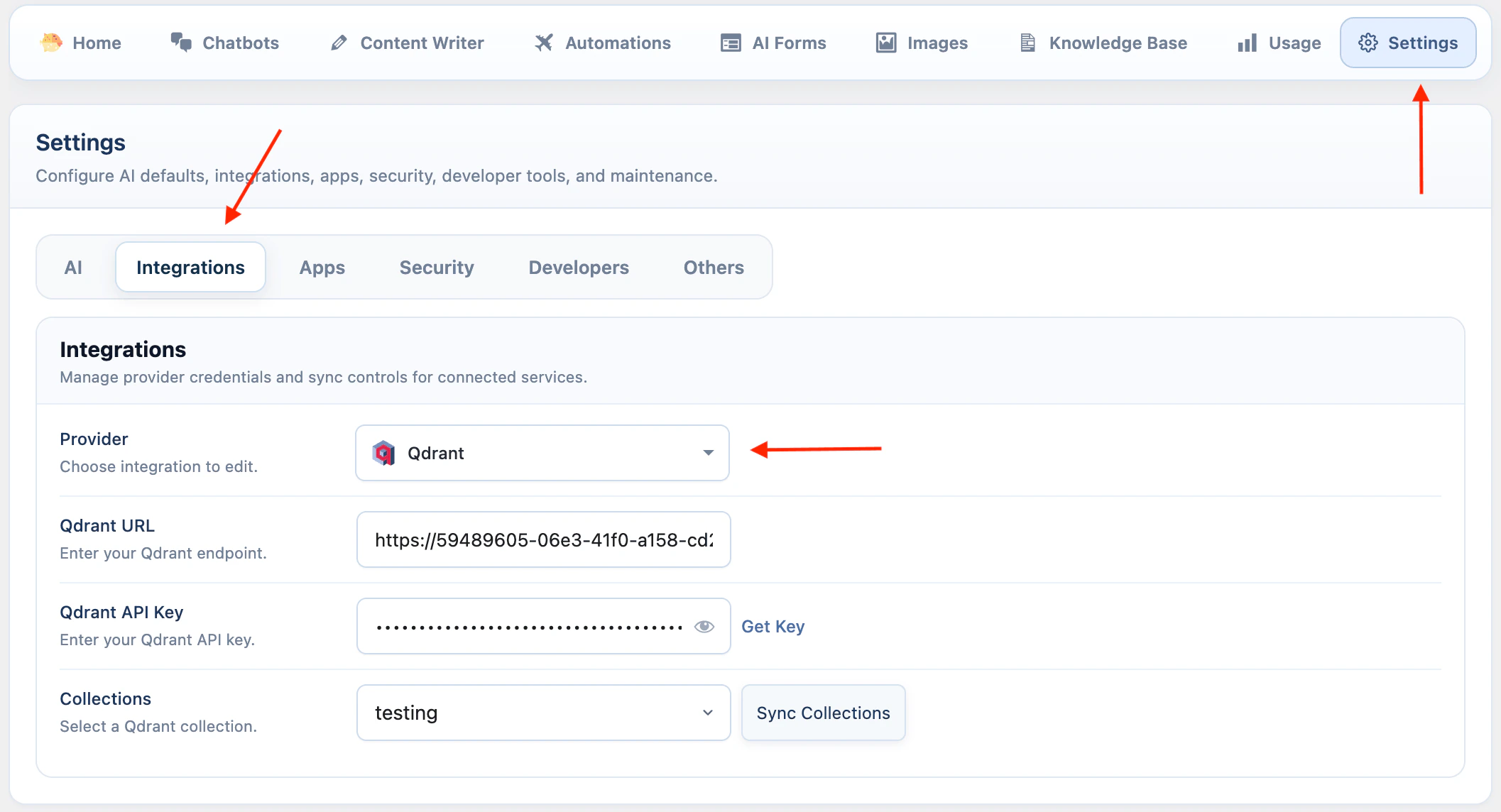
- Go to AI Puffer > Knowledge Base > Stores.
- Select Qdrant as the provider.
- Select the embedding model you want to use.
- Click Create Store.
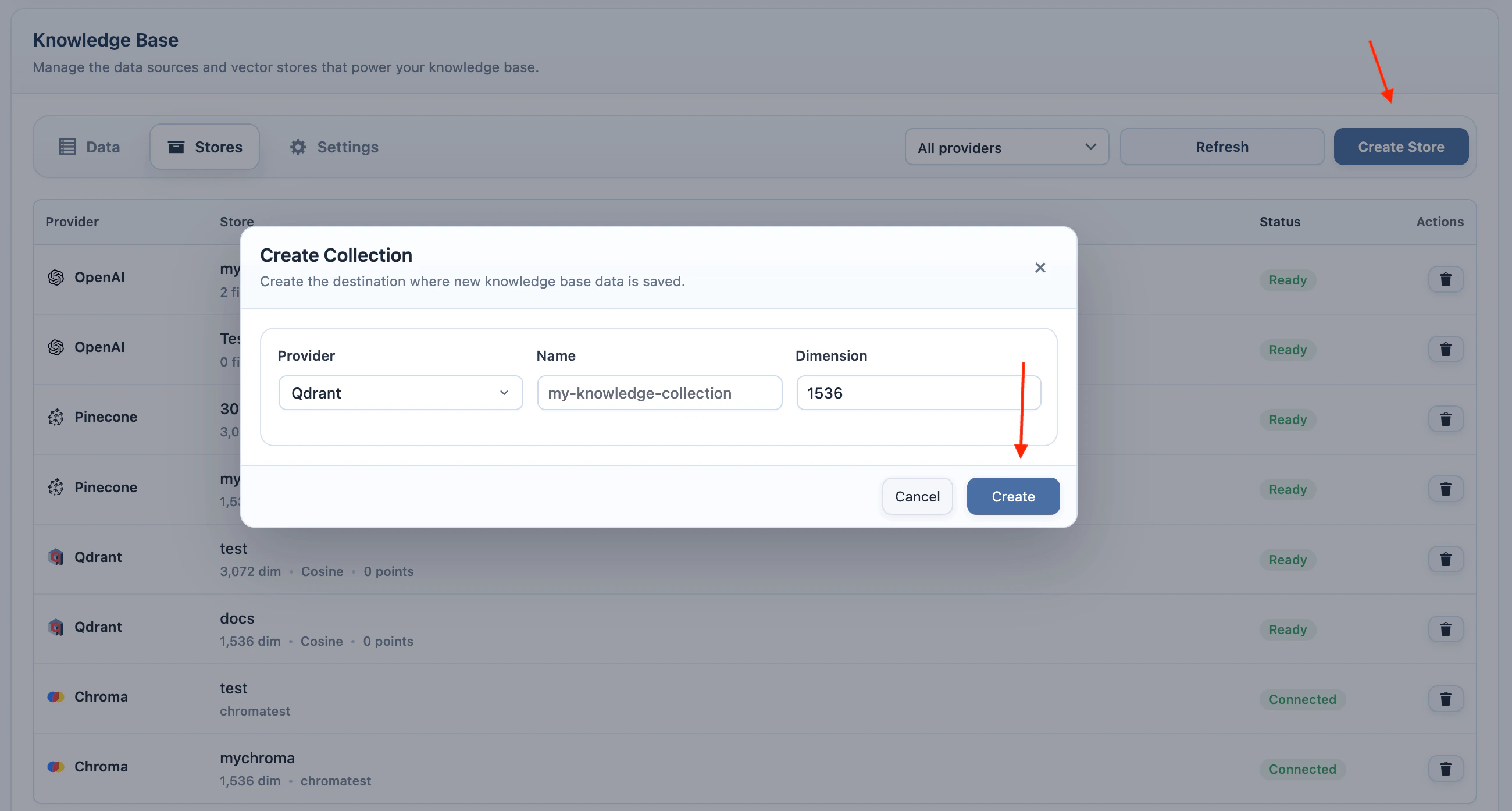
- Enter a collection name and use the dimension for the selected embedding model.
- Create the collection, then add data with the same embedding model.
- In the right-side Advanced card, set Context to Qdrant.
- Select the Qdrant collection in Source.
- Click the settings icon beside Source to open Context settings.
- Select the same embedding provider and model used when you added the data.
- Adjust Results Limit or Confidence Threshold if needed.
Chroma
Chroma stores vectors in a collection. AI Puffer creates and searches those vectors with the embedding model you choose. Chroma collections do not require a dimension when they are created in AI Puffer, but stored vectors still need a consistent dimension. Use the same embedding model when adding data to Chroma and when enabling Chroma in Content Writer. To create a collection:- Add your Chroma endpoint, tenant, database, and API key in AI Puffer > Settings > Integrations.
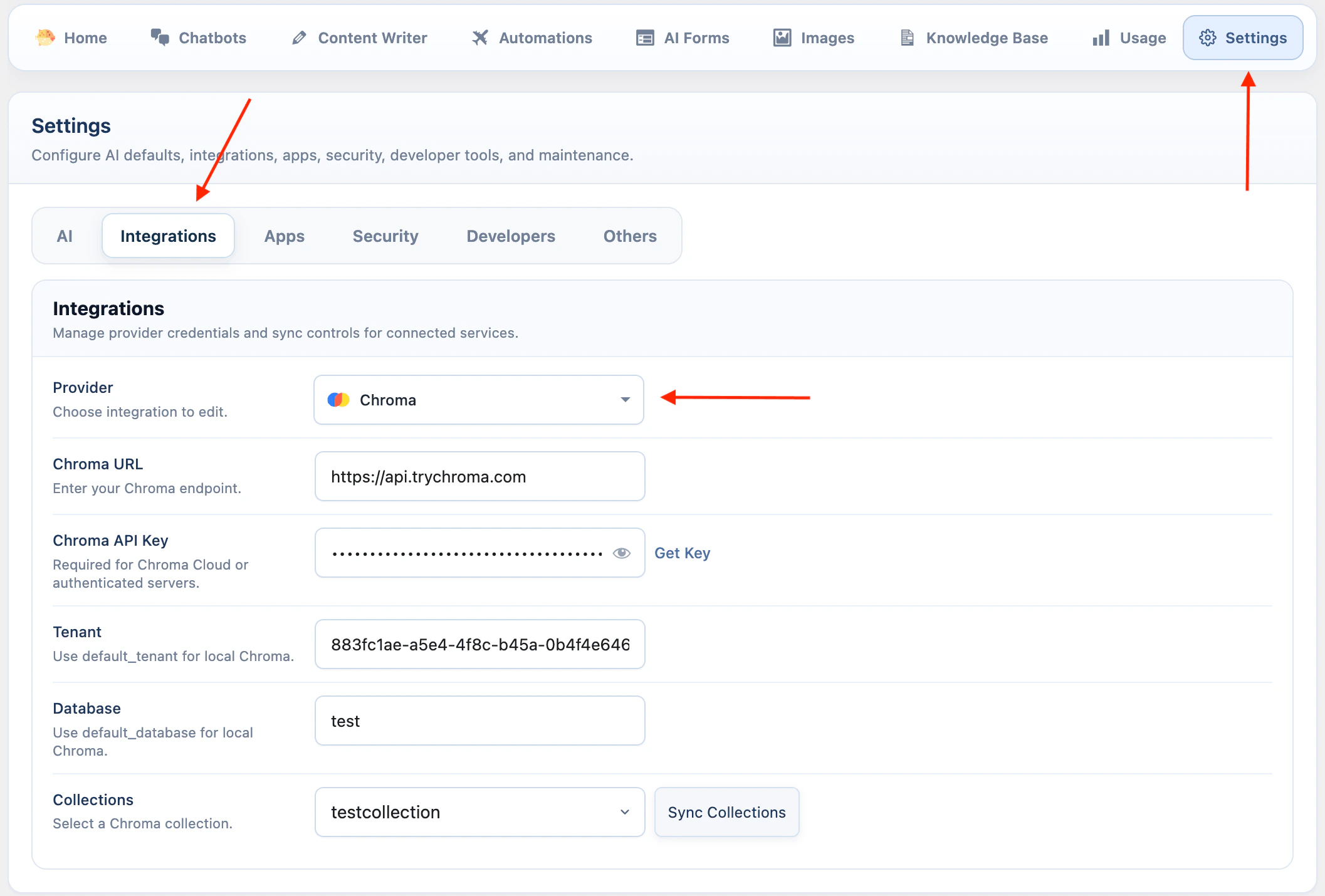
- Go to AI Puffer > Knowledge Base > Stores.
- Select Chroma as the provider.
- Click Create Store.
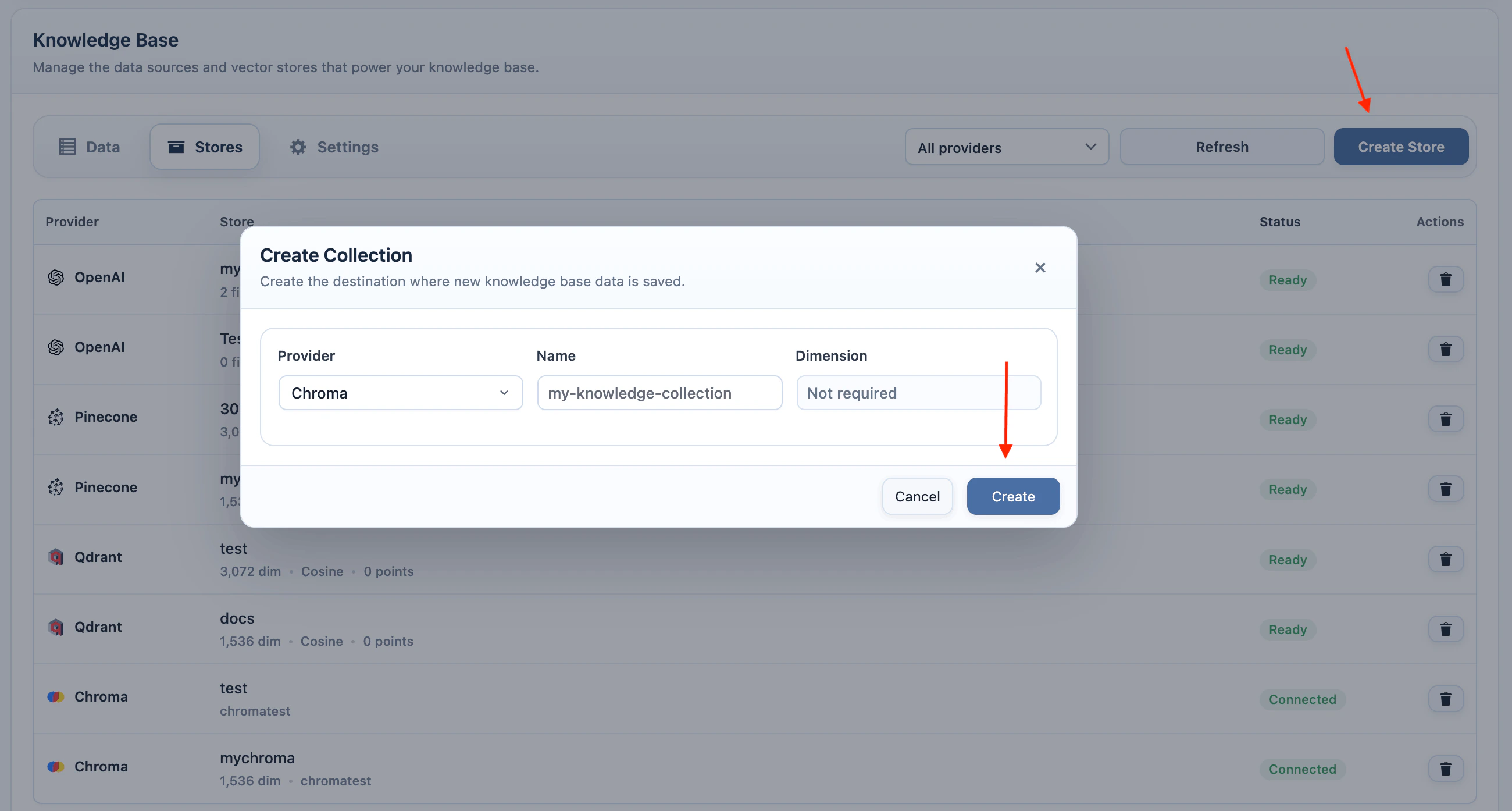
- Enter a collection name.
- Create the collection, then add data with the same embedding model.
- In the right-side Advanced card, set Context to Chroma.
- Select the Chroma collection in Source.
- Click the settings icon beside Source to open Context settings.
- Select the same embedding provider and model used when you added the data.
- Adjust Results Limit or Confidence Threshold if needed.
Limit and Threshold
Use these settings to control how much vector context is added to the generated content.
Use a lower threshold if useful context is being missed. Use a higher threshold if unrelated context is being included.
After testing, open Usage > Logs and check the Score badge when vector results are recorded.
Logs
Content Writer activity is logged under AI Puffer logs.
Use the
content.generated event when another system needs to receive generated content after Content Writer finishes. See Event Webhooks for payload and delivery details.